Wake Mac with Lid Closed
You run your MacBook closed, plugged into a monitor — then it sleeps and will not wake when you tap the external keyboard. Clamshell mode is supposed to just work, but Bluetooth keyboards, power settings, and display detection each have opinions. A few settings make wake-on-tap reliable.
TL;DR / Quick Fix
Quick fix: keep the Mac plugged into power, connect the external display before closing the lid, and enable Allow Bluetooth devices to wake this computer. Tap the external keyboard or mouse to wake. If it still sleeps, check that the display is detected — clamshell needs a live external screen.
Follow these steps
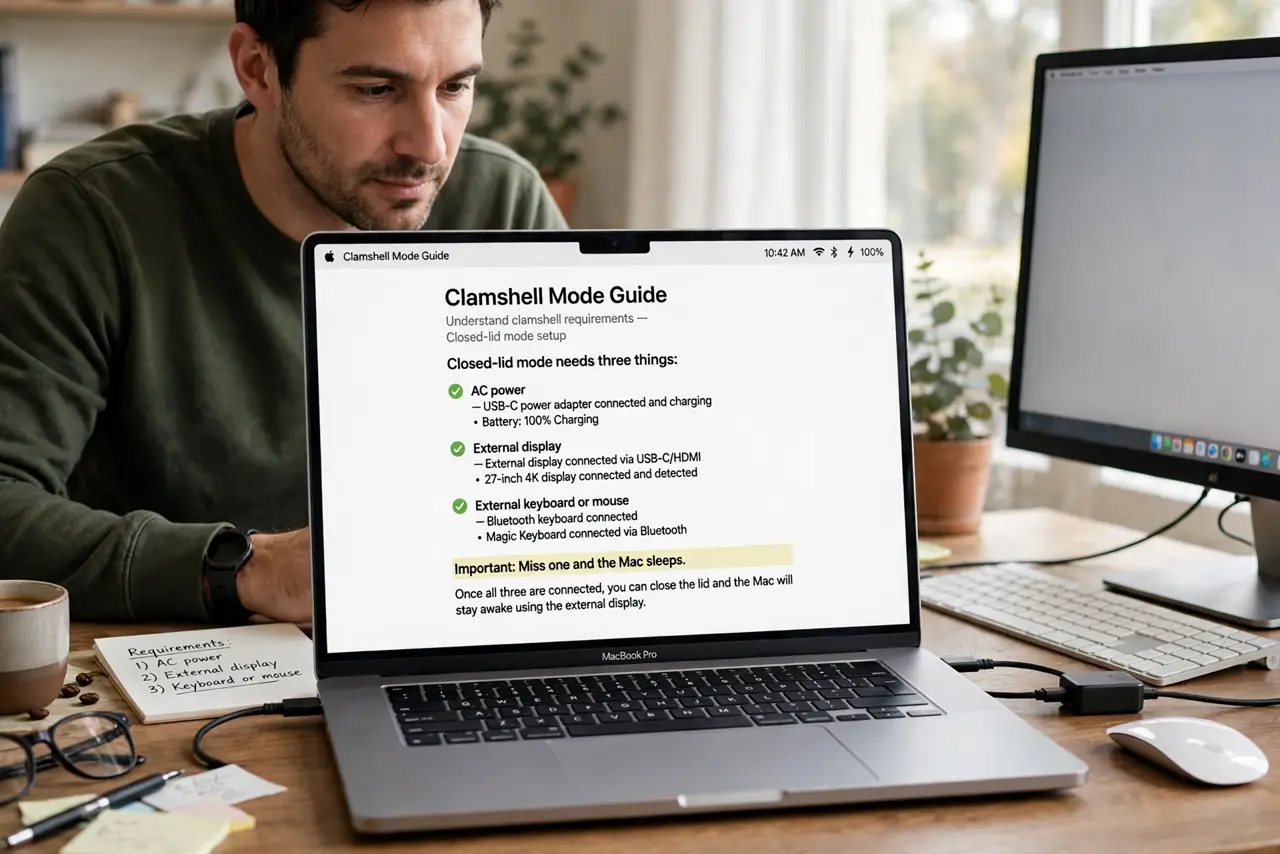
- Understand clamshell requirements. Closed-lid mode needs three things: AC power, an external display, and an external keyboard or mouse. The clamshell mode guide details the setup — miss one and the Mac sleeps.
- Connect power first. Clamshell will not engage on battery alone. Plug in the charger before closing the lid — this is the number one gotcha.
- Enable Bluetooth wake. In System Settings, Bluetooth, Advanced, turn on Allow Bluetooth devices to wake this computer. Without it, wireless keyboards tap into the void.
- Close the lid after connecting. Order matters: plug in display and power, then close the lid. The Mac should stay awake and move the desktop to the external screen.
- Tap to wake. Press a key on the external keyboard or click the mouse. The Mac wakes to the external display — if it instead sleeps, see the wont stay asleep fix.
- Verify the display is live. No detected display means no clamshell — the Mac sleeps with the lid closed. Check cables and input source before blaming settings.
What NOT to do
- Do not close the lid with no external display connected. The Mac will simply sleep — clamshell needs that screen.
- Do not run clamshell on battery. It is unsupported and the Mac will sleep; plug in first.
- Do not forget Bluetooth wake for wireless keyboards. The keyboard cannot wake what is not listening.
- Do not block the Macs vents when closed. Closed MacBooks still breathe — give the chassis air.
Frequently asked questions
Can I use the MacBook keyboard with the lid closed?
No — closed means closed. An external keyboard is required, which is the whole point of the setup.
Does clamshell hurt the MacBook?
No, it is a supported mode. Just ensure ventilation and keep it plugged in.
Why does mine wake then immediately sleep?
Usually the display momentarily disconnects. Check the cable and the monitors input — the wont-stay-asleep fix covers the rest.