Limit Mac Charging
A MacBook that sits at 100% on the charger all day ages its battery fast — full charge plus heat is the recipe for capacity loss. macOS can hold the charge at 80% and finish just before you unplug. Two toggles add years to the batterys useful life, and you will never notice the difference day to day.
TL;DR / Quick Fix
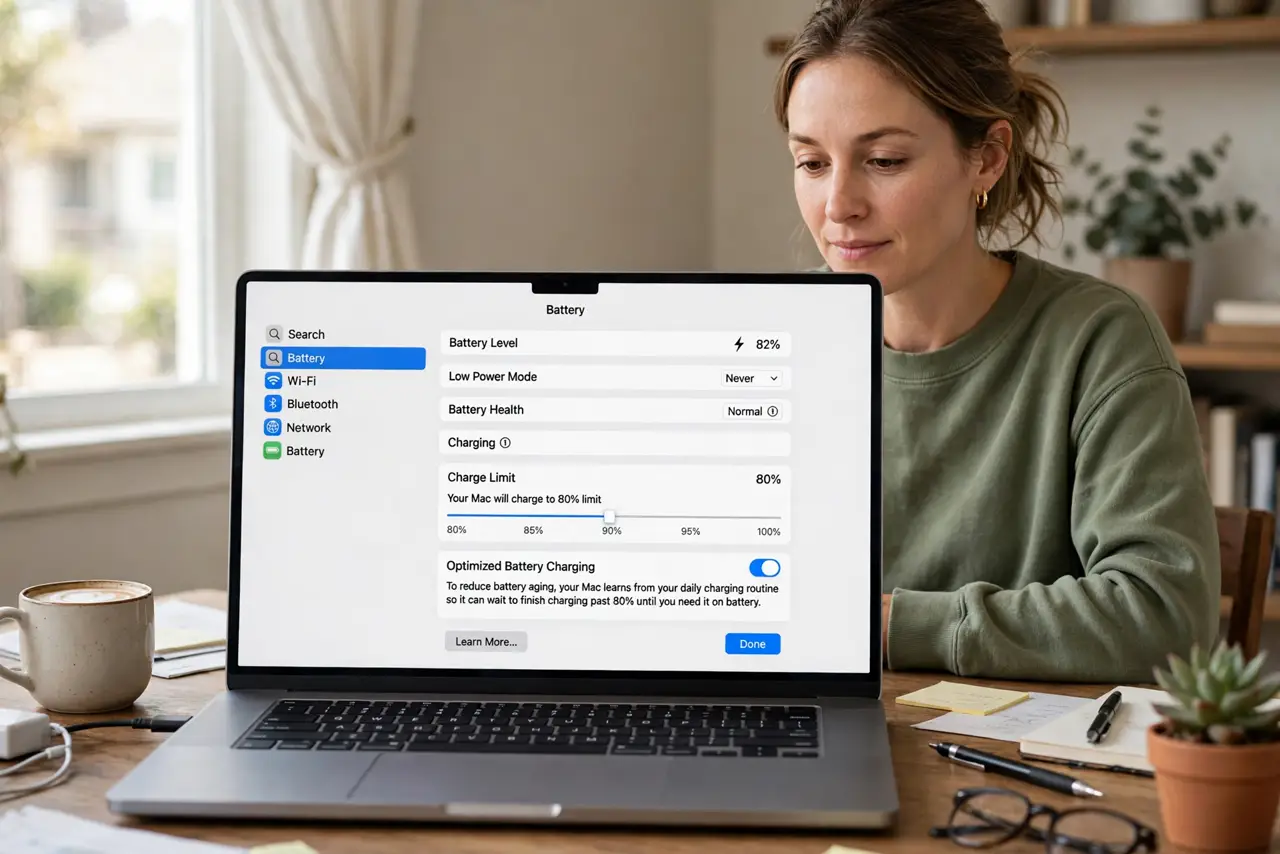
Quick fix: open System Settings, Battery, and turn on Optimized charging — or set the 80 percent limit if offered. The Mac learns your routine, holds at 80%, and finishes before you unplug. Leave it on; the extra 20% is rarely needed and always costs lifespan.
Follow these steps
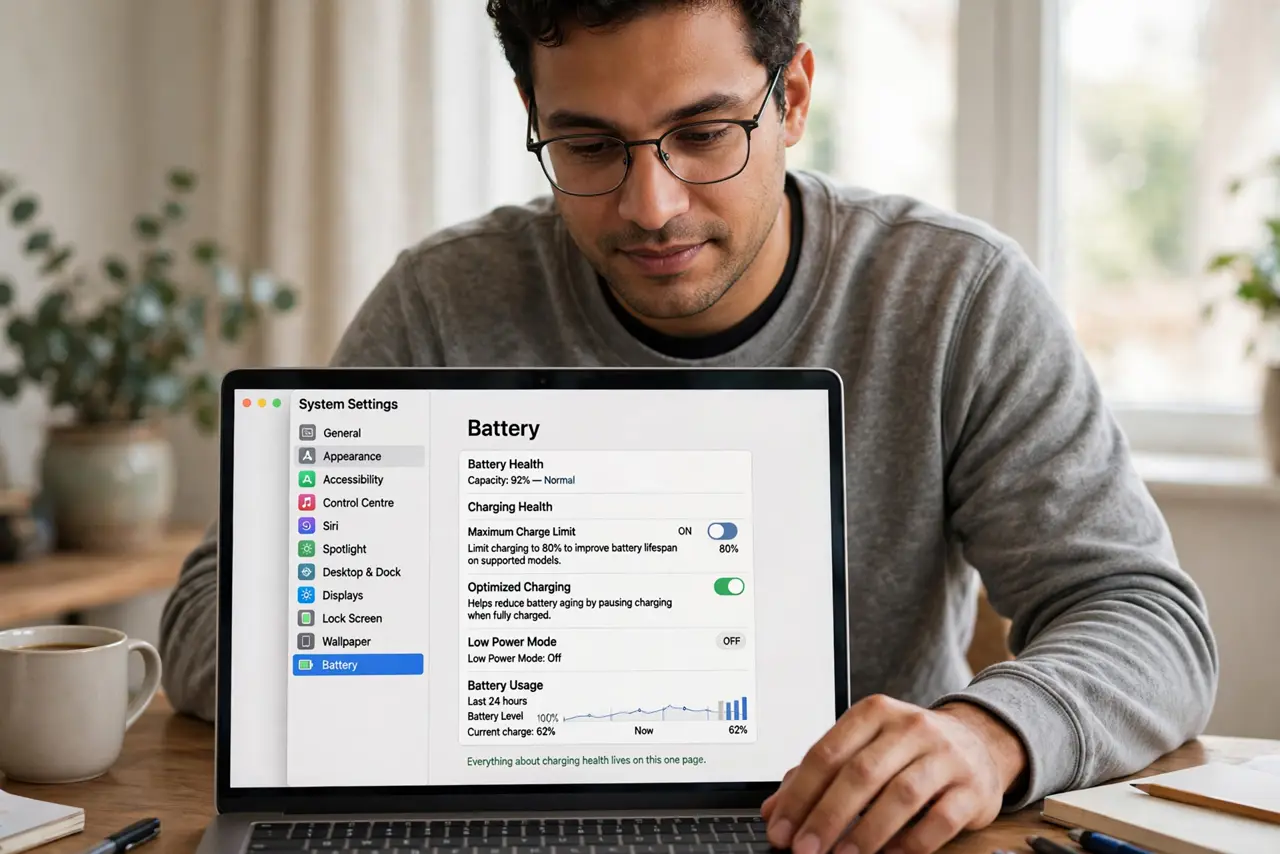
- Open the battery settings. Go to System Settings, then Battery. Everything about charging health lives on this one page — including the 80 percent limit on supported models.
- Turn on Optimized charging. Enable Optimized battery charging. The Mac studies your schedule and holds the battery at 80%, completing the charge shortly before you typically unplug.
- Use the 80 percent limit instead. On newer Macs, a hard 80% cap is available — simpler and stricter than the learning mode. The hold-at-eighty behavior explains when each mode fits.
- Keep it plugged without worry. With the limit on, docked-all-day is fine — the battery rests at 80% instead of cooking at 100%. This is the whole point of the feature.
- Charge to 100% when you need it. Travel day? Flip the limit off for one full charge. The feature is a default, not a prison — override freely for real needs.
- Watch for the stuck-at-80 confusion. If the Mac sits at 80% and you expected 100%, that is the feature working. The stuck at 80 explainer settles the most common support question about this.
What NOT to do
- Do not disable the limit because 80% feels low. You lose a fifth of range on paper and gain years of battery health in practice.
- Do not micro-manage the charge daily. Set the limit once and forget it — fiddling adds nothing.
- Do not leave a Mac at 100% in a hot car or sunny desk. Heat plus full charge is the fastest aging combo there is.
- Do not expect the learning mode to be instant. Optimized charging needs about a week of routine to calibrate — the hard limit works immediately.
Frequently asked questions
Does the 80% limit hurt anything?
No — it only caps the charge level. Performance, features, and everything else stay identical.
Why does my Mac stop at 80%?
That is optimized charging doing its job. Turn it off temporarily if you need a full charge today.
Should I use 80% limit or optimized?
The hard 80% limit is simpler and predictable; optimized learns your routine. Either beats sitting at 100%.