Copy Text from Videos
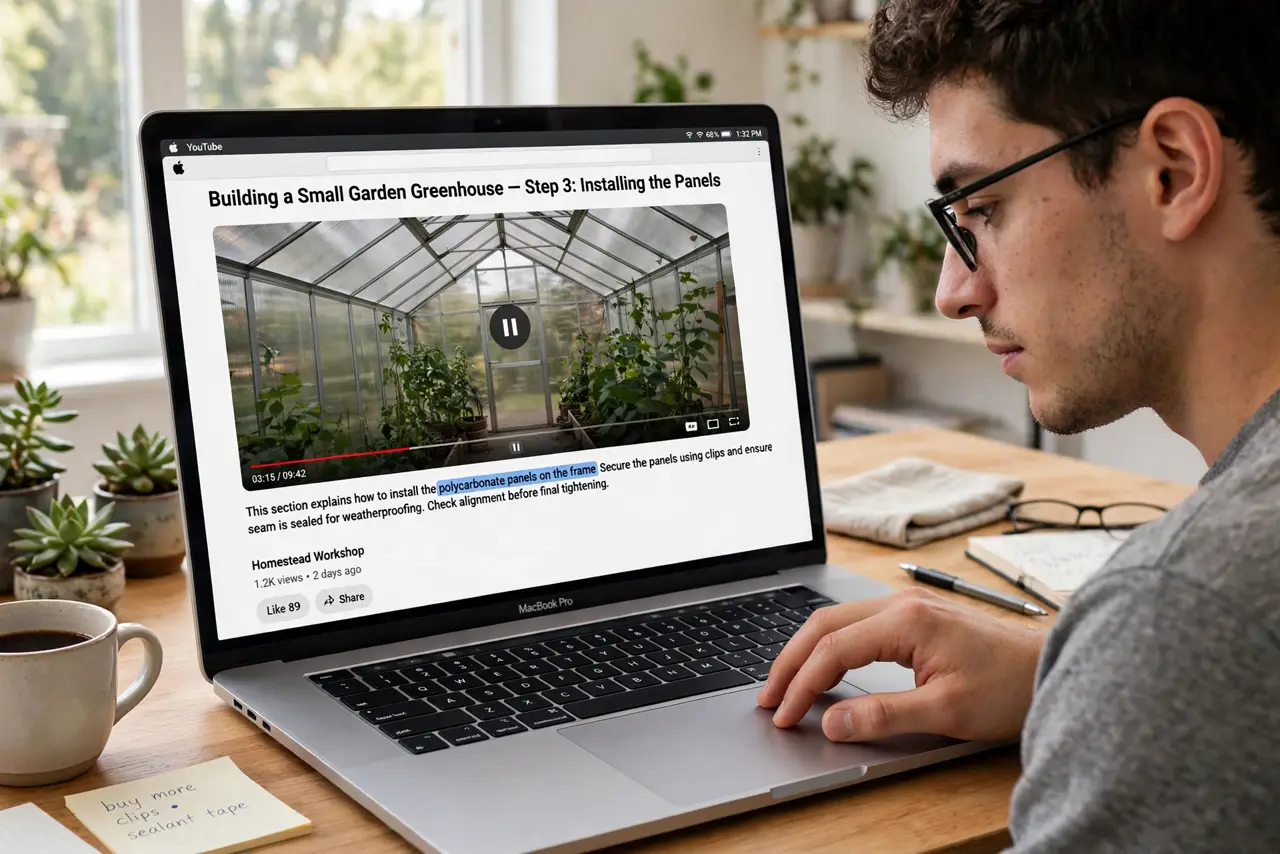
A phone number flashes in a video, an address appears in a clip — and you are stuck pausing and retyping it by hand. macOS Live Text works on paused video frames too: select the text right off the video and copy it. This guide shows where it works and how to get clean selections.
TL;DR / Quick Fix
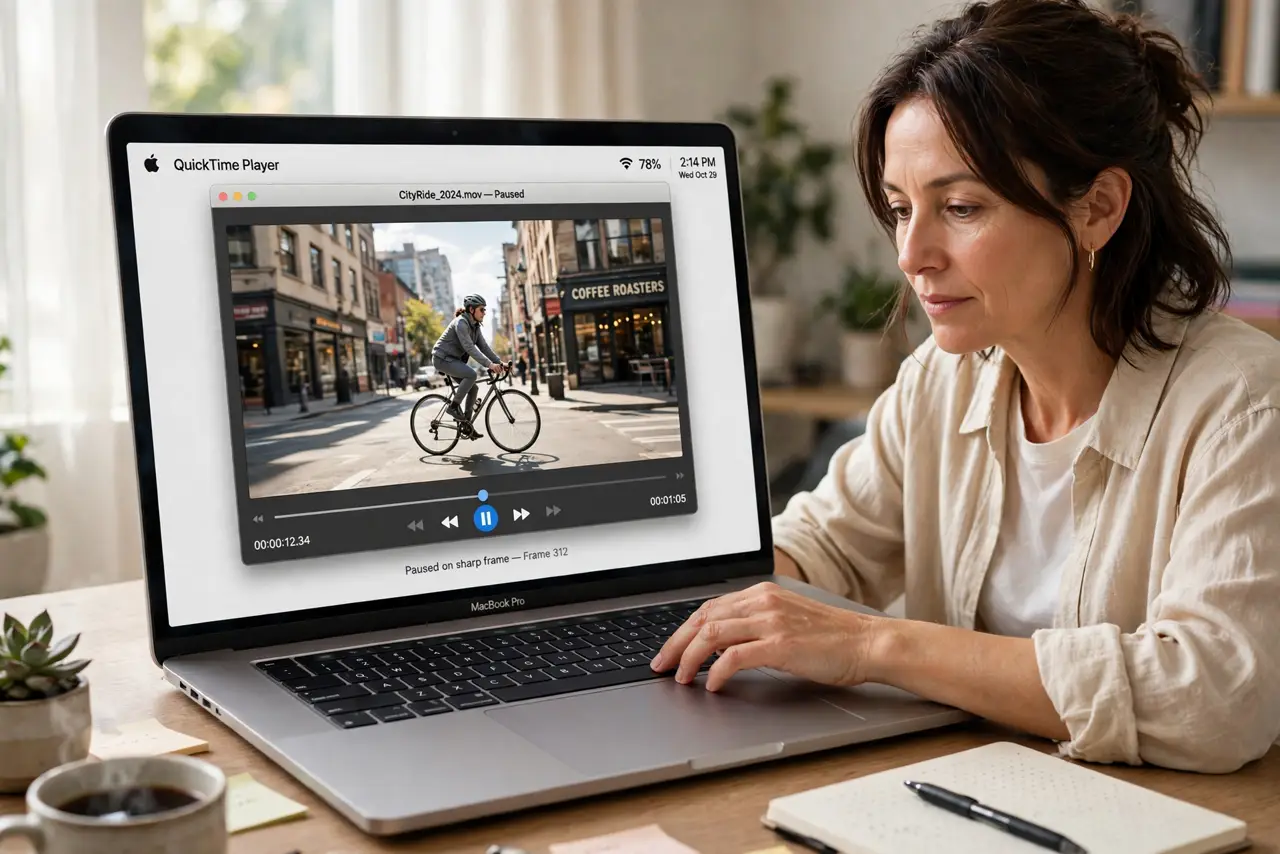
Quick fix: on a Mac, pause a video and use Live Text to select and copy text straight from the frame — no retyping. It works in QuickTime, Safari, and Photos for videos. For the best results, pause on a sharp frame and drag to select the text you need.
Follow these steps
- Pause on a sharp frame. Scrub to the clearest frame and pause. Live Text reads the still image — motion blur is its enemy, so pick the sharpest moment.
- Hover until the text cursor appears. In QuickTime, Safari, or Photos, hover over text in the paused frame. The cursor changes to a text selector when Live Text recognizes words.
- Drag to select the text. Click and drag across the words like any document. Live Text highlights what it detects — adjust the selection edges for precision.
- Copy and paste normally. Command+C, then paste wherever you need it. Phone numbers, URLs, and addresses come across as plain text.
- Use it in Photos for videos. Open the video in Photos, pause, and select. The same engine powers stills and video frames — one skill covers both.
- Know the limits. Handwriting, tiny captions, and stylized fonts confuse it. For mystery objects instead of text, try Visual Look Up — the sibling feature for things, not words.
What NOT to do
- Do not retype what you can select. Live Text exists precisely to end pause-and-retype drudgery.
- Do not expect perfection on blurry frames. Garbage in, garbage out — find the sharpest frame first.
- Do not forget it works in Safari too. Web videos with burned-in text select the same way as local files.
- Do not confuse it with subtitles. Live Text reads pixels, not subtitle tracks — it works even on videos without captions.
Frequently asked questions
Why is text not selectable in my video?
The app may not support Live Text, or the frame is too blurry. Try QuickTime or Photos with a sharp pause.
Does it work on YouTube in Safari?
Yes, on the video frame itself — pause and hover. It reads the pixels, independent of YouTube's player.
Can it translate the selected text?
Yes — right-click the selection and choose Translate. Detection plus translation in two steps.