Use Interactive Widgets
Opening an app just to flip a timer, check a reminder, or pause music is a waste of motion. macOS interactive widgets put live, tappable controls right on your desktop — check things off, control playback, and glance at the weather without opening anything. This guide sets them up and shows which ones are actually useful.

TL;DR / Quick Fix
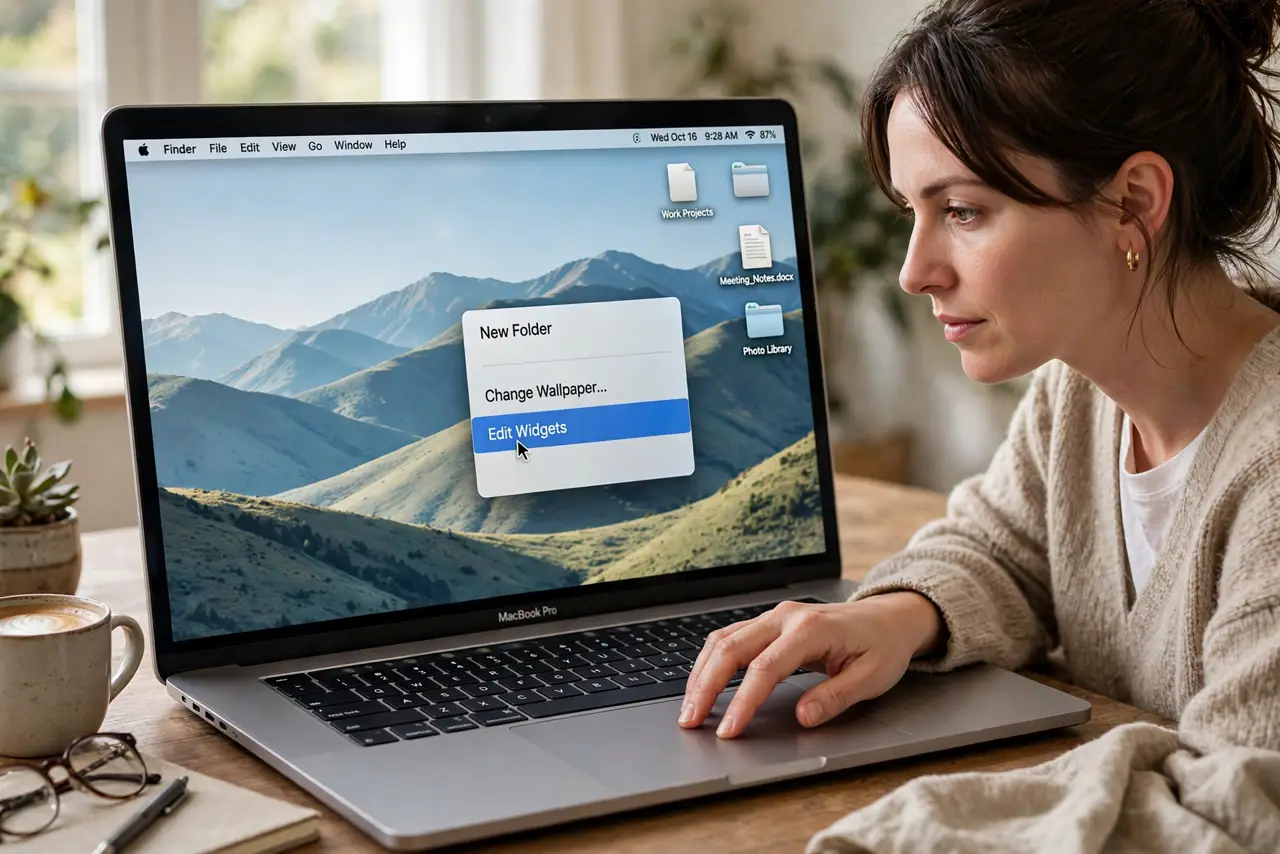
Quick fix: right-click the desktop, choose Edit Widgets, and drag useful ones — reminders, timers, weather, music — onto the desktop. Click widgets directly to interact: check off tasks, pause songs, start timers. Remove the ones you never touch; a tidy desktop beats a dashboard of clutter.
Follow these steps
- Right-click the desktop and choose Edit Widgets. This opens the widget gallery overlaid on your desktop. Everything you can add lives here, organized by app.
- Add widgets that save you app-opens. Reminders, timers, calendar, weather, and music are the high-value picks — each one replaces opening an app several times a day.
- Click widgets to interact directly. Check off a reminder, pause a song, or start a timer right on the widget. If a widget does nothing when clicked, it is decorative — consider dropping it.
- Resize and arrange deliberately. Drag widgets where your eyes naturally land, and use larger sizes for the ones you read at a glance. Keep the desktop's working area clear.
- Pull in iPhone widgets too. If your iPhone is nearby, its widgets appear in the Mac gallery — handy for apps that only exist on the phone.
- Prune monthly. Widgets accumulate like menu-bar icons. Once a month, remove the ones you stopped glancing at — see menu-bar controls for the same tidy-up on your top bar.
What NOT to do
- Do not fill the desktop with widgets you never read. Every widget costs attention; each must earn its pixels.
- Do not expect every app to offer widgets. If your favorite app has none, that is the developer's choice — not a setting you missed.
- Do not put sensitive widgets on a shared screen. Calendar and message previews on the desktop are visible to anyone walking by.
- Do not confuse widgets with mini-apps. They show and toggle — deep work still happens in the full app.
Frequently asked questions
Do widgets drain the battery?
Barely — they refresh on a schedule, not constantly. A dozen widgets will not noticeably change MacBook battery life.
Why is my iPhone widget not showing on Mac?
Both devices need Wi-Fi and Bluetooth on, the same Apple account, and to be near each other.
Can I use widgets on the lock screen?
The lock screen has its own smaller widget set. Desktop widgets are for when you are logged in.