Identify with Visual Look Up
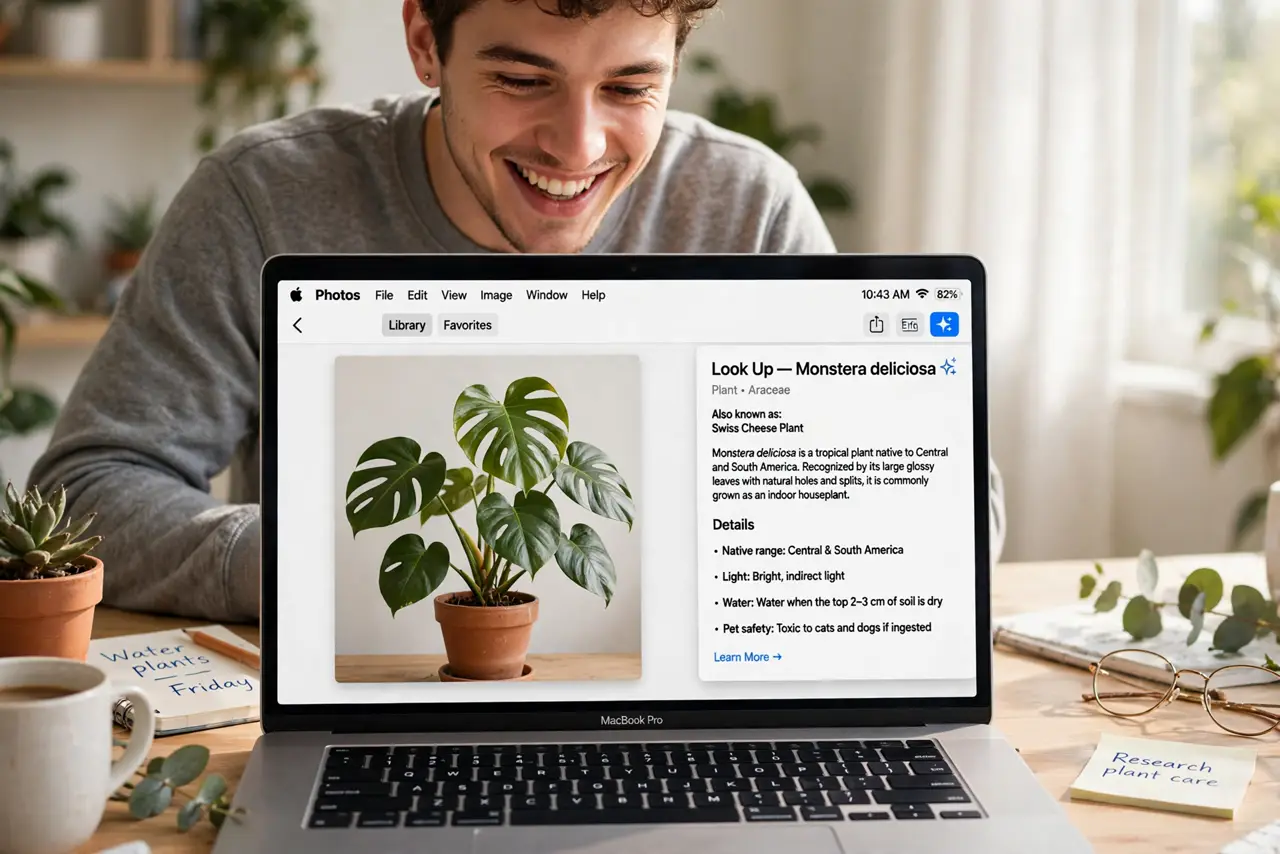
What plant is that? Which landmark? What breed of dog just walked past? Your Mac can identify objects in photos — plants, animals, landmarks, art, even dishes — with one click. This guide unlocks Visual Look Up and shows what it recognizes best.
TL;DR / Quick Fix
Quick fix: Visual Look Up identifies plants, animals, landmarks, and art right in Photos — open a photo, click the info button, and look for the sparkle icon. It also lifts subjects from backgrounds and looks up food dishes. It needs internet for the recognition lookup.
Follow these steps
- Open a photo in Photos. Double-click any photo to view it large. Visual Look Up works on your library photos — the clearer the subject, the better the guess.
- Click the info button. The circled-i info button reveals details. When Look Up recognizes something, the icon gains a sparkle — click it for the identification.
- Read the results. You get the likely match with photos and facts — plant species with care tips, landmarks with maps, dog breeds with traits.
- Try it on food. Point it at dishes: Visual Look Up suggests recipes for recognized meals. Restaurant mystery solved, roughly.
- Lift subjects too. Long-press the subject to lift it from the background — copy it, share it, or drop it into another app as a sticker-like cutout.
- Know its blind spots. Obscure species, blurry shots, and unusual angles confuse it. For text in images instead, Live Text from videos reads words where Look Up names things.

What NOT to do
- Do not trust it for medical or foraging IDs. A wrong plant identification can be dangerous — verify edibility with an expert, always.
- Do not expect miracles on blurry photos. Recognition needs a clear subject; blur is its kryptonite.
- Do not assume it works offline. The recognition lookup needs internet — the sparkle will not appear in airplane mode.
- Do not confuse it with reverse image search. Look Up identifies categories and subjects; it does not find where a photo came from.
Frequently asked questions
Which Macs support Visual Look Up?
Recent macOS versions on Apple Silicon and most Intel Macs — update macOS if the sparkle never appears.
Does it work on screenshots?
Yes — any image in Photos, including screenshots. Paste a mystery image into Photos and look it up.
Can I turn it off?
There is no single toggle — simply do not click the sparkle. It analyzes locally-viewed photos only when you ask.