Control Location Access
Apps keep asking for your location, and you have a nagging feeling half of them do not need it. They probably do not. macOS lets you audit exactly which apps know where you are and dial each one back — and your Mac works perfectly fine with most of them denied.
TL;DR / Quick Fix
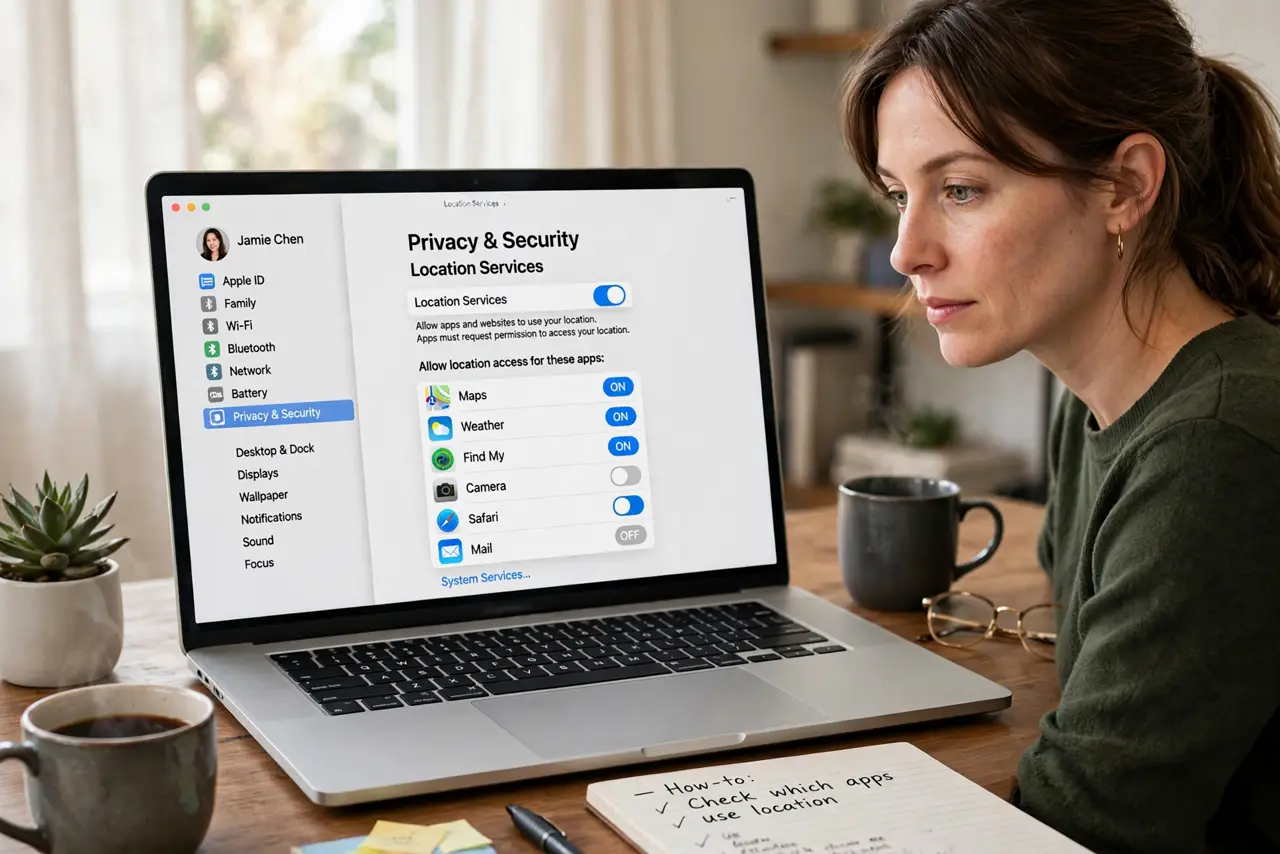
Quick fix: open System Settings, Privacy and Security, Location Services, and review which apps have access — set each to Never, Ask Next Time, or While Using. Turn off Significant Locations under System Services too. Your Mac works fine with most location access denied.
Follow these steps
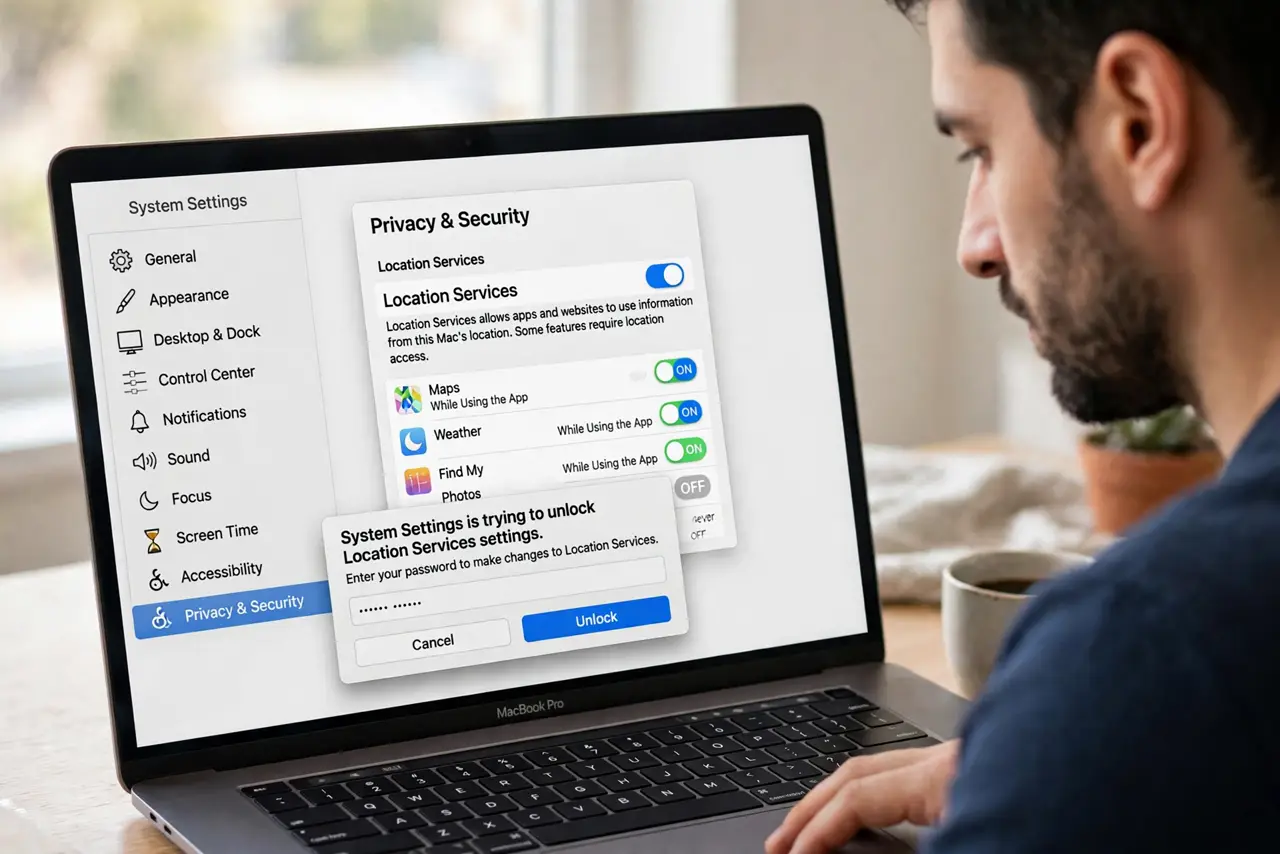
- Open Location Services. Go to System Settings, then Privacy and Security, then Location Services. You will need to authenticate to change anything.
- Audit every app in the list. Go down the list and ask: does this app need my location to work? Maps yes, a calculator no. Set each to Never, Ask Next Time, or While Using the App.
- Use precise location sparingly. Some apps request your exact coordinates when an approximate area would do. Give precise location only to apps that truly need it, like navigation.
- Check System Services. Click Details under System Services at the bottom. Turn off Significant Locations, iPhone Analytics-style location items, and anything you do not recognize.
- Review the menu bar icon. A location arrow in the menu bar means something just checked your position. Click it to see which app — surprises get revoked.
- Revisit quarterly. New apps ask on install and old permissions linger. A two-minute review every few months keeps the list honest.
What NOT to do
- Do not grant 'Always' to apps that only need 'While Using.' Background location is the most abused permission on the list.
- Do not turn off Location Services entirely in a panic. Find My Mac and time-zone features need it — surgical denials beat a blanket off.
- Do not ignore the Significant Locations log. Your Mac keeps a history of where you have been — review and clear it in System Services.
- Do not assume denying location breaks apps. Most degrade gracefully — try denying first and only re-allow if something you need stops working.
Frequently asked questions
Will Maps still work if I limit location?
Yes — set Maps to 'While Using the App' and it works normally. It only needs your position while open.
What are Significant Locations?
A log macOS keeps of places you visit frequently. It powers commute suggestions; you can view, clear, and disable it.
An app keeps re-asking after I said no?
Some apps nag. Deny persistently, or remove the app if its core function genuinely requires tracking you.