File Is Locked? Unlock It
You try to rename, move, or delete a file and macOS refuses — the file is 'locked.' Locking is a simple protective flag, not a permissions maze, and unlocking takes five seconds in Get Info. Here's where the flag hides and what it actually protects.
TL;DR / Quick Fix
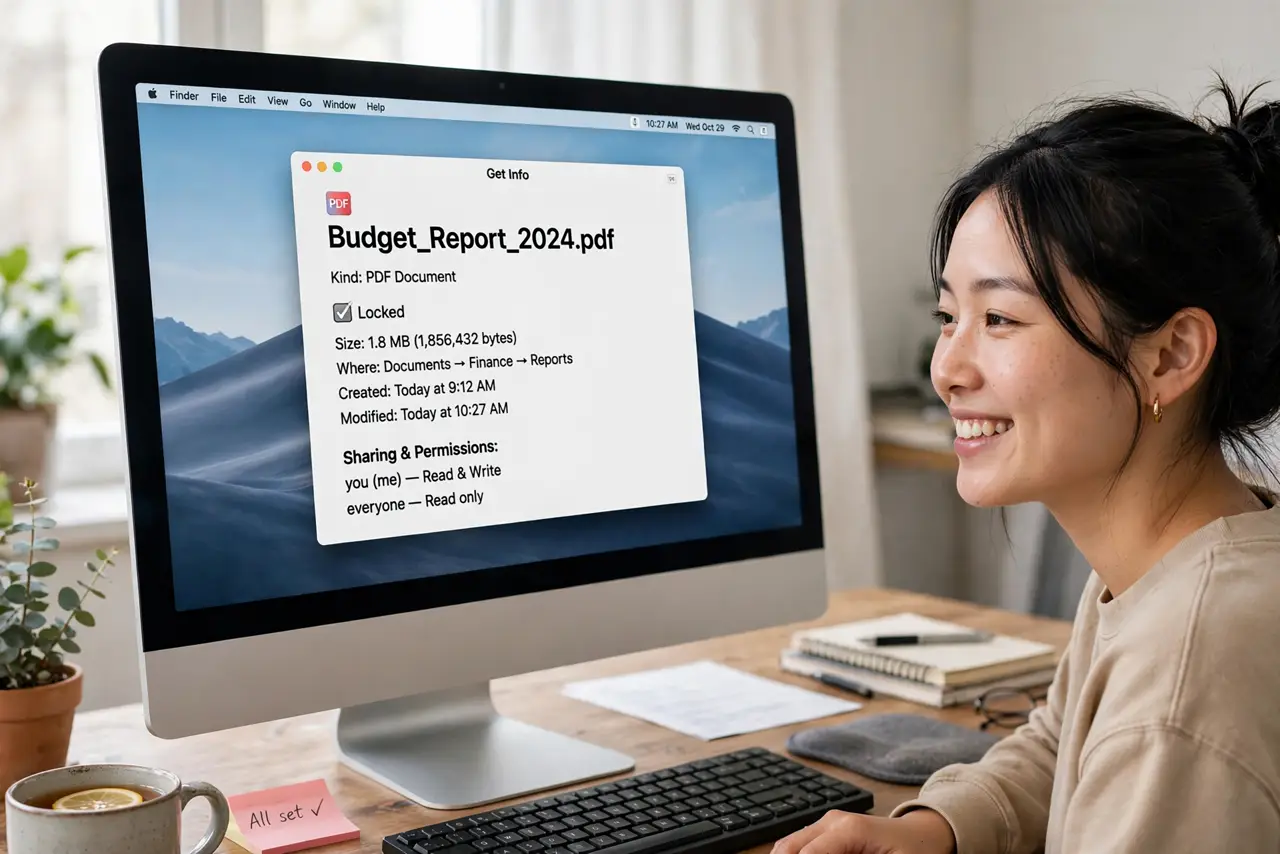
Quick fix: select the file, press Cmd+I to open Get Info, and uncheck the Locked box at the bottom. You can now rename, move, or delete it normally. If the box is grayed out, you need administrator rights or the file's permissions need fixing.
Follow these steps
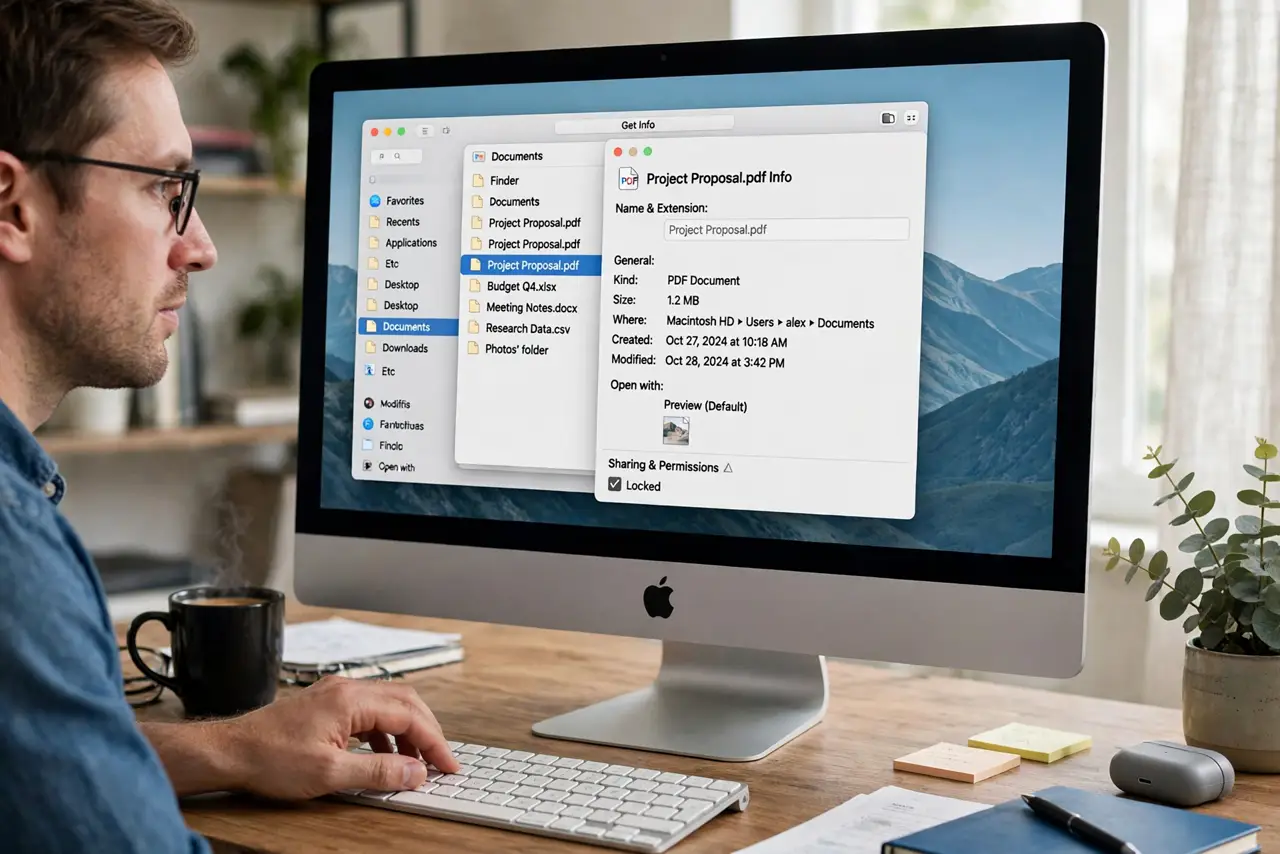
- Open Get Info. Select the file and press Cmd+I (or right-click > Get Info). The Locked checkbox sits at the bottom of the window.
- Uncheck Locked. Click the padlock at the bottom-right first if Get Info itself is locked, authenticate, then uncheck the Locked box.
- Try your action again. Rename, move, or trash the file — the refusal should be gone. Locking was the only barrier.
- Handle the grayed-out checkbox. If you can't uncheck it, you lack ownership — fix it in the Get Info permissions section below the checkbox.
- Lock files deliberately too. The same checkbox protects important files from accidental deletion or edits. Lock the tax return, not the grocery list.
- Distinguish lock from permissions. A lock is one flag anyone can flip; permissions are the deeper access rules. If unlocking didn't help, permissions are next.
What NOT to do
- Do not confuse a locked file with a file in use. 'Locked' is the checkbox; 'in use' means an app has it open — different fixes.
- Do not force-delete locked system files. If macOS locked it, it locked it for a reason — leave system files alone.
- Do not unlock everything in a folder at once to 'save time.' You lose the protection the locks were providing, one accidental drag at a time.
- Do not assume unlocking fixes permission errors. If the Finder still refuses after unlocking, the permissions are the real gate.
Frequently asked questions
Why do files get locked in the first place?
Usually deliberately — by you, by an app protecting its data, or by macOS for system files. Some downloads arrive locked as a safety default.
Can I lock a whole folder?
Yes — Get Info on the folder works the same way. It locks the folder's own rename/delete, though files inside follow their own flags.
The file relocks itself — why?
An app is re-locking its data file on every launch. That's the app's design, not a bug — work with copies if you need to edit it.