Mail Rules Run in the Wrong Order on Mac
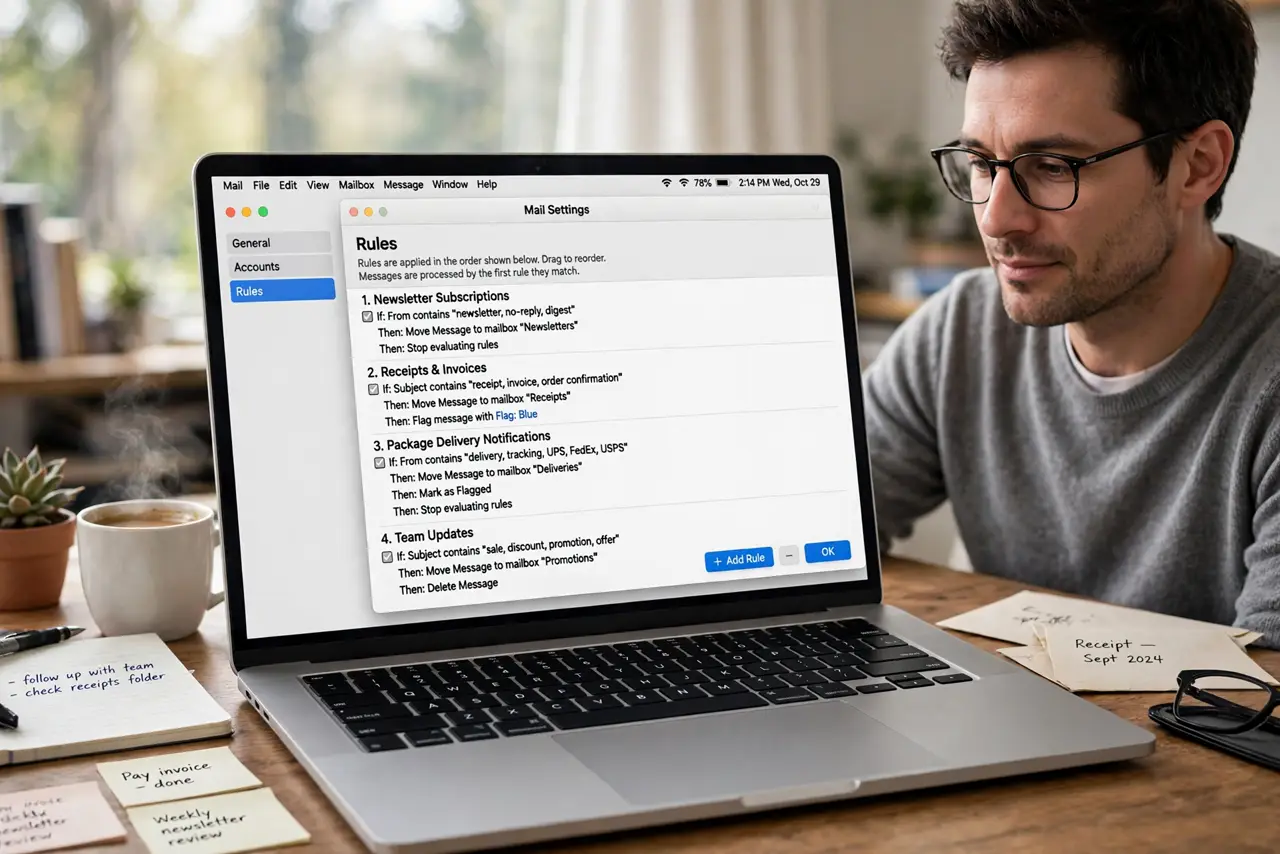
Mail runs rules from top to bottom, and the first rule that moves or acts on a message usually wins. When rules run in the wrong order, a broad rule at the top can grab messages before the specific rule below ever sees them.
TL;DR / Quick Fix
Quick fix: open Mail settings, then Rules, and drag the most specific rule to the top of the list. Put broad catch-all rules last, test with a message that matches both rules, and confirm the specific rule wins. Test the fix, then keep the setting that works.
Follow these steps
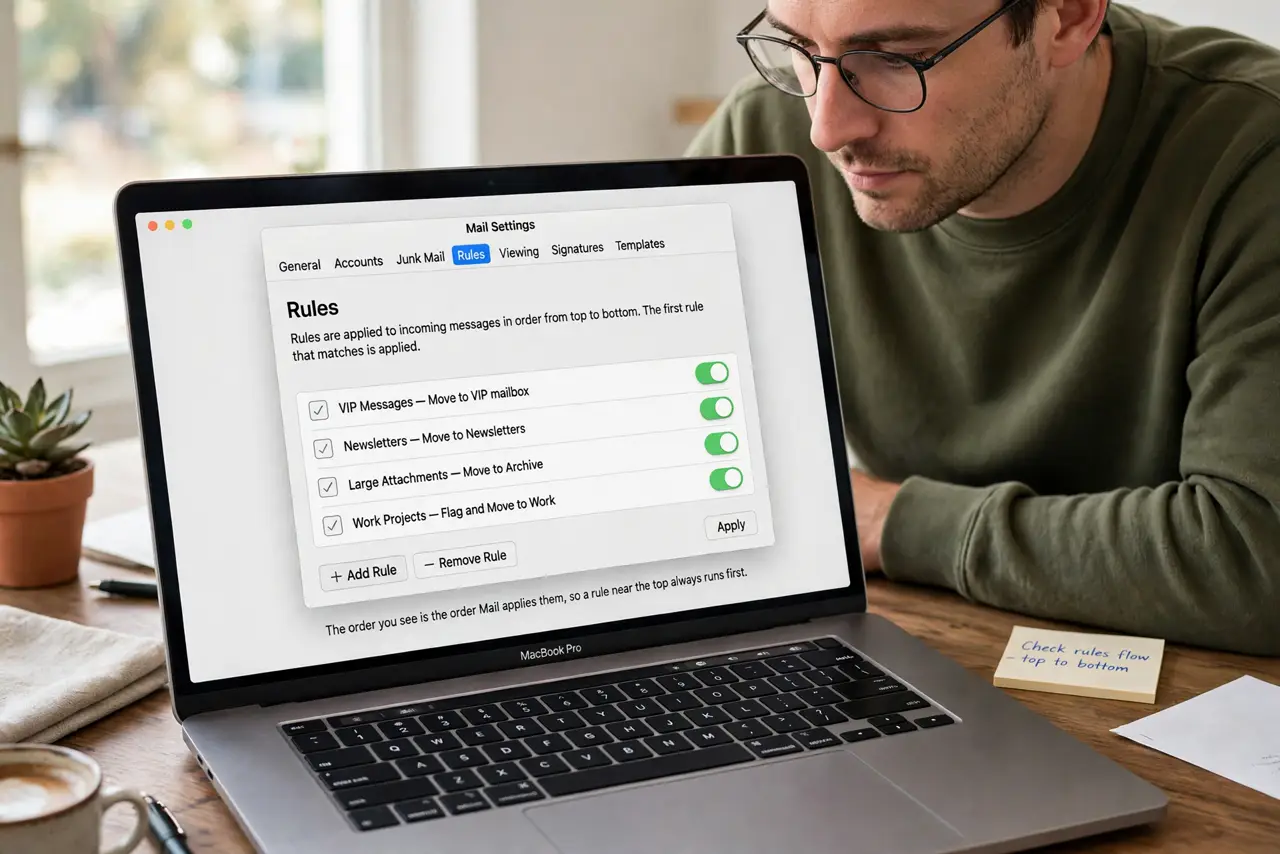
- Open the rules list. Open Mail settings, then Rules, and read the list from top to bottom. The order you see is the order Mail applies them, so a rule near the top always runs first.
- Find the rule that grabs first. Look for a broad rule near the top that matches the same messages as your specific rule. That early rule is usually the one stealing messages.
- Move the specific rule up. Drag the most specific rule above the broad rule, so it gets the first chance to act. Specific before general is the order that works.
- Push catch-all rules down. Move any rule that matches almost everything to the bottom of the list. A catch-all at the top leaves nothing for the rules below it.
- Test with a real message. Send or move a message that matches both rules, then check where it lands. The folder it ends in tells you which rule actually ran first.
- Turn rules off one at a time. If the result is still wrong, disable rules one by one and retest. That isolates the rule causing the trouble without deleting your whole setup.
What NOT to do
- Do not add a second rule to undo the first rule. Reordering the original rules is cleaner and avoids a chain of fixes fighting each other.
- Do not make every rule stop at the first match without thinking. A stop action can block later rules you still want to run on the same message.
- Do not delete all rules and start over in frustration. Reordering and testing one rule at a time finds the problem faster.
- Do not forget that rules only run on new mail by default. Older messages already sorted will not move just because you reordered the list.
Frequently asked questions
In what order does Mail run rules?
From top to bottom in the Rules list. The first matching rule that moves a message usually decides where it goes.
Why does my broad rule win every time?
Because it sits above the specific rule and matches the same messages first, so the specific rule never gets a chance.
Do reordered rules fix old messages?
No. Reordering affects new mail going forward, so older messages stay where the old order put them.