Schedule Emails to Send Later
Sending a work email at 11 PM tells everyone you were working at 11 PM — even when you just wanted it off your mind. Mac Mail's Send Later schedules the message for a sane hour: you write when inspiration strikes, it arrives when it should. It is also perfect for birthday emails and Monday-morning follow-ups written on Sunday. Here is how.
TL;DR / Quick Fix
Quick fix: Mac Mail can schedule emails to send later — click the Send button's dropdown arrow and pick Send Later, then choose a date and time. Perfect for avoiding odd-hours emails that make you look overworked. Scheduled messages wait in a special mailbox until their time comes.
Follow these steps
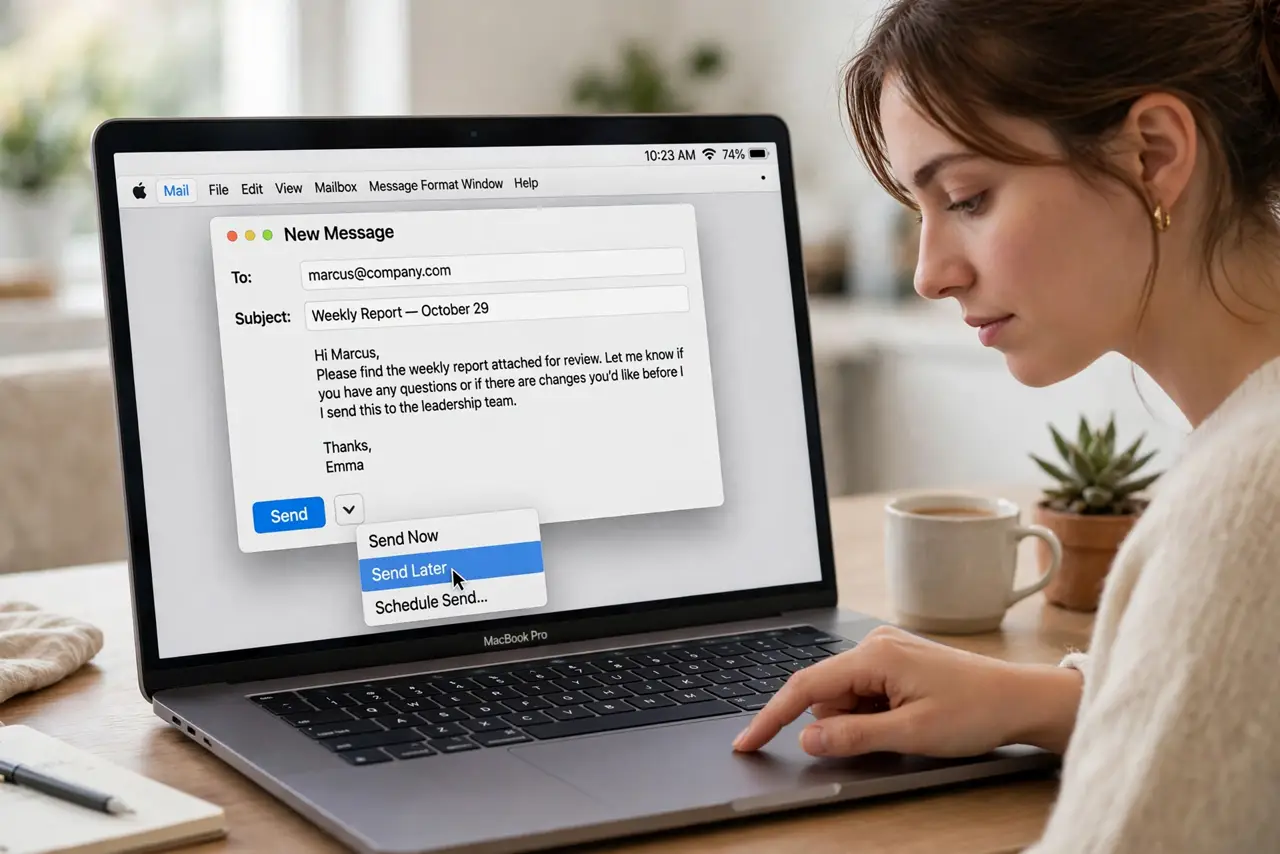
- Click the Send dropdown. In a new message, click the small arrow next to the Send button (not the button itself). Choose Send Later from the menu — this is the gateway most people walk past for years.
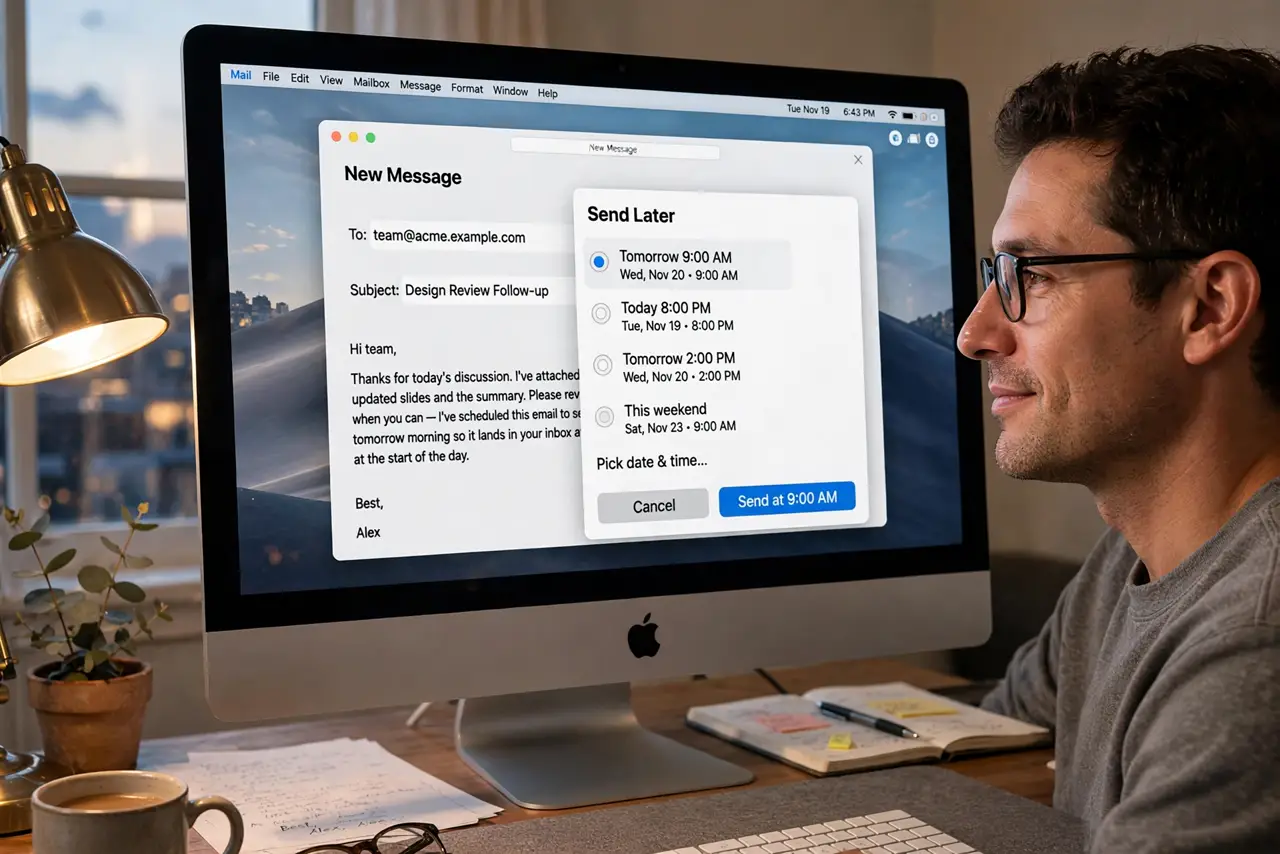
- Pick a date and time. Choose from presets like tomorrow morning or set a custom time. Think about the recipient's timezone for important messages — 9 AM their time beats 9 AM yours.
- Find scheduled messages. Scheduled emails wait in a Send Later mailbox in the sidebar. Review it like any outbox — it is your launch queue, visible and editable.
- Edit or cancel before launch. Open a scheduled message to edit its content or change the time; delete it to cancel entirely. Until the send moment, it is fully yours to change.
- Use it for boundaries. Sunday-night writing that sends Monday morning. Late-night replies that arrive at 8 AM. Send Later is a work-life boundary tool disguised as a scheduling feature — and it pairs with Remind Me for the full email-control setup.
- Mind the Mac being asleep. Scheduled sends need Mail able to reach the server at send time. For critical timing, verify the message actually went — check Sent after the scheduled moment.
What NOT to do
- Do not schedule and forget errors. A scheduled email with a typo or wrong recipient still goes — proofread before scheduling, since you will not be watching.
- Do not use it to fake responsiveness. Scheduling a 3 AM-written reply for 8 AM is fine; pretending you were up working is theater nobody needs.
- Do not schedule sensitive timing blindly. For time-critical messages, confirm delivery after the send time — do not assume the schedule fired.
- Do not forget timezone math. 'Tomorrow 9 AM' means your Mac's timezone — for recipients elsewhere, do the conversion or risk a 2 AM arrival.
Frequently asked questions
Can I schedule recurring emails?
No — Send Later is one-shot per message. For recurring sends, you need automation tools or calendar reminders to resend.
Does my Mac need to be on?
For iCloud-based sending, the server handles it once scheduled. For some account types, Mail needs to be running — when in doubt, leave Mail open until after the send time.
Can I see all scheduled emails in one place?
Yes — the Send Later mailbox in the sidebar collects every scheduled message across accounts, editable until each sends.