Pin Controls to the Menu Bar
Digging through Control Center every time you need Wi-Fi, Bluetooth, or Do Not Disturb gets old fast. macOS lets you pin your most-used controls straight to the menu bar, one click away. This guide shows how to add, remove, and rearrange menu-bar icons so the toggles you actually use are always within reach.
TL;DR / Quick Fix
Quick fix: open System Settings, then Control Center, and set your favorite modules to Show in Menu Bar — Wi-Fi, Bluetooth, and Do Not Disturb become one-click icons. Drag icons with Command held down to rearrange them. Hide the ones you never touch to keep the bar clean and uncluttered.
Follow these steps
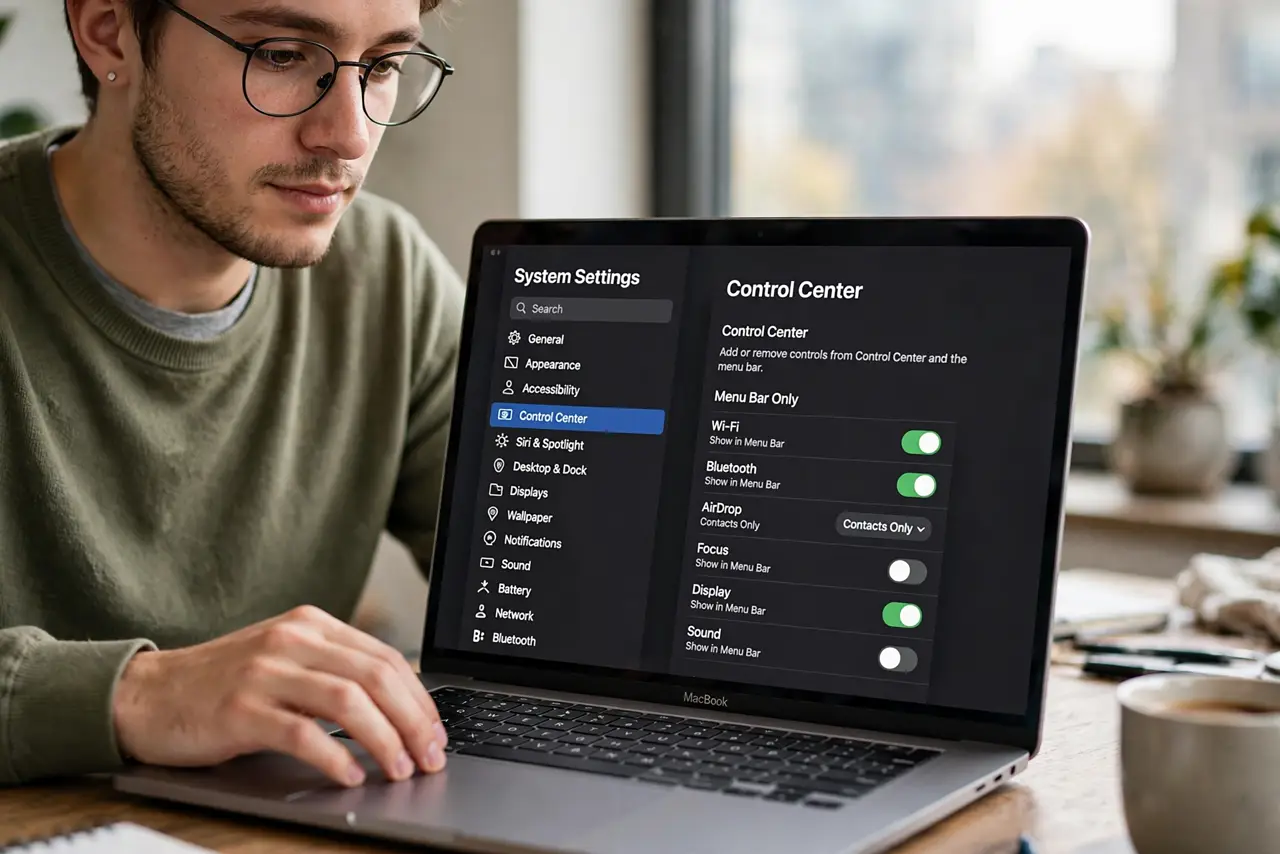
- Open System Settings and go to Control Center. Click the Apple menu, then System Settings, and choose Control Center in the sidebar. This is the single page where every menu-bar and Control Center module is managed.
- Set favorite modules to Show in Menu Bar. Find Wi-Fi, Bluetooth, Sound, or Do Not Disturb and change each to Show in Menu Bar. The icon appears immediately at the top of your screen, one click from the toggle.
- Rearrange icons with Command-drag. Hold the Command key and drag any menu-bar icon left or right to reorder it. Put your daily toggles near the clock and push the rarely used ones toward the middle.
- Hide modules you never touch. Set anything you open twice a year to Do Not Show in Menu Bar. A clean bar is a fast bar — clutter costs you a glance every time.
- Add third-party icons the same way. Apps like Dropbox, battery monitors, or VPN clients add their own menu-bar icons from their settings. Look for a 'show in menu bar' checkbox inside the app.
- Use Control Center for the rest. Not everything needs pinning. Keep occasional toggles inside Control Center and pin only daily ones. For at-a-glance info without opening anything, interactive widgets on the desktop cover the rest.
What NOT to do
- Do not pin every module. A menu bar crowded with thirty icons is slower than Control Center — pin only what you toggle daily.
- Do not drag icons without holding Command. A plain drag does nothing; Command-drag is the move that reorders.
- Do not ignore the Control Center search. If a module is missing, search for its name in System Settings instead of assuming it cannot be pinned.
- Do not forget third-party apps can add clutter. Audit app settings yearly and turn off menu-bar icons you stopped using.
Frequently asked questions
Why did my menu-bar icons disappear?
A macOS update or a display change can reset the bar. Reopen System Settings, Control Center, and re-pin the missing modules.
Can I hide the Control Center icon itself?
Yes — in the same Control Center settings page, set Control Center to not show in the menu bar if you never open it.
How do I remove an app's menu-bar icon?
Open that app's settings and uncheck its menu-bar option. If it has none, quit the app or remove it from Login Items.