Ask Siri on Mac
Your hands are on the keyboard and you need a timer, a quick calculation, or a file found — that is the moment Siri on Mac earns its keep. macOS puts a voice assistant one keypress away, and it can dictate, search, and control settings without breaking your flow. This guide sets it up and teaches the commands worth knowing.
TL;DR / Quick Fix
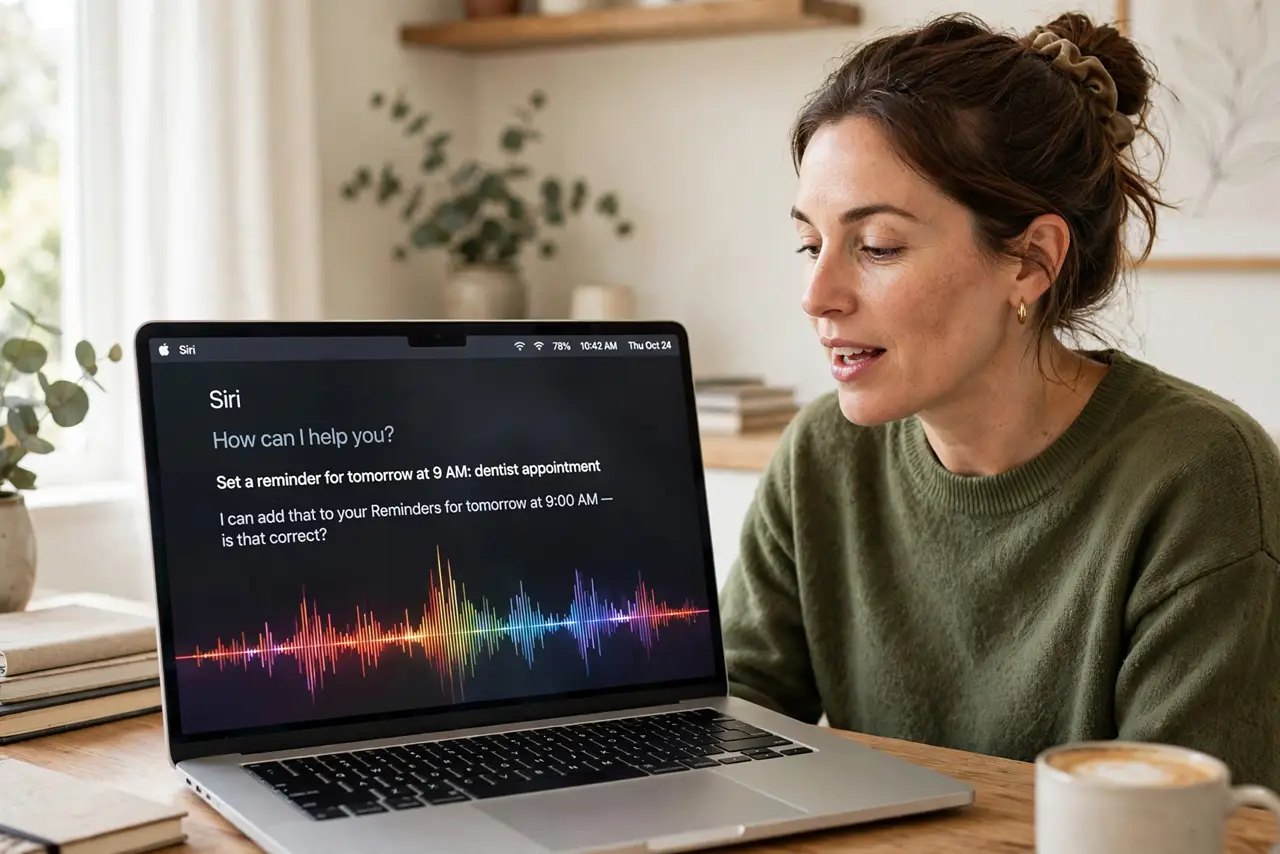
Quick fix: enable Siri in System Settings under Apple Intelligence and Siri, then hold the mic key or say the wake phrase. Dictate text into any field, set reminders, and open apps hands-free. If Siri mishears you, slow down your commands and check the microphone input level in Sound settings.
Follow these steps
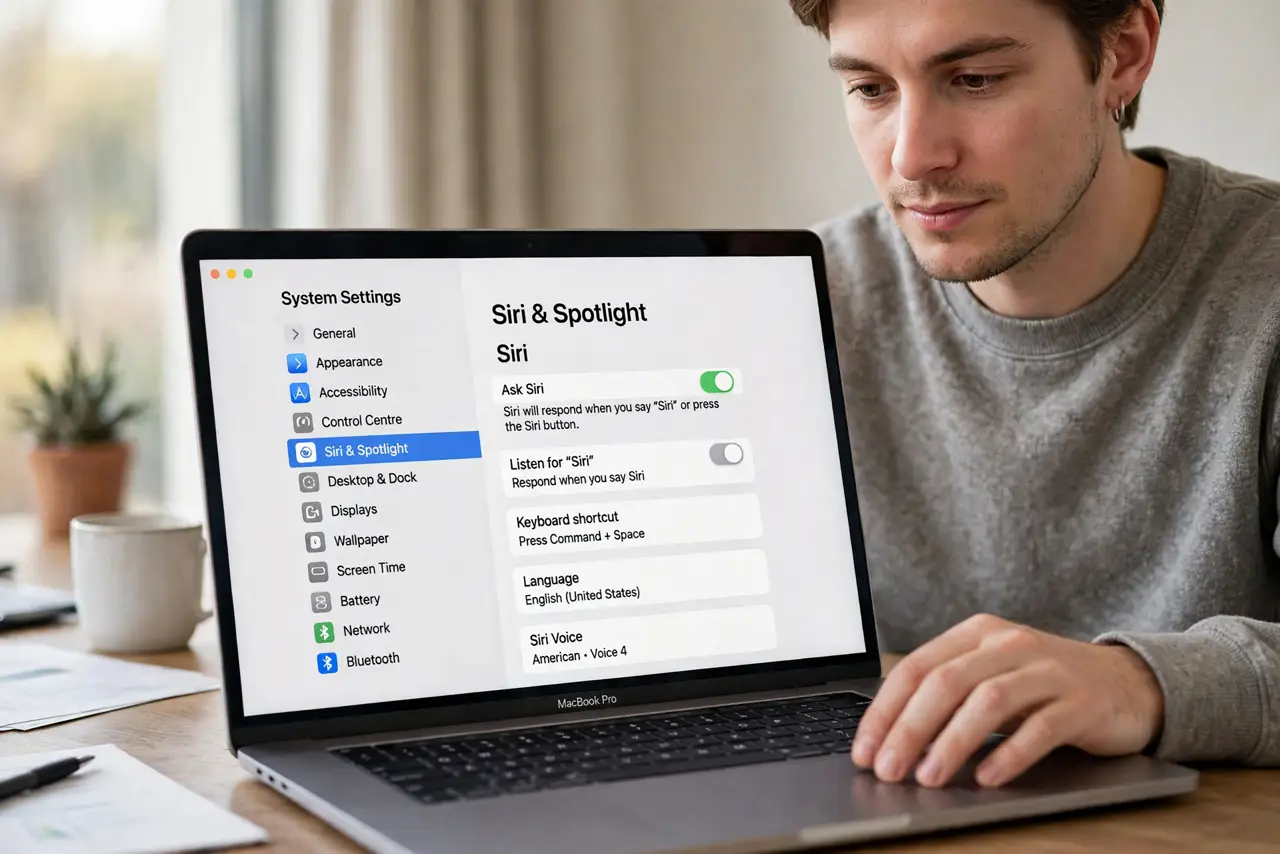
- Enable Siri in System Settings. Go to System Settings, Apple Intelligence and Siri, and turn Siri on. Choose your language and voice — pick the one you understand most clearly.
- Set your preferred way to summon it. Pick the wake phrase, a keyboard shortcut, or the menu-bar icon. The mic key (if your keyboard has one) is the fastest during typing.
- Dictate text anywhere. Press the dictation shortcut twice (or use Siri) and speak — text appears in whatever field is active. Great for emails and messages when your hands are tired.
- Ask it to find and open things. Try 'open the Downloads folder', 'find the spreadsheet from Tuesday', or 'turn on Do Not Disturb'. File-finding and settings toggles are Siri's most reliable Mac skills.
- Chain it with shortcuts. Siri can run your Mac Shortcuts by name. A shortcut that starts your work playlist and opens your apps becomes one spoken sentence.
- Know when to type instead. In a quiet office or noisy cafe, speaking is awkward — that is what Type to Siri on iPhone is for, and on Mac you can simply type commands into Spotlight instead.
What NOT to do
- Do not expect Siri to do deep Mac surgery. It handles common tasks well; complex multi-step jobs still need your hands.
- Do not mumble and blame the assistant. Clear, short commands beat long rambling requests every time.
- Do not leave 'listen for wake phrase' on in meetings. Accidental triggers mid-presentation are embarrassing — use the key instead.
- Do not share sensitive info aloud in public. Dictating passwords or private messages where others hear is a privacy leak.
Frequently asked questions
Why does Siri not hear me on Mac?
Check the microphone input in System Settings, Sound, Input — the wrong mic selected is the usual cause.
Can Siri control smart home devices from Mac?
Yes, if you are signed into the same Apple account as your Home hub. Ask it to run scenes or toggle accessories.
Is Siri free on Mac?
Yes — it is built into macOS with no subscription. Some advanced Apple Intelligence features need a recent Mac.