Tidy Up the Menu Bar
The Mac menu bar starts clean and ends up a crowded airport runway of icons — cloud apps, VPNs, updaters, and utilities all fighting for pixels. Worse, on notched MacBooks the icons can vanish behind the camera notch entirely. A tidy menu bar is faster to scan and less stressful. Here is how to declutter it without breaking anything.

TL;DR / Quick Fix
Quick fix: hold Command and drag menu bar icons to reorder or drag them off to remove the optional ones. Turn off unneeded icons in System Settings under Control Center. For stubborn third-party icons, use the app's own preferences — and check the disappeared icons guide if some are missing.
Follow these steps
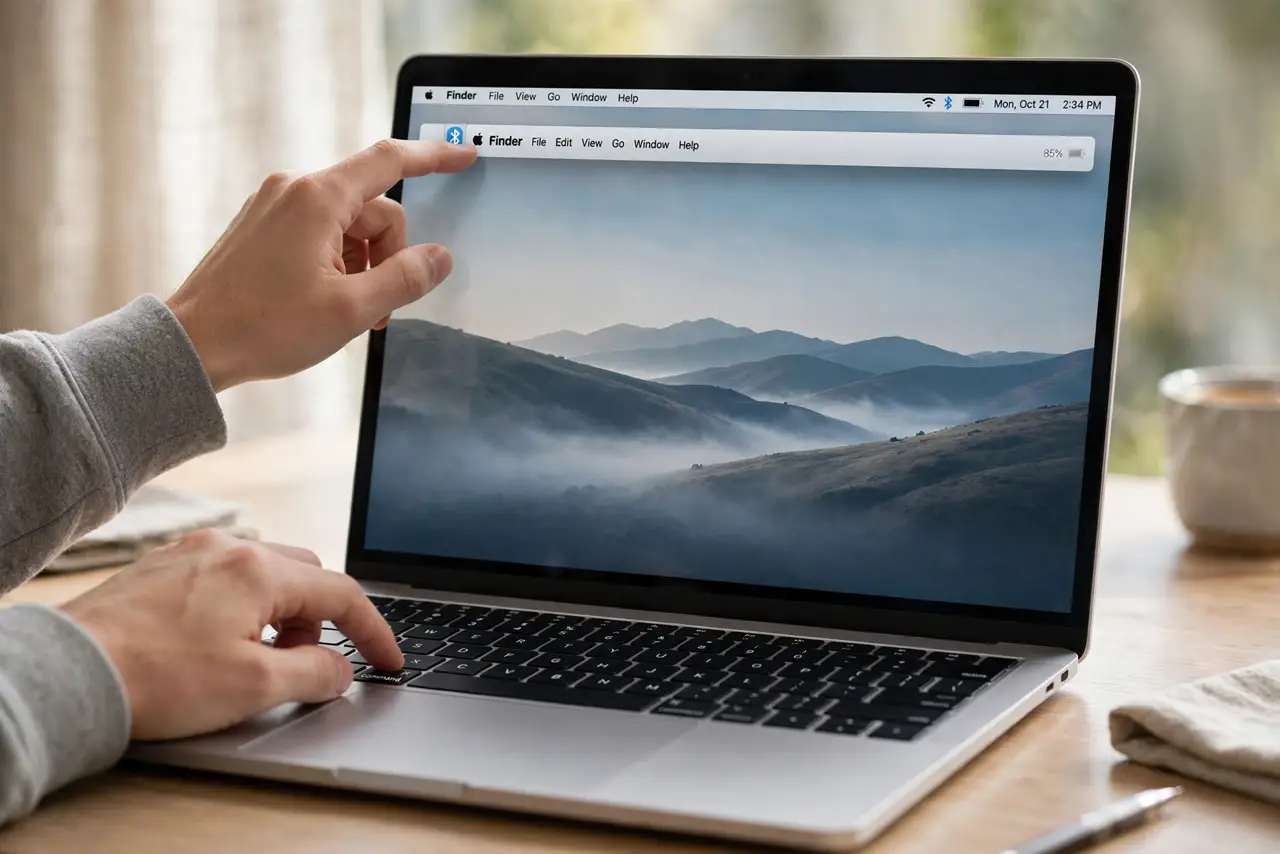
- Reorder with Command-drag. Hold Command and drag any Apple menu-bar icon to rearrange it. This works for system icons like Wi-Fi, battery, and clock — put the ones you check most where your eye lands first.
- Remove icons by dragging off. Command-drag an icon off the menu bar and release to remove it. This only hides the icon — the feature stays on and reachable in System Settings.
- Prune in Control Center settings. Open System Settings, Control Center, and scroll the module list. Every toggle for 'Show in Menu Bar' that you switch off removes clutter at the source.
- Tame third-party icons. App icons (Dropbox, VPNs, utilities) do not obey Command-drag. Each app has its own 'show in menu bar' preference — open the app's settings and switch it off there.
- Mind the notch. On notched MacBooks, too many icons slide under the camera cutout and become unreachable. Fewer icons is not just tidier here — it is functional.
- Consider a menu bar manager. If you genuinely need many icons, a manager app collapses them into one submenu. It is the only sane way to have both completeness and calm.
What NOT to do
- Do not force-remove icons with Terminal hacks you found online. Hiding system icons that way can break Control Center updates — use the supported toggles.
- Do not delete an app to remove its icon. The icon has its own preference; deleting the app is using a sledgehammer on a thumbtack.
- Do not assume a missing icon means a dead app. Check the disappeared icons walkthrough before reinstalling — it is usually the notch or a hidden preference.
- Do not keep icons you never look at. If you have not clicked it in a month, it is decoration — hide it.
Frequently asked questions
Why do my icons disappear behind the notch?
The menu bar has finite space and the notch eats the middle. macOS pushes overflow icons under the cutout where you cannot reach them — fewer icons fixes it.
Can I hide the menu bar completely?
Yes — System Settings, Desktop & Dock, 'Automatically hide and show the menu bar.' It reappears when you move the cursor to the top edge.
An app's icon keeps coming back. Why?
The app re-enables it on launch or update. Turn it off in the app's own preferences, not just by dragging — the app is the source of truth.