Restore One File From Time Machine
You deleted a document last Tuesday — or saved over the good version — and now you need it back. You do not need to restore your whole Mac; Time Machine lets you travel back and pull out a single file. If your backup drive is connected and Time Machine was running, the file is almost certainly there. Here is the two-minute recovery.
TL;DR / Quick Fix
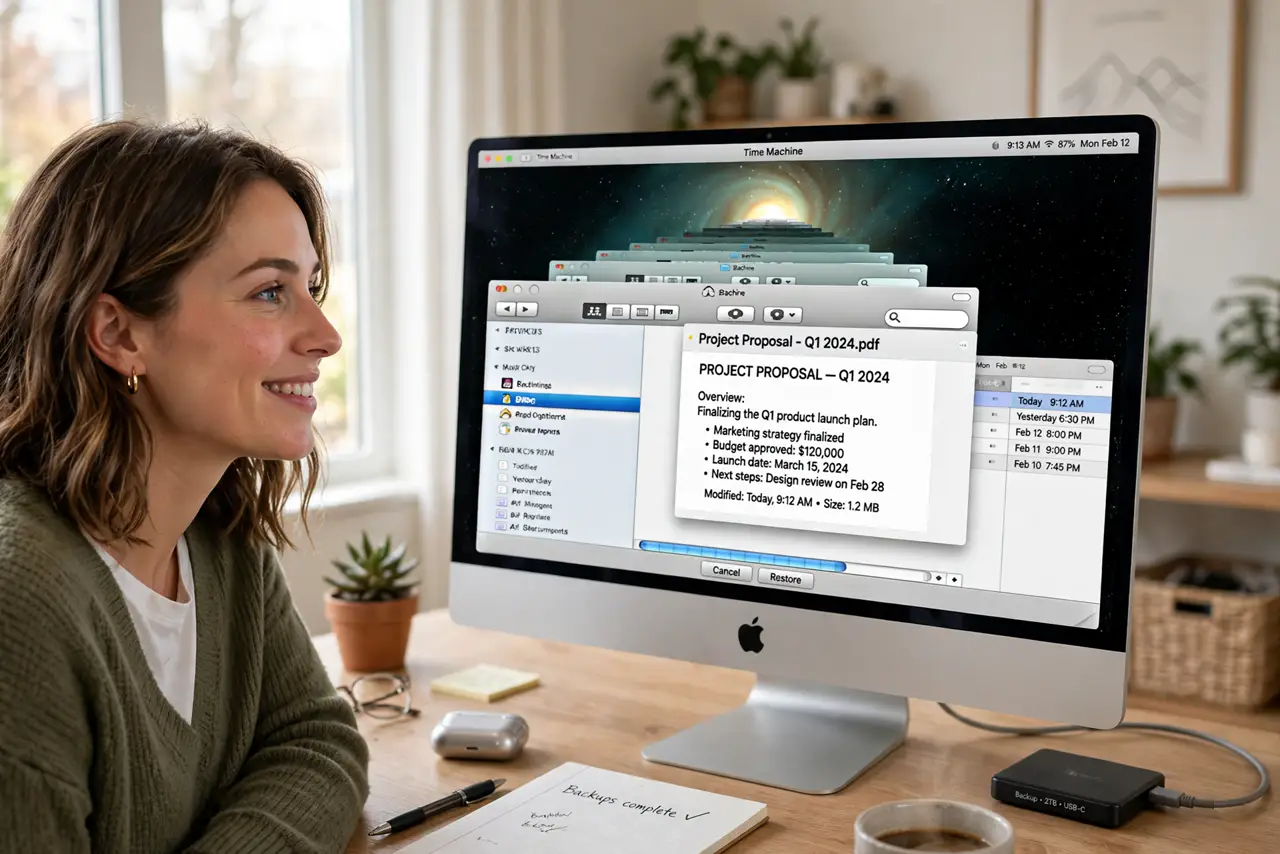
Quick fix: Time Machine restores a single file without touching anything else. Open the folder where the file lived, launch Time Machine, go back with the on-screen arrows, select the file, and click Restore. It returns to its original spot; if a newer version exists, you choose which to keep.
Follow these steps
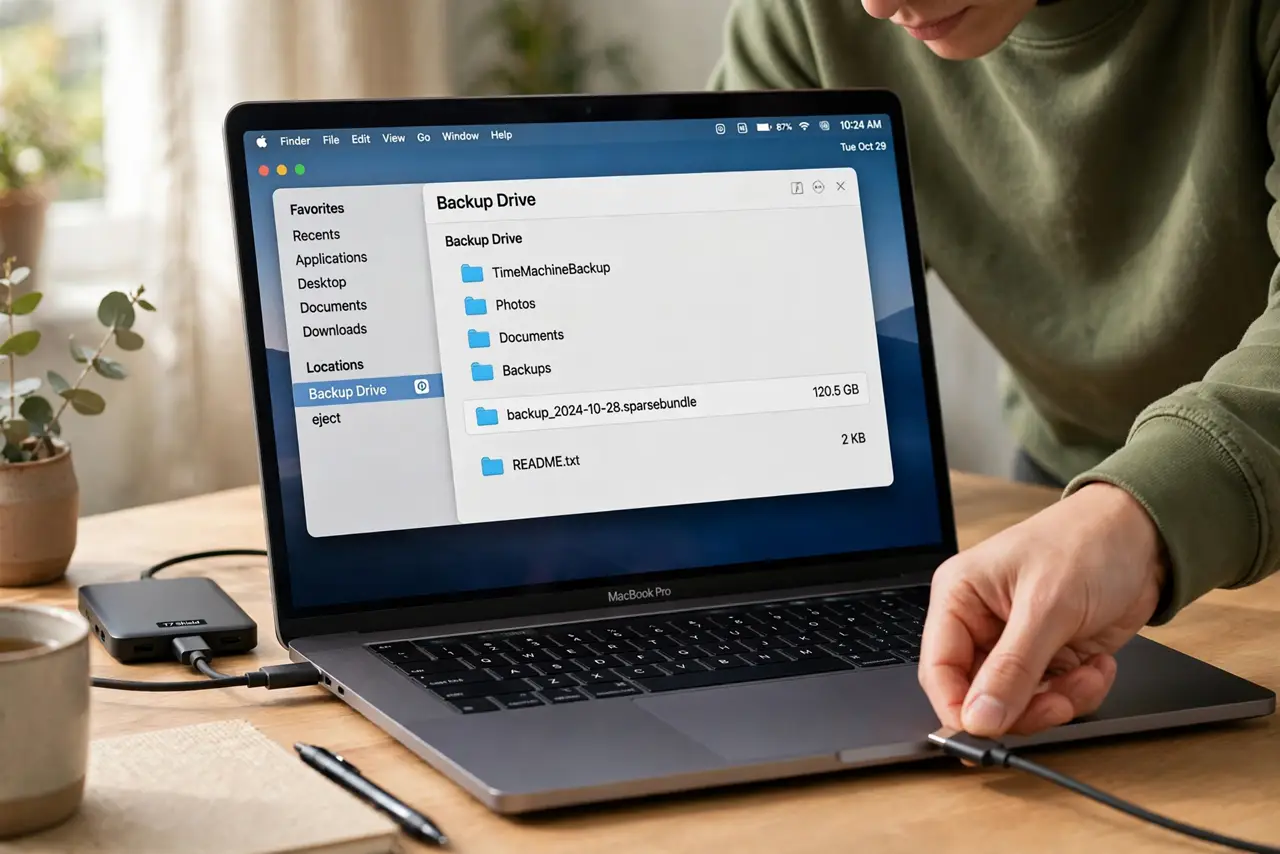
- Connect your backup drive. Plug in the Time Machine drive if it is not always connected. Give it a moment to mount — you will see it in Finder. No drive, no time travel: this only works if backups were actually running.
- Open the file's original folder. In Finder, navigate to the folder where the file lived — Documents, Desktop, wherever. Time Machine restores into the location you are viewing, so being in the right folder matters. Do not open Time Machine from a random window.
- Enter Time Machine. Click the Time Machine icon in the menu bar and choose 'Browse Time Machine Backups' (or open Time Machine from Applications). The Finder window transforms into the starfield time-travel view with a timeline on the right.
- Go back to when the file existed. Use the arrows or the timeline to move back to a date when the file was there — before the deletion or the bad save. You can preview documents with Space before restoring. If the timeline has gaps, backups may have been paused or the drive full.
- Select and restore. Click the file, then click Restore. Time Machine copies it back to its original folder. If a file with the same name exists now, you get the choice: keep both, replace, or skip — 'keep both' is the safe pick when unsure.
- Verify and eject. Open the restored file to confirm it is the right version. Then eject the backup drive properly if you are unplugging it. Consider this your reminder to check that Time Machine is still backing up regularly.
What NOT to do
- Do not restore your entire Mac for one file. Full restores take hours and risk more than they fix — single-file restore is the right tool.
- Do not choose 'Replace' blindly on a name conflict. Keep both versions, compare, then delete the loser — replaced files are gone.
- Do not unplug the backup drive mid-restore. Interrupting a restore can corrupt the file being written — wait for it to finish.
- Do not assume Time Machine was running. Check System Settings → General → Time Machine now; discovering it was off is how files stay lost.
Frequently asked questions
How far back can I go?
As far as your oldest backup on the drive. Time Machine keeps hourly backups for a day, daily for a month, and weekly until the drive fills — then it deletes the oldest. A fuller drive means a shorter history.
Can I restore a file I deleted months ago?
Only if a backup from that era still exists on the drive. Check the earliest date on the timeline — if the drive has been overwriting old backups, very old deletions may be gone.
Does restoring affect my other files?
No — single-file restore touches only that file. Everything else on your Mac stays exactly as it is.