Can You Upgrade Mac mini RAM?
The Mac mini looks like it should open up and take more RAM — and older Intel models actually did. But Apple silicon Mac minis have memory soldered into the chip itself: no slots, no upgrades, ever. Knowing which mini you own decides whether you buy RAM sticks or start budgeting for a new machine.
TL;DR / Quick Fix
Apple silicon Mac minis cannot have RAM upgraded — the memory is soldered into the chip. Only Intel minis (2018 and earlier) accept swaps. Check About This Mac: if the chip says M1, M2, or similar, choose your RAM at purchase time. The iMac RAM guide covers the upgradeable Mac.
Follow these steps
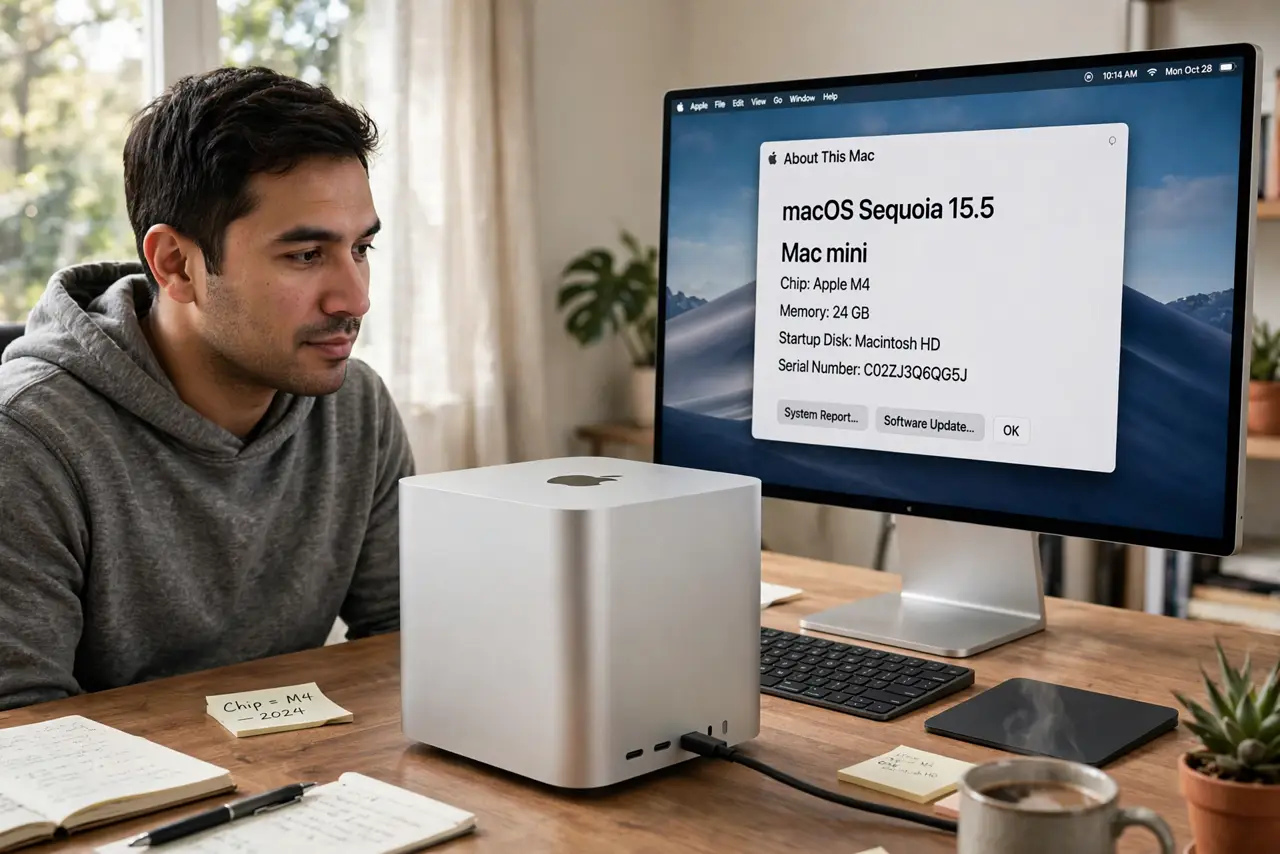
- Identify your Mac mini's chip. Click the Apple menu, then About This Mac. If the chip line says M1, M2, M3, or M4, the RAM is soldered and non-upgradeable. If it says Intel, read on.
- Know the Intel exceptions. The 2018 Intel Mac mini has SO-DIMM slots, but reaching them means significant disassembly — not the friendly hatch of the old iMacs. Earlier models vary; check a teardown guide for your exact year.
- Accept the Apple silicon reality. On M-series minis, the memory sits inside the processor package. No slots exist, no upgrade kit exists, and no repair shop can add more — this is physics, not policy.
- Choose RAM at purchase time. Since you cannot add memory later, buy the configuration you will need in three years, not the one that suffices today. 16 GB is the sensible floor for most buyers now.
- Squeeze more from what you have. Close unused apps, restart regularly, and check Activity Monitor's memory pressure. macOS memory compression is good — yellow pressure occasionally is fine; constant red means you are truly short.
- Plan the next machine around it. If the mini constantly struggles, budget for a replacement with more unified memory rather than accessories. External drives help storage, never RAM.
What NOT to do
- Do not buy RAM sticks for an Apple silicon Mac mini. There is nowhere to install them — the slots do not exist.
- Do not open an Intel mini expecting an easy hatch. The 2018 model's RAM swap is a real teardown; attempt it only if you are comfortable with delicate disassembly.
- Do not confuse storage upgrades with memory. An external SSD fixes a full drive; it does nothing for RAM pressure.
- Do not assume 'unified memory' upgrades later. Unified means integrated — the tradeoff for its speed is that it is forever fixed at purchase.
Frequently asked questions
Why did Apple solder the RAM?
Unified memory sits inside the chip package for speed and efficiency — dramatically faster than socketed RAM, at the cost of upgradeability.
Is 8 GB enough on Apple silicon?
It stretches further than 8 GB on Intel thanks to efficiency, but 16 GB is the safer buy for anyone keeping the machine years.
Can Apple add RAM after purchase?
No — not even Apple retrofits it. The configuration is permanent from the factory.