Turn Off Mouse Acceleration
Move the mouse slowly and the pointer creeps; flick it and it teleports across the screen. That distance-based speedup is mouse acceleration, and it makes precise work — design, photo editing, gaming — feel unpredictable. macOS hides the off switch in Terminal, but the command is simple and reversible.
TL;DR / Quick Fix
Quick fix: macOS speeds the pointer based on how fast you move — that is mouse acceleration. macOS offers no built-in off switch, so open Terminal and run a command that disables it, then log out and back in. Designers and gamers often prefer the consistent, predictable pointer this gives.
Follow these steps
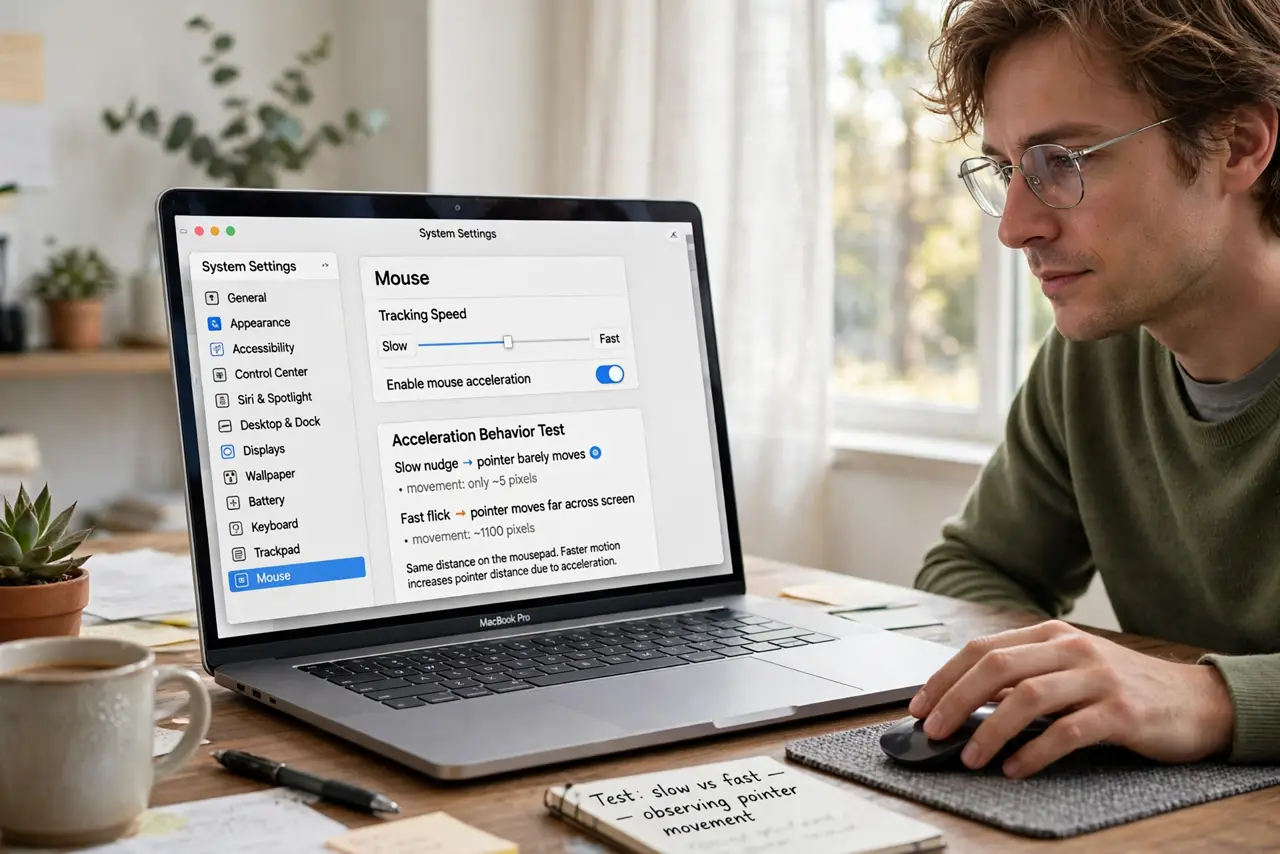
- Understand what acceleration does. macOS multiplies pointer distance by movement speed. Fast flicks jump far; slow nudges barely move. Consistent hand movement should mean consistent pointer movement — acceleration breaks that.
- Open Terminal. Find Terminal in Applications, then Utilities. You will type one command — no scripts, no downloads.
- Disable acceleration with a defaults command. Type the command that sets mouse scaling to -1 for your user preferences, then press Enter. This is a documented preference key, and setting it back to the default restores acceleration.
- Log out and back in. The change takes effect on your next login. A full restart works too, but logging out is faster.
- Re-tune your tracking speed. Without acceleration, your old speed setting may feel slow. Raise the tracking speed in System Settings until normal hand movement covers the screen comfortably.
- Revert if you hate it. Run the same command with the default value and log out again. Nothing is permanent here.
What NOT to do
- Do not copy random Terminal commands from forums. Use only the documented mouse-scaling key — other commands can change unrelated settings.
- Do not expect it to fix a dirty sensor. If the pointer jumps on its own, clean the mouse or check the surface first.
- Do not disable it and keep the old speed. No-acceleration pointers need a higher base speed — skipping the retune makes everything feel sluggish.
- Do not do this on a shared Mac without asking. Pointer feel is personal, and the other user will notice immediately.
Frequently asked questions
Is mouse acceleration bad?
Not bad — just inconsistent. It helps casual users cover big screens with small hand movements. Precision work benefits from turning it off.
Does this affect the trackpad too?
The command targets mouse scaling. Trackpads have their own feel, tuned separately in the Trackpad panel.
Will this survive a macOS update?
Usually yes — it is a user preference, not a hack. Major upgrades occasionally reset preferences, in which case just run the command again.