Adjust the Scroll Speed
Scrolling that crawls line by line — or flies past the paragraph you wanted — makes every long document feel broken. macOS lets you tune scroll speed separately from pointer speed, but the two sliders live in different places, which is why the fix hides from people. Here is where each one is and how to set them sensibly.
TL;DR / Quick Fix
Quick fix: open System Settings and go to Trackpad, then drag the Tracking speed slider to a comfortable middle value. Test it in a long document until scrolling feels natural. If scrolling feels too fast or jumpy after the change, pair it with turning off mouse acceleration for finer control.
Follow these steps
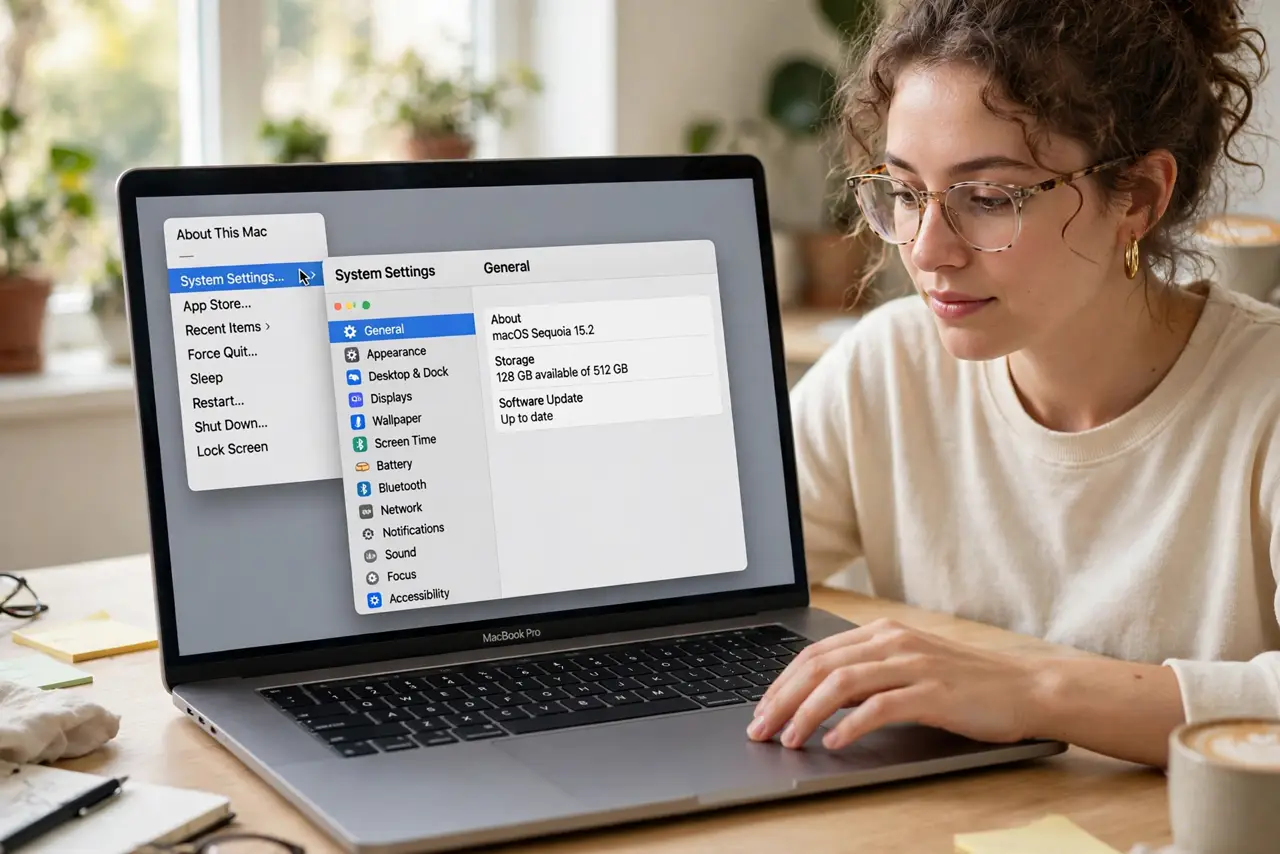
- Open System Settings. Click the Apple menu and choose System Settings. This is home base for both scroll and pointer adjustments.
- Find the trackpad scrolling options. Go to Trackpad and open the Scroll and Zoom tab. This controls gestures, including the natural versus classic scroll direction.
- Set the tracking speed. Back on the Point and Click tab, drag the Tracking speed slider. Middle values suit most people; test in a real document, not just the settings window.
- Fix jumpy pointer movement separately. If the pointer feels too fast on top of the scroll change, the culprit is mouse acceleration — a different setting with its own fix.
- Try the natural scroll direction. Natural scroll moves content with your fingers, like a phone. Classic moves the scrollbar. Pick whichever your brain already expects.
- Test across apps before deciding. Scroll speed feels different in a browser, a PDF, and a spreadsheet. Give each slider a day of real use before locking it in.
What NOT to do
- Do not max the speed slider on day one. Extreme speeds feel exciting for a minute and exhausting for a week.
- Do not confuse scroll speed with tracking speed. Scrolling moves pages; tracking moves the pointer — they are separate sliders.
- Do not change direction and speed at once. Change one, live with it, then tune the other — otherwise you will not know which change helped.
- Do not install a third-party scroll tool first. The built-in sliders fix the problem for nearly everyone.
Frequently asked questions
Why does scrolling feel different in each app?
Apps can add their own scroll smoothing on top of the system speed. The system slider sets the baseline; a jumpy app may need its own settings checked.
Is natural scrolling better?
Neither is objectively better — it is muscle memory. Phone users usually prefer natural; longtime Windows switchers often prefer classic.
Can I set different speeds for mouse and trackpad?
macOS keeps separate settings for each device. Connect a mouse and its own sliders appear in the Mouse panel.