Schedule Night Shift
Late at night your Mac's screen glows harsh blue-white while the room is warm and dim — the mismatch strains the eyes and feels awful. Night Shift warms the screen's colors on a schedule, easing the transition to evening. Here is how to set it to follow the sunset automatically.
TL;DR / Quick Fix
Quick fix: Night Shift tints your Mac's display warmer in the evening against harsh blue light. Turn it on in System Settings, Displays, Night Shift, and set the schedule to Sunset to Sunrise. Adjust the temperature slider to taste — warmer is gentler but shifts colors more.
Follow these steps
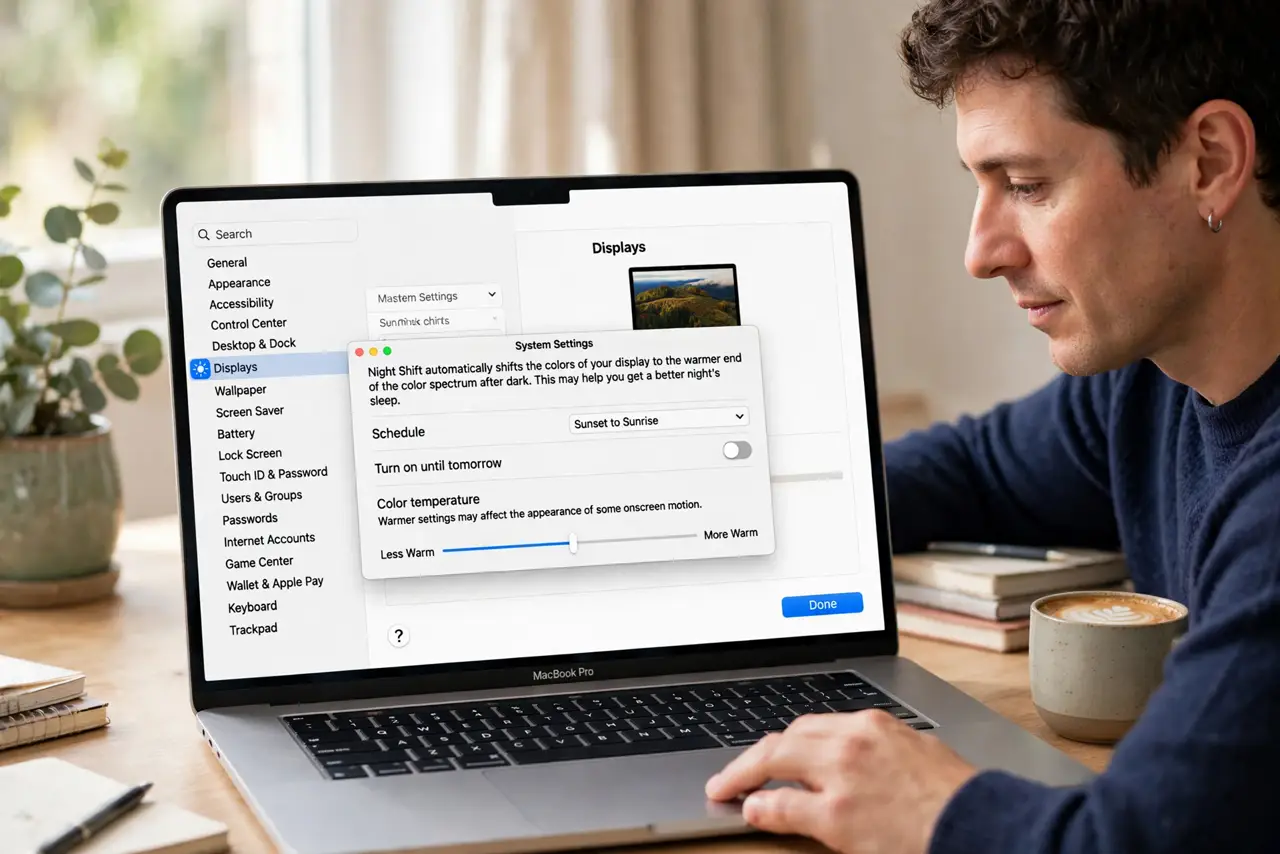
- Open the Night Shift settings. Go to System Settings, Displays, then Night Shift. The schedule dropdown and temperature slider live here — one screen controls everything.
- Set the schedule to Sunset to Sunrise. This is the set-and-forget option: the Mac uses your location to warm the screen as evening falls and restore it at dawn. Manual schedules work too if your hours are unusual.
- Adjust the color temperature. Drag the slider toward More Warm for stronger effect or Less Warm for subtle. Start in the middle and adjust over a few nights — see the schedule vs sunset comparison for the nuances.
- Know it is not a sleep cure. Night Shift reduces blue light, but the evidence on sleep is mixed — dimming the screen and stopping work earlier matter more. Treat it as comfort, not medicine.
- Turn it off for color work. Like True Tone, Night Shift lies about color. Disable it before photo editing or design review, then re-enable for the evening.
- Check it is actually on. If evenings still look blue-white, the schedule may be off or location services disabled — the stuck-on guide covers both directions of misbehavior.
What to avoid
- Do not expect miracles for sleep. Night Shift helps comfort; real sleep hygiene — dark room, no screens before bed — does the heavy lifting.
- Do not edit photos with it on. Warm-shifted colors mean your edits will look wrong everywhere else — toggle it off for color work.
- Do not set the schedule manually without need. Sunset to Sunrise adapts through the seasons; a fixed schedule goes stale twice a year.
- Do not confuse it with True Tone. Night Shift follows the clock; True Tone follows the room light — they are independent toggles.
Frequently asked questions
Does Night Shift really help you sleep?
The evidence is modest — reducing blue light helps some people, but screen brightness and bedtime habits dominate. Consider it a comfort feature with possible benefits.
Why is my screen still blue at night?
The schedule may be off, location services disabled, or an external display not supporting it. Check each in order.
Can I turn it on manually right now?
Yes — the same settings screen has a 'Turn On Until Tomorrow' option for immediate effect without changing the schedule.