Night Shift Schedule vs Sunset, Explained
Night Shift can follow the sun, or it can follow a clock you set yourself. The confusion starts when the two disagree — the screen warms up at a time you did not expect, or stays cool when you wanted warmth.
TL;DR / Quick Fix
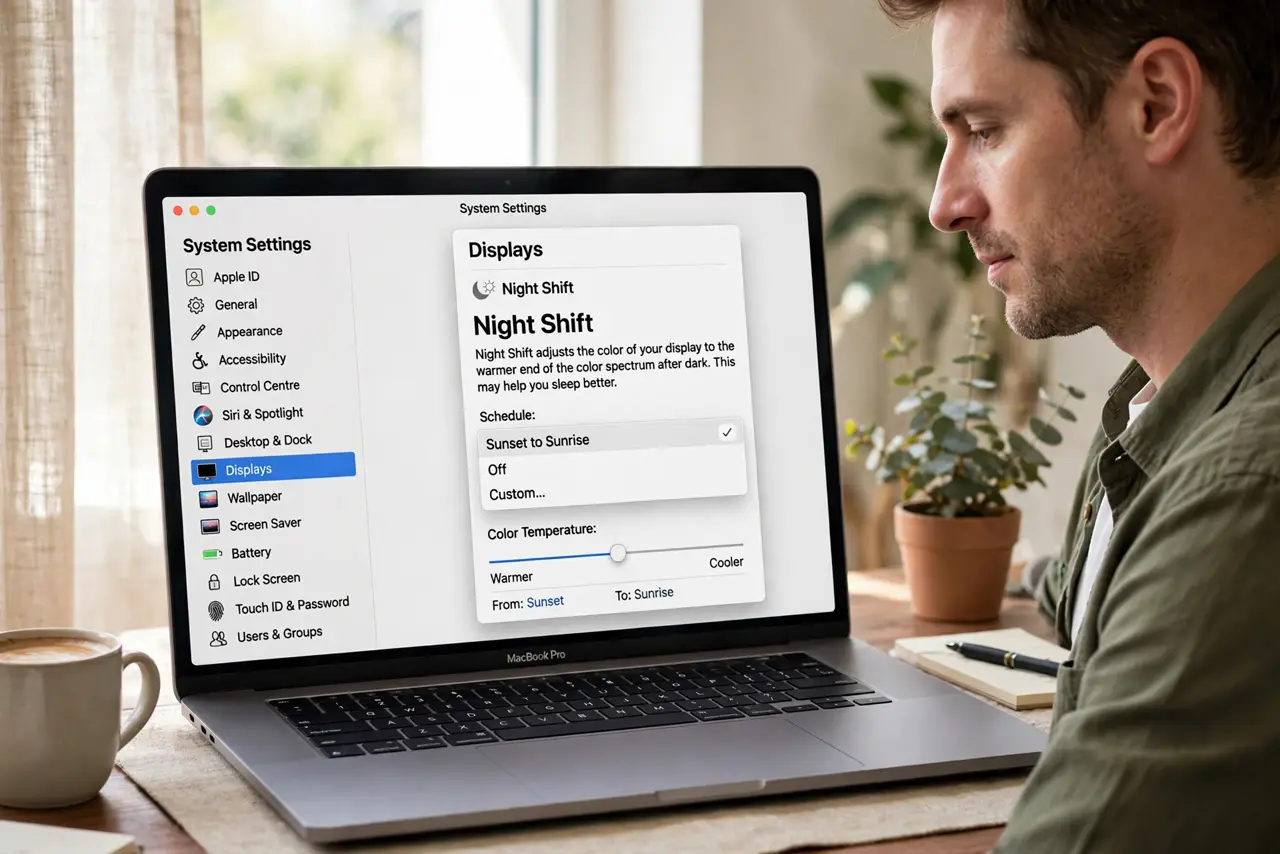
Quick fix: open System Settings, then Displays, then Night Shift, and check whether the schedule is set to Sunset to Sunrise or to Custom. Pick one, set the hours you actually want, and watch the screen change at the time you chose.
Follow these steps
- Open the Night Shift schedule. Open System Settings, then Displays, then Night Shift. Look at the Schedule menu first, because that one choice explains almost every surprise about when the screen warms up.
- Understand Sunset to Sunrise. With Sunset to Sunrise, the Mac uses your location to warm the screen after dark and cool it at dawn. The switch time moves through the year, so it will not match a fixed clock time.
- Try a Custom schedule instead. Choose Custom in the Schedule menu and set a start and end time that fit your evening. A fixed schedule stops the screen from changing at a different time each week.
- Check that Location Services is on for sunset mode. Sunset mode needs your location to know when the sun sets. If location is off, the schedule can fall back to odd times, so turn location on or switch to Custom.
- Set the warmth to a level you like. Drag the Color Temperature slider to a warmth that feels comfortable. Too warm makes everything orange, while a gentle warmth is easier on the eyes without hiding colors.
- Test it tonight, not at noon. Change the schedule, then check the screen at your chosen start time. Night Shift does nothing during the day, so a midday test cannot tell you whether the schedule works.
What NOT to do
- Do not assume Night Shift is broken because it switches at a new time. With sunset mode, the switch time is supposed to move as daylight changes through the year.
- Do not turn Night Shift off entirely over one confusing evening. A Custom schedule gives you the same warm screen at a predictable time every night.
- Do not judge colors for photo work while Night Shift is on. Warm tint changes how colors look, so pause it before editing photos and turn it back on after.
- Do not confuse Night Shift with a stuck warm screen. If the tint never turns off in the morning, the schedule or the manual toggle is the cause to check.
Frequently asked questions
Why does Night Shift start at a different time each week?
Because Sunset to Sunrise follows actual daylight, which shifts through the year, instead of following a fixed clock time.
Should I use sunset or a custom schedule?
Use sunset if you like the screen following daylight, and use Custom if you want the same start and end time every night.
Does Night Shift change colors permanently?
No. It only tints the display while it is active, and the screen returns to normal colors when the schedule ends.