Notes Disappeared After a macOS Update
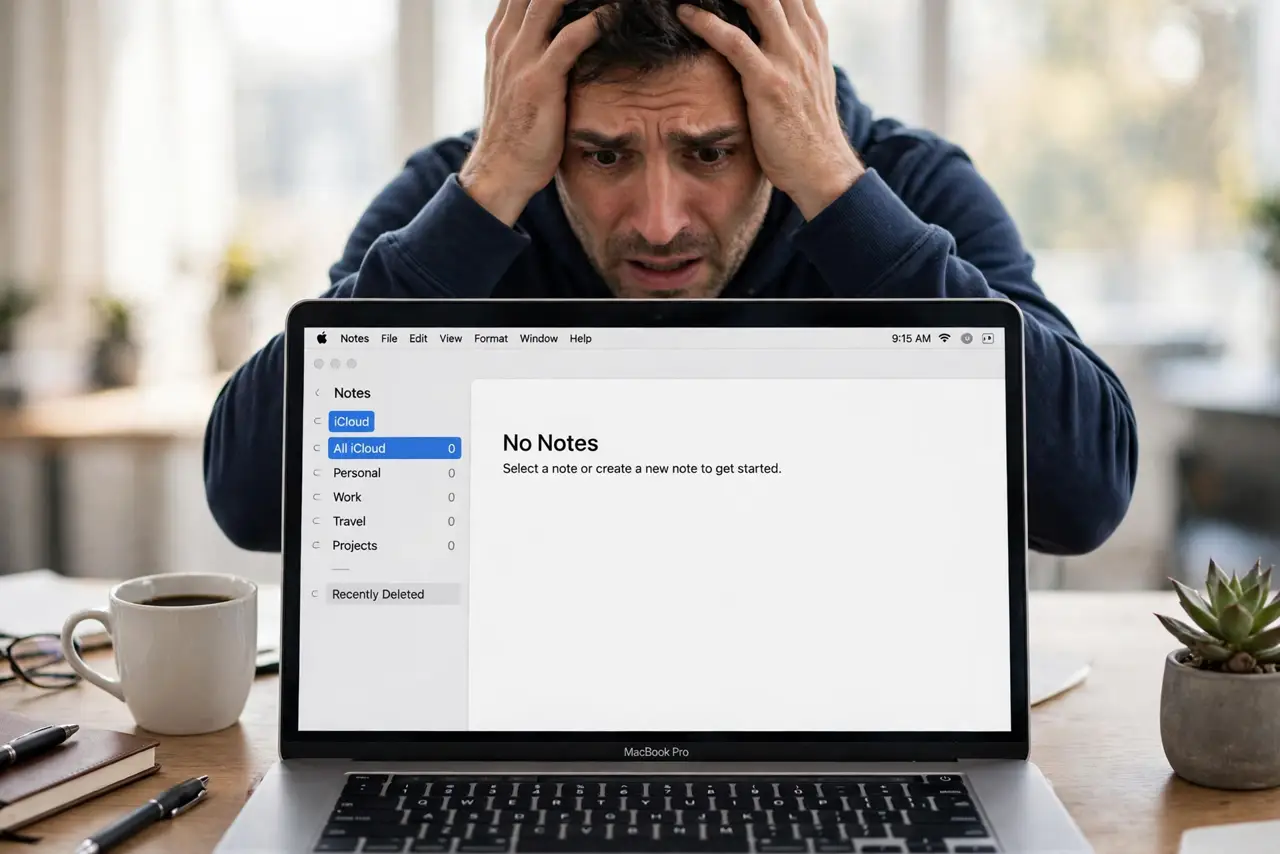
The update finished, you open Notes, and everything is gone: empty folders where years of notes lived. Updates rarely delete notes; they usually desync the account or hide local folders. This guide brings them back step by step, calmly.
TL;DR / Quick Fix
Quick fix: open Notes settings and confirm your iCloud account is still signed in with Notes enabled, then wait on Wi-Fi for the sync to catch up. Check the On My Mac section for local notes, and restore from a Time Machine backup if they are truly gone.
Follow these steps
- Confirm iCloud is signed in. Open System Settings and check the Apple ID. Updates can sign you out silently, which makes every iCloud note vanish until you sign back in.
- Re-enable Notes in iCloud. In the Apple ID settings, open iCloud and make sure Notes is toggled on. An update can flip the toggle while leaving the account signed in.
- Wait for the sync on Wi-Fi. A large notes library can take a long time to reappear after an update. Leave the Mac plugged in on Wi-Fi for an hour before assuming the worst.
- Check the On My Mac section. In Notes, look at the folders sidebar for On My Mac. Local notes live outside iCloud and survive account hiccups, so they may simply be collapsed out of view.
- Search instead of browsing. Use the Notes search box for a distinctive word. Notes can be present but invisible in the folder list due to a sidebar glitch.
- Restore from Time Machine. If notes are genuinely gone, enter Time Machine and restore the Notes container from before the update. This is the safety net that makes the earlier panic unnecessary.

What NOT to do
- Do not create a new note titled the same as a missing one. Sync conflicts can then duplicate or confuse the restore.
- Do not sign out of iCloud repeatedly. Each sign-out restarts the sync from zero and lengthens the wait.
- Do not reinstall macOS for missing notes. This is an account or sync issue, not system corruption.
- Do not empty anything while panicking. Deleting folders during a sync glitch can turn a temporary absence into a real loss.
Frequently asked questions
Did the update delete my notes?
Almost certainly not. They are usually waiting behind a signed-out account, a disabled toggle, or an unfinished sync.
How long should I wait for sync?
Up to a few hours for a big library on slow Wi-Fi. Only investigate further after a solid wait.
Can I get notes back without a backup?
Often yes via iCloud.com, which shows the server-side copy independent of the Mac's state.