Skim Notification Summaries
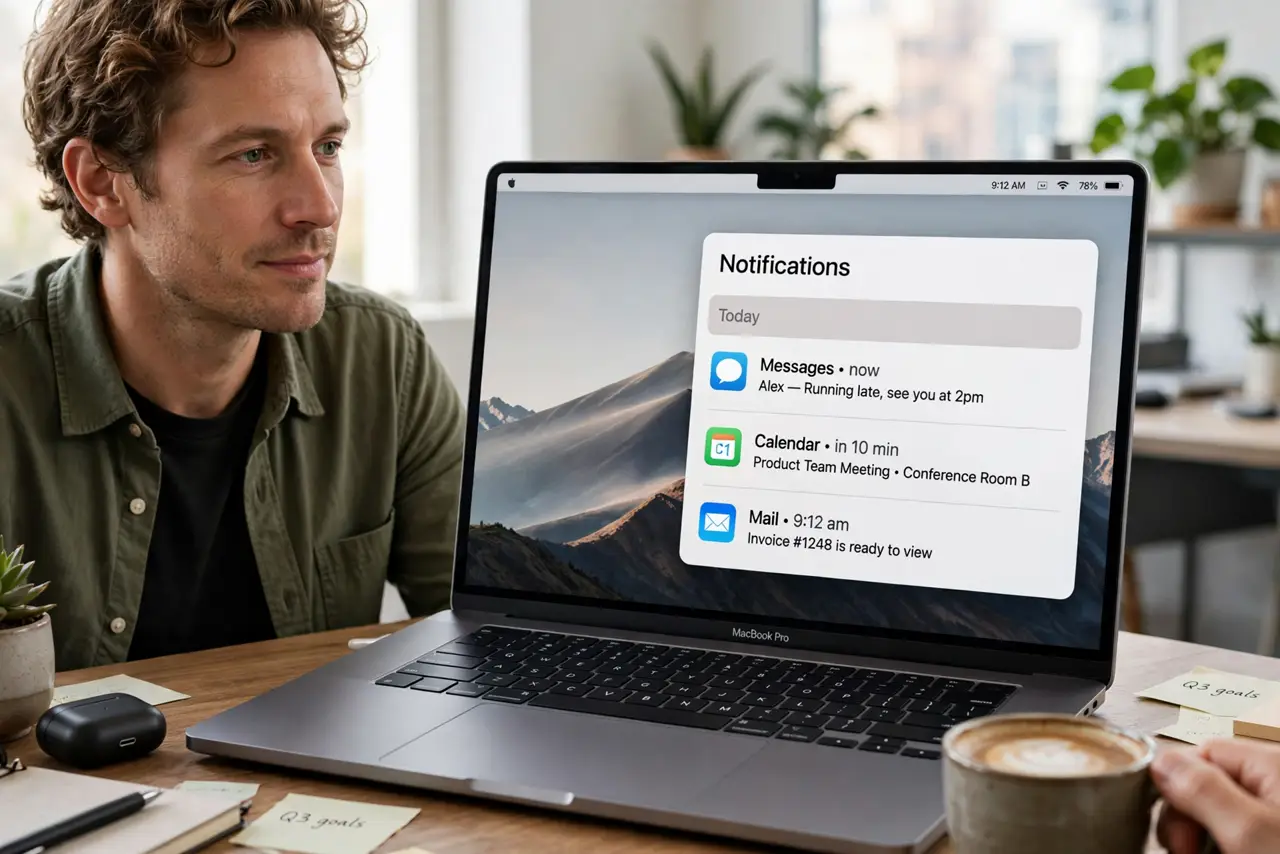
Forty notifications and zero desire to open forty apps — that is the daily avalanche. Notification summaries use Apple Intelligence to condense them into a few short lines, so you skim the gist and open only what matters. It is a time-saver, not a replacement for reading anything important. Part of the Apple Intelligence overview, and a nice companion to Writing Tools.
TL;DR / Quick Fix
Quick fix: Apple Intelligence can condense a flood of notifications into short summaries, so you skim the gist instead of opening every app. Turn summaries on for the noisy apps, keep them off for the important ones. It saves time, but always open anything where the details truly matter.
Follow these steps
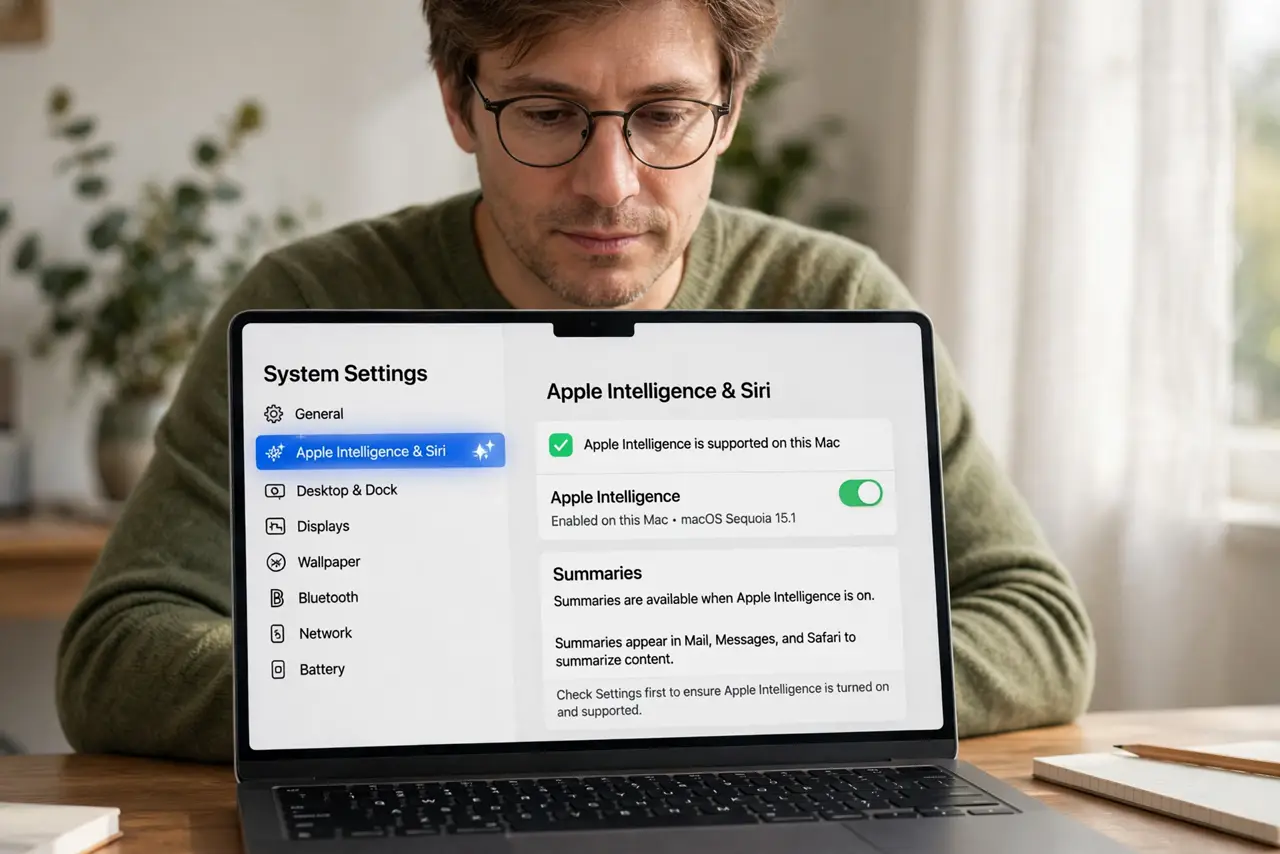
- Check your Mac supports it. Summaries need Apple Intelligence, so they only appear on supported Macs with the feature turned on. No menu, no summaries — check Settings first.
- Open notification settings. Go to Settings, then Notifications. Look for the summaries option — Apple places AI notification features here rather than in a separate app.
- Turn summaries on. Enable notification summaries. Your Mac will start condensing multiple notifications from the same app into brief lines you can expand.
- Choose which apps get summarized. Enable it for noisy apps — news, social, shopping — and leave it off for messaging, banking, and anything where exact wording matters.
- Consider a scheduled summary. You can also bundle less urgent notifications into a scheduled digest that arrives a few times a day instead of buzzing constantly.
- Skim, then open what matters. Read the summary, and tap through only to the notifications that need action. The rest you have already absorbed.
What NOT to do
- Do not summarize banking, health, or security alerts. Exact wording matters there — summaries can blur critical details.
- Do not treat a summary as the full message. AI condensing sometimes drops nuance or gets the tone wrong.
- Do not enable it for everything at once. Start with the noisiest apps and expand only if the summaries prove reliable.
- Do not ignore a summary that looks wrong. Open the original notification — the summary is a hint, not the truth.
Frequently asked questions
Why did a summary get it wrong?
Summarizing is hard, and AI sometimes mangles sarcasm, names, or numbers. When a summary looks odd, the original notification is one tap away.
Can I get summaries on a schedule?
Yes — scheduled summaries bundle non-urgent notifications into a few daily digests instead of interrupting you all day.
How do I turn it off for one app?
In notification settings, find the app and disable summaries just for it. Everything else keeps working as before.