What Is “System Data”?
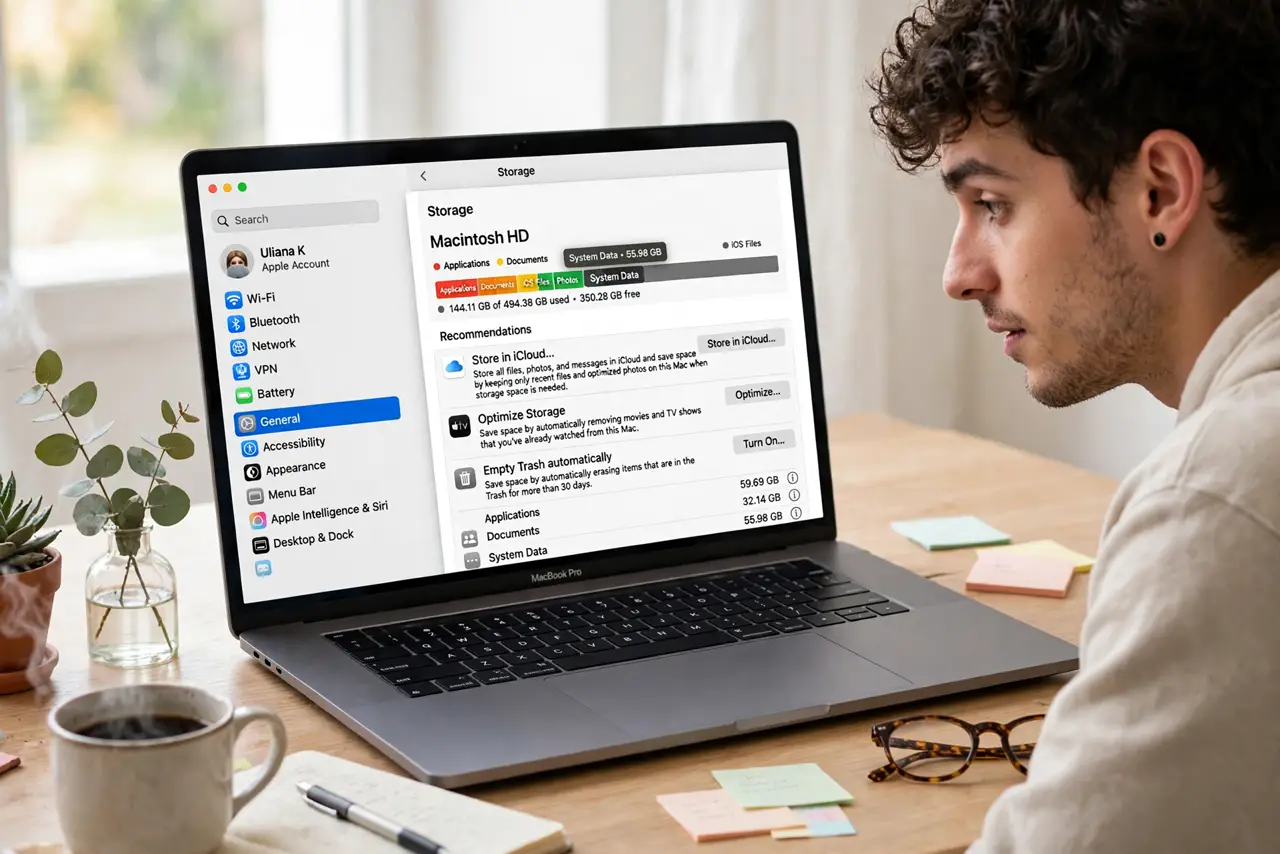
Your Mac's storage bar shows a giant gray chunk labeled System Data, and nobody will tell you what is inside it. It is not a conspiracy — it is caches, logs, temporary files, and leftovers macOS manages itself. Understanding what it holds (and what actually shrinks it) stops the anxious deleting.
TL;DR / Quick Fix
Quick fix: System Data is mostly caches and temporary files macOS creates and cleans itself. Restart your Mac — reboots trigger cleanup of stale caches. If it stays huge, the safe shrinks are: empty the trash, clear browser caches, and remove old iOS backups. Never delete system folders by hand.
Follow these steps
- Understand what it is. System Data covers caches, logs, temporary files, app leftovers, and virtual memory — the working grime of a running system. It grows with use and mostly shrinks on its own; a large number is usually normal.
- Restart first. Reboot the Mac. Startup runs cleanup routines that purge stale caches and temp files — the simplest legitimate shrink, and free.
- Empty the trash. The trash counts toward your disk, and large 'deleted' files sit there invisibly. Empty it — or set it to auto-empty — before investigating anything else.
- Clear the big app caches. Browsers, creative apps, and messaging apps hoard gigabytes of cache. Each app's own settings offer cache clearing — use those, not Finder deletions.
- Remove old device backups. In Finder or device settings, delete iOS backups for devices you no longer own. Old phone backups are classic multi-gigabyte squatters inside System Data.
- Never hand-delete system folders. Library caches deleted by hand regenerate — or break things. If System Data stays enormous after the safe steps, that is a support conversation, not a deletion spree.

What NOT to do
- Do not delete Library folders by hand. Caches regenerate; system files do not — hand-deletion in system areas breaks macOS.
- Do not buy 'Mac cleaner' apps for this. They cannot safely do more than the steps above, and many are junkware in disguise.
- Do not panic at the number. Tens of gigabytes of System Data on a well-used Mac is ordinary — it is working space, not a virus.
- Do not confuse it with your files. System Data is the system's; your space hogs live in Documents and Applications — check those first.
Frequently asked questions
Why is System Data so big?
Caches from browsers, creative apps, and system processes accumulate with use. Restarting and clearing app caches are the legitimate ways to shrink it.
Can I just delete it all?
No — it is not one folder but many system-managed locations. Targeted safe steps beat blanket deletion, which risks breaking the system.
Will it keep growing forever?
No — macOS purges aggressively when disk space runs low. The system protects itself; your job is just not to fight it.