Cap Charging at 80%? How To
Your MacBook sits plugged in at 100% all day, and you have heard that full charges wear batteries out. Modern Macs can hold the charge at 80% or learn your schedule to finish charging just in time. Both options live in Battery settings — here is which to pick for how you actually use your Mac.
TL;DR / Quick Fix
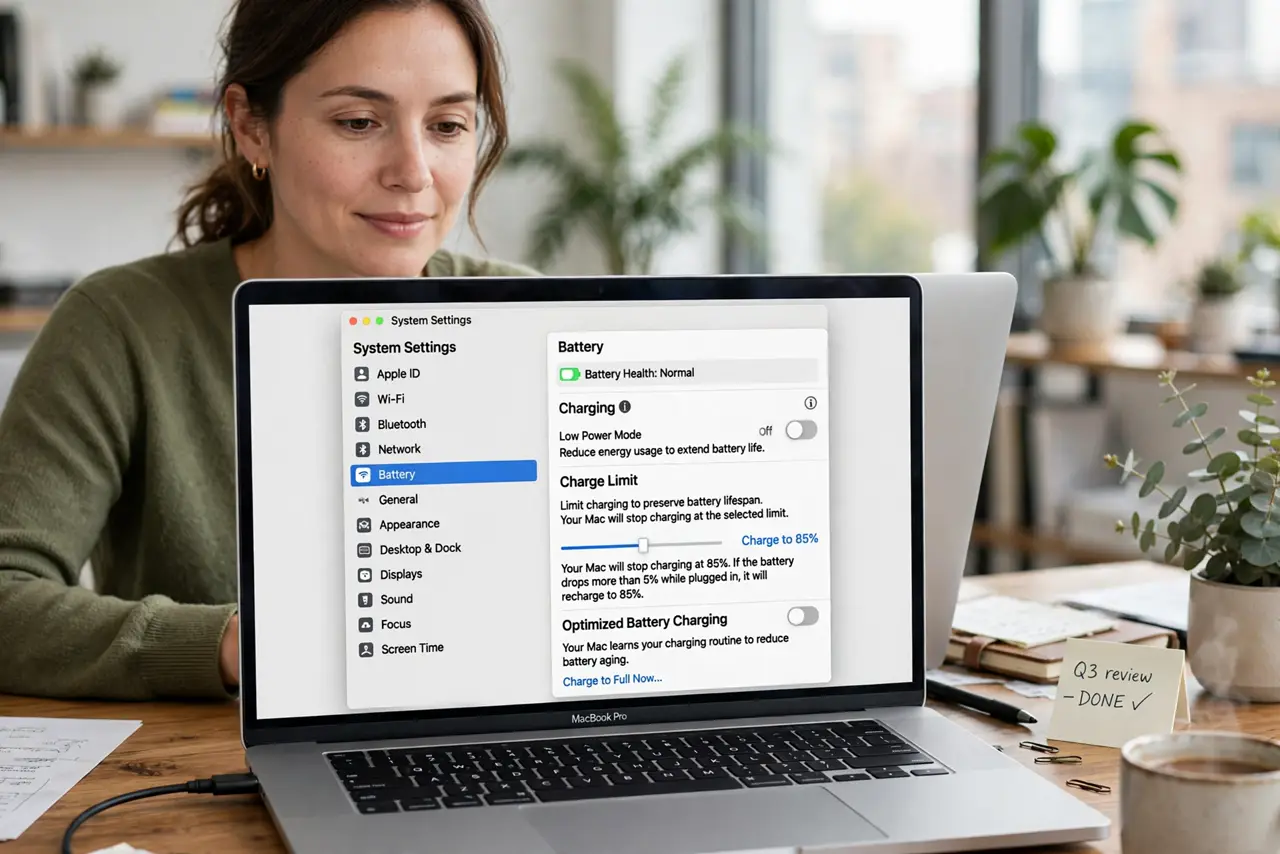
Quick fix: on Apple silicon Macs, open System Settings, go to Battery, and set the charge limit to 80% to slow battery aging when you mostly work plugged in. Choose Optimized charging instead if you unplug often — it learns your routine and finishes charging before you leave.
Follow these steps
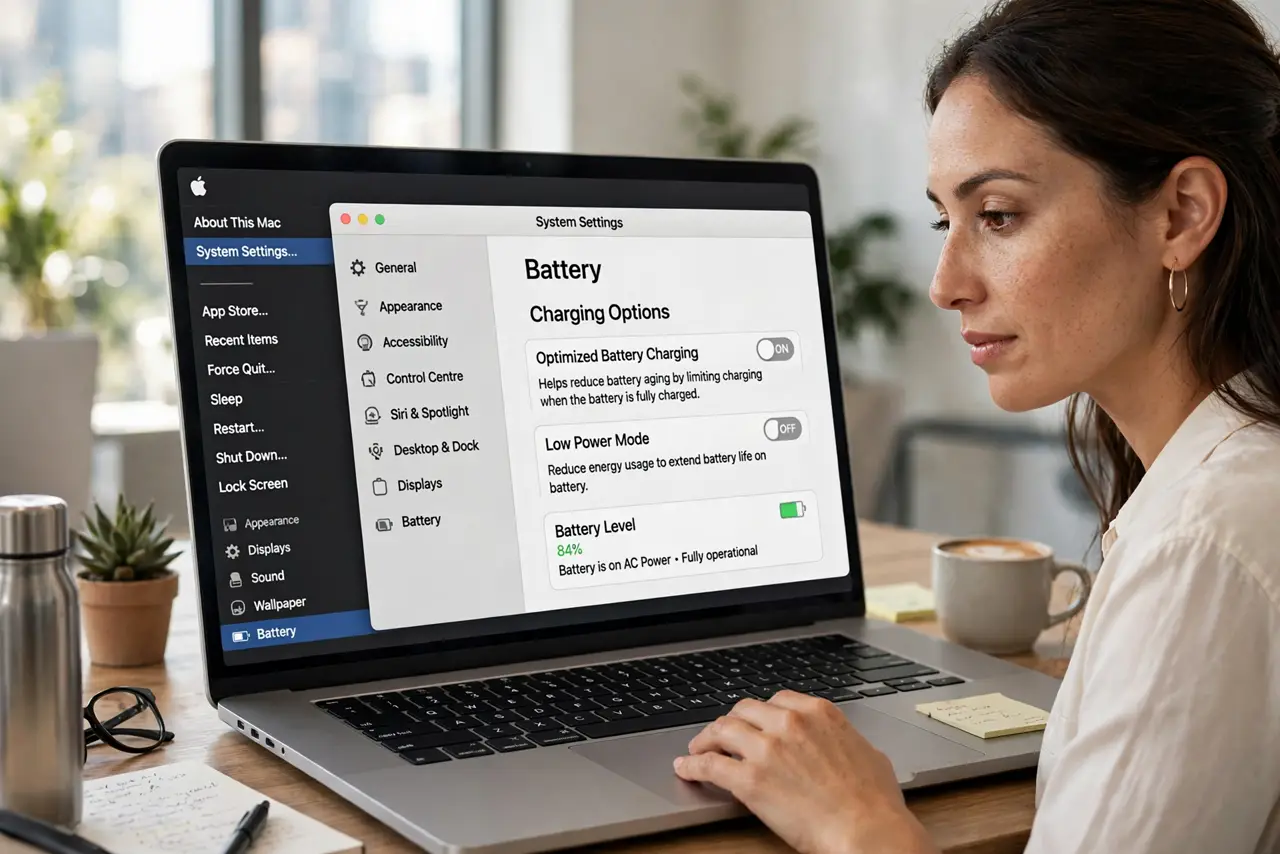
- Open Battery settings. Click the Apple menu, choose System Settings, then Battery. The charging options sit at the top of the panel.
- Understand the 80% limit. Capping the charge at 80% reduces the chemical stress of sitting at full voltage. Best for desk-bound Macs that rarely leave the charger.
- Understand Optimized charging. Instead of a hard cap, the Mac learns when you unplug and holds at 80% until just before. Best when your schedule is regular but you need full range sometimes.
- Pick based on your real routine. Plugged in all week? Use the 80% limit. Out and about daily? Optimized charging gives you full capacity when it matters.
- Check your battery health too. Charge limits slow aging; they do not reverse it. Glance at your cycle count to see where the battery stands today.
- Override temporarily when needed. Travel day coming? Switch back to full charging for the trip, then re-enable the limit after. One long day at 100% does negligible harm.
What NOT to do
- Do not obsess over the percentage daily. The limit works in the background — checking it constantly changes nothing.
- Do not use the 80% limit and then complain about short battery life. The cap trades runtime for longevity — that is the deal.
- Do not expect Optimized charging to learn an irregular schedule. If your routine changes daily, the hard 80% limit is more reliable.
- Do not confuse the limit with a fault. A Mac holding at 80% is doing its job, not failing to charge — check settings before the Genius Bar.
Frequently asked questions
Does the 80% limit really extend battery life?
Yes — lithium batteries degrade fastest at high voltage and heat. Holding at 80% meaningfully slows the chemical aging, especially on always-plugged Macs.
Why is my Mac stuck at 80% when I turned the limit off?
Optimized charging may still be holding it based on your routine. Give it a charge cycle or two to relearn, or charge past it manually once.
Do I need this on an Intel Mac?
Intel Macs offer Optimized charging but not the hard 80% cap. The advice still applies: avoid sitting at 100% for weeks. Check battery health habits on your phone too.