Use the Passwords App
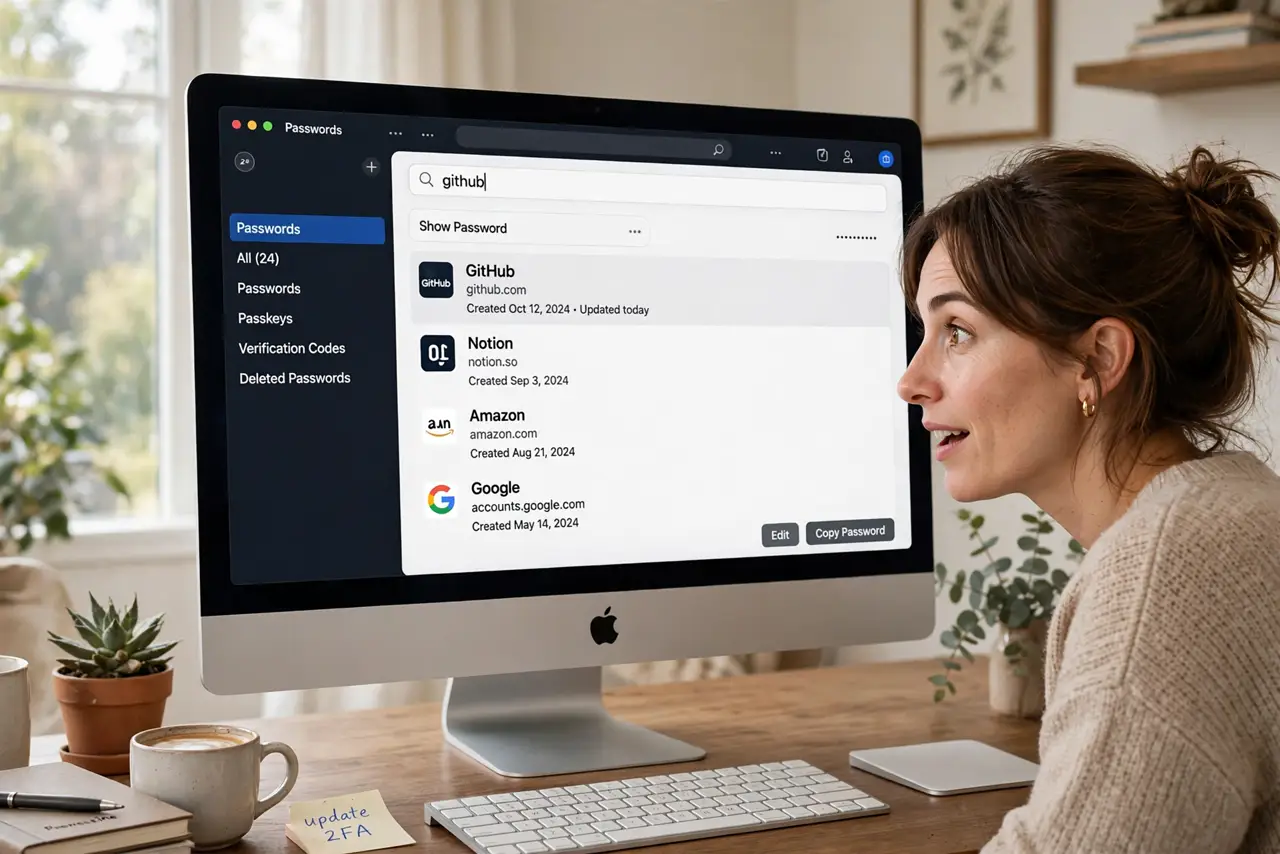
Apple's Passwords app collects every saved login, Wi-Fi password, and passkey in one searchable place — but many Mac users have never opened it. If you are still reusing three passwords everywhere, this free built-in app is the easiest security upgrade on your Mac. Here is how to actually use it.
TL;DR / Quick Fix
Quick fix: open the Passwords app — it already holds logins Safari saved. Turn on iCloud sync so they follow you to iPhone and iPad. Work through the Security section: it flags reused and weak passwords. Fix email and banking first, and upgrade logins to passkeys where offered.
Follow these steps
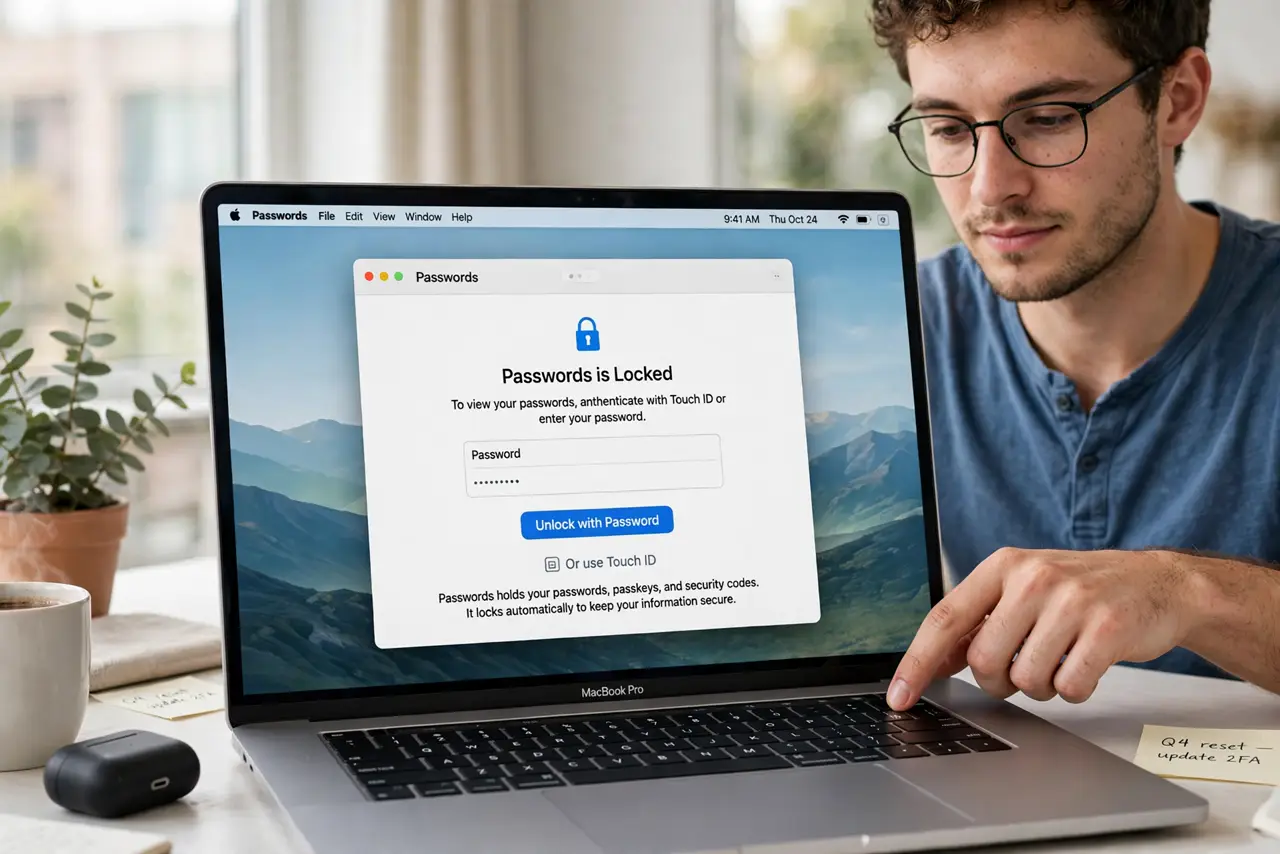
- Open the Passwords app. Find Passwords in Applications or search Spotlight. Unlock it with Touch ID or your Mac password — it holds the keys to everything, so it locks itself aggressively.
- Turn on iCloud sync. In System Settings, your Apple ID, iCloud, make sure Passwords sync is on. Your logins then appear on iPhone and iPad too — one vault everywhere.
- Audit with the Security section. Open Security inside the app: it lists reused, weak, and leaked passwords. Fix the flagged ones starting with email and banking — those matter most.
- Let it generate new passwords. When changing a password on a website, let Safari suggest a strong random one — it saves straight to the app. Memorizing passwords is over; the app remembers.
- Upgrade to passkeys where offered. Many sites now offer passkeys instead of passwords — stronger and phishing-proof. The Passwords app stores them alongside your logins.
- Share passwords safely with family. Use shared groups in the app for family logins like streaming services. Shared groups beat texting passwords — access can be revoked without changing the password.
What NOT to do
- Do not keep reusing one password everywhere. A single breach then opens every account — the app's generator exists to end this habit.
- Do not store passwords in Notes or spreadsheets. Unencrypted notes are one unlocked device away from exposure — the Passwords app encrypts everything.
- Do not ignore the leaked-password warnings. 'Appeared in a data leak' means change it now, starting with anything tied to money or email.
- Do not turn off iCloud sync to 'be safe.' Losing your only copy when the Mac dies is a bigger risk than Apple's encryption — keep sync on.
Frequently asked questions
Is Apple's Passwords app as good as paid managers?
For most people, yes — it covers logins, passkeys, Wi-Fi, and secure sharing, all free and deeply integrated. Paid apps add cross-platform extras power users may want.
What if I forget my Mac password?
You would be locked out of the vault too — which is why a strong, memorable Mac password plus Touch ID is the foundation everything rests on.
Can I import passwords from Chrome?
Yes — export from Chrome's password manager and import into the Passwords app, then delete the export file immediately.