Passkeys vs Passwords? Plain Explanation
Sites now offer passkeys as a replacement for passwords, and the word gets thrown around a lot. A passkey is simply a login that uses your fingerprint, face, or device PIN instead of a typed password. This guide explains the difference in plain terms.
TL;DR / Quick Fix
Quick fix: when a site you trust offers passkeys, turn them on — a fingerprint or face login is easier and safer than a typed password. Keep passwords as backup until every site you use supports passkeys. Make sure your phone's screen lock is on, since passkeys rely on it.
Follow these steps
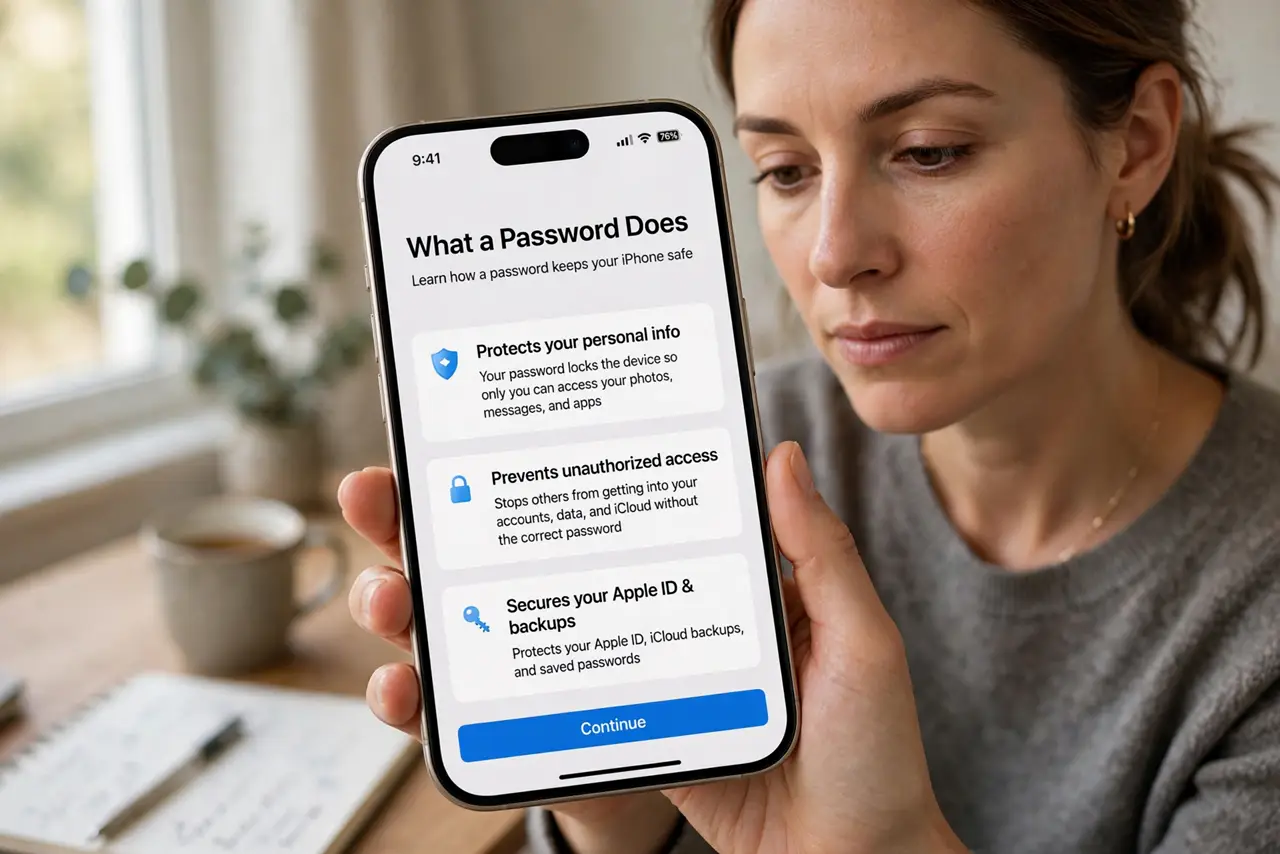
- Understand what a password does. A password is a secret you memorize and type. Its weakness is human: people reuse them and pick guessable ones, which is why reusing passwords causes so many account takeovers.
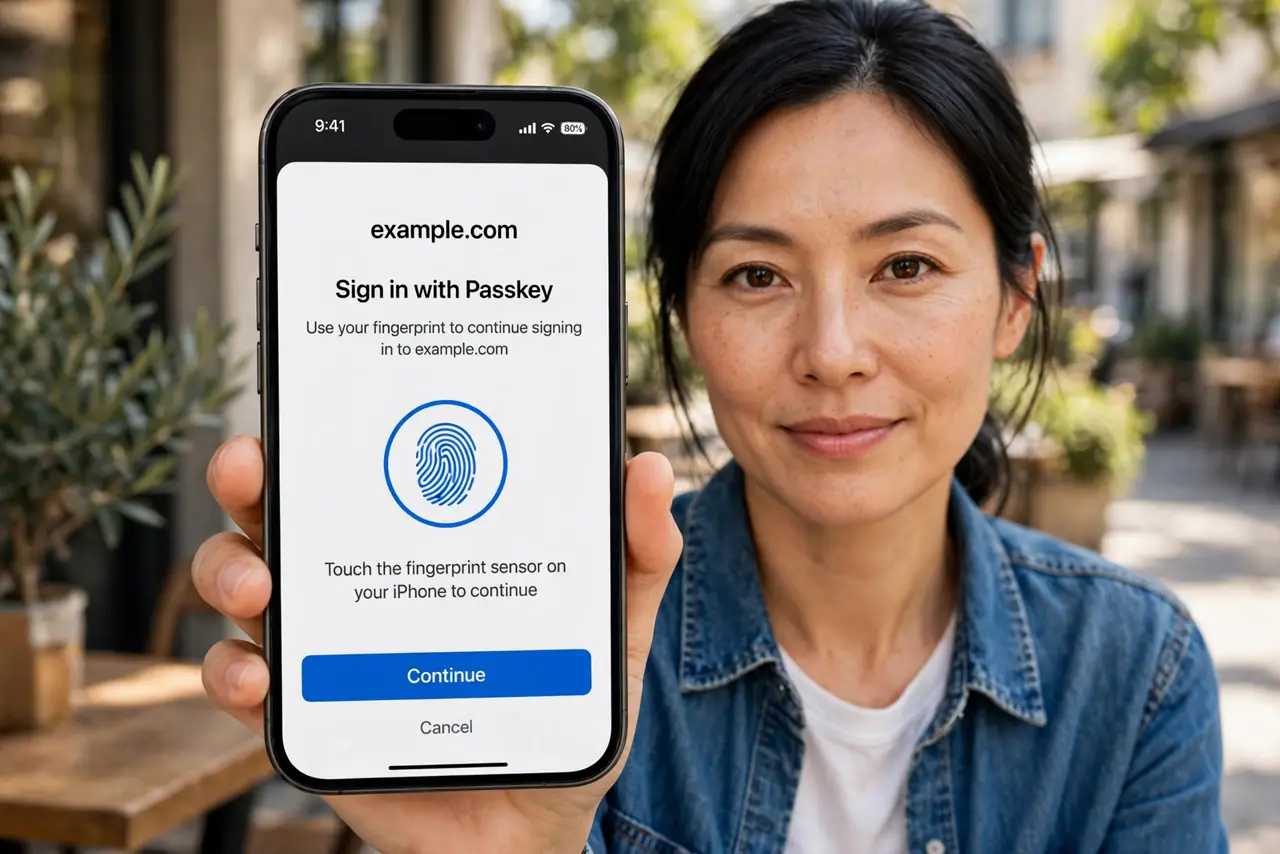
- Understand what a passkey does. A passkey is a digital key stored on your device that unlocks with your fingerprint, face, or PIN. There is nothing to memorize and nothing to type into a fake login page.
- See why phishing fails against passkeys. A passkey only works on the real site it was created for. A fake lookalike page cannot use it, which removes the most common way passwords get stolen.
- Create a passkey where offered. In the site's security settings, choose Create a passkey and confirm with your fingerprint or face. Your phone or computer stores it and syncs it through your cloud account.
- Keep passwords as backup for now. Not every site supports passkeys yet, so keep your password manager for the rest. A long passphrase still beats a short tricky password for those accounts.
- Protect the device that holds them. Passkeys are only as safe as your device lock. Use a strong screen lock and keep two-factor on for your cloud account, since synced passkeys travel with that account.
What NOT to do
- Do not delete your passwords the day you create a passkey. Keep both until you are sure the passkey works on all your devices.
- Do not create passkeys on a shared or public computer. The key would live on a device you do not control.
- Do not ignore the recovery options. Save the site's backup codes when offered, in case you lose every device holding the passkey.
- Do not assume passkeys work everywhere yet. Banks and older services may not offer them, so check each important account individually.
Frequently asked questions
Are passkeys really safer than passwords?
Yes for phishing, which is how most passwords are stolen. A passkey cannot be typed into a fake site, and there is no password database to leak.
What happens if I lose my phone with my passkeys?
If your passkeys sync through iCloud or Google, they appear on your new phone when you sign in. Without sync, you fall back to the site's recovery options.
Do I still need a password manager?
For now, yes. Many sites still need passwords, and a manager also stores the backup codes and notes that passkeys do not cover.