Mac Photos Library Will Not Open? Fix It Fast
Your Photos library will not open, and your pictures feel trapped inside. Do not delete the library or reinstall anything yet. Most failures come from a moved library, a damaged database, or a full disk, and all three are fixable.
TL;DR / Quick Fix
Quick fix: hold Option while opening Photos to choose the correct library, check free disk space, then repair the library if Photos still fails. Back up first if you can, and do not delete the library file itself. Test again tomorrow and confirm the fix still holds.
Follow these steps
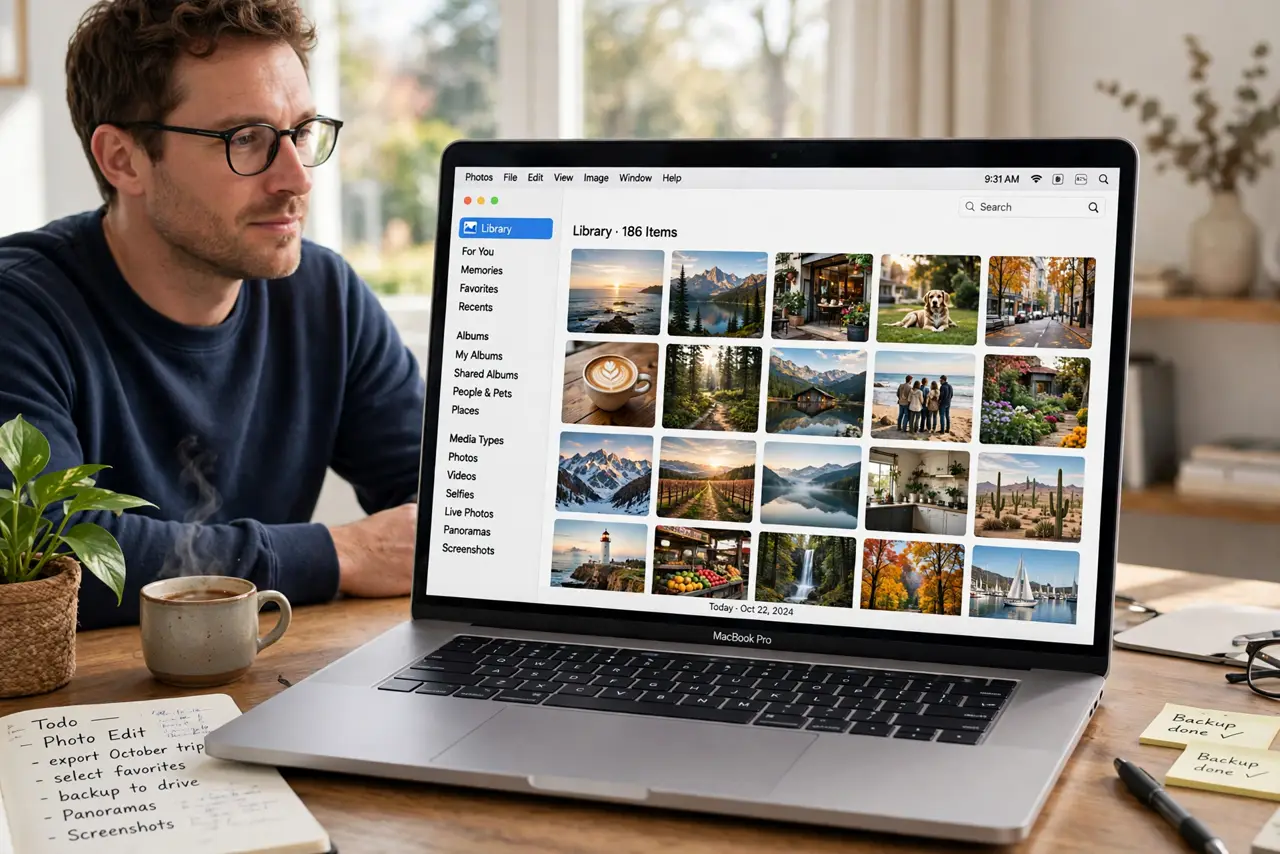
- Choose the right library first. Hold Option while you open Photos, then pick the library you normally use. If Photos opens a new empty library, you chose the wrong file, so quit and try again.
- Check free disk space. Open Apple menu, then About This Mac, then More Info, then Storage Settings, and check free space. Photos needs room to work, so free space first if the disk is nearly full.
- Repair the library. Quit Photos, hold Option and Command while opening it, then click Repair. Let the repair finish without forcing Photos to quit, even if it takes a while.
- Check the library location. If the library lives on an external drive, make sure that drive is connected and mounted before opening Photos. A missing drive looks exactly like a broken library.
- Try a new user account test. Create a test user in System Settings, then Users and Groups, and open Photos there. If Photos works there, the problem is in your account, not in the library itself.
- Restore from backup only if needed. If repair fails, restore the library from Time Machine instead of deleting it. Copy the backup library to your Mac first, then open that copy in Photos.
What NOT to do
- Do not delete the Photos Library file to start over. Deleting it can destroy the only copy of your photos.
- Do not force Photos to quit during a repair. Interrupting a repair can make library damage worse.
- Do not edit files inside the library package by hand. Those internal files are managed by Photos, not by Finder.
- Do not open the library from a cloud-only folder. Photos needs the full library on a connected drive, not a placeholder file.
Frequently asked questions
Will repairing delete my photos?
No. Repair rebuilds the library database; it does not delete your original photos. Back up first anyway, as a safety step.
What if Photos opens an empty library?
You likely opened a new library by mistake. Quit Photos, hold Option while reopening it, and choose your original library.
What if the library is on an external drive?
Connect the drive, wait for it to appear in Finder, then open Photos. If the drive does not mount, fix the drive connection first.