Annotate Images in Preview
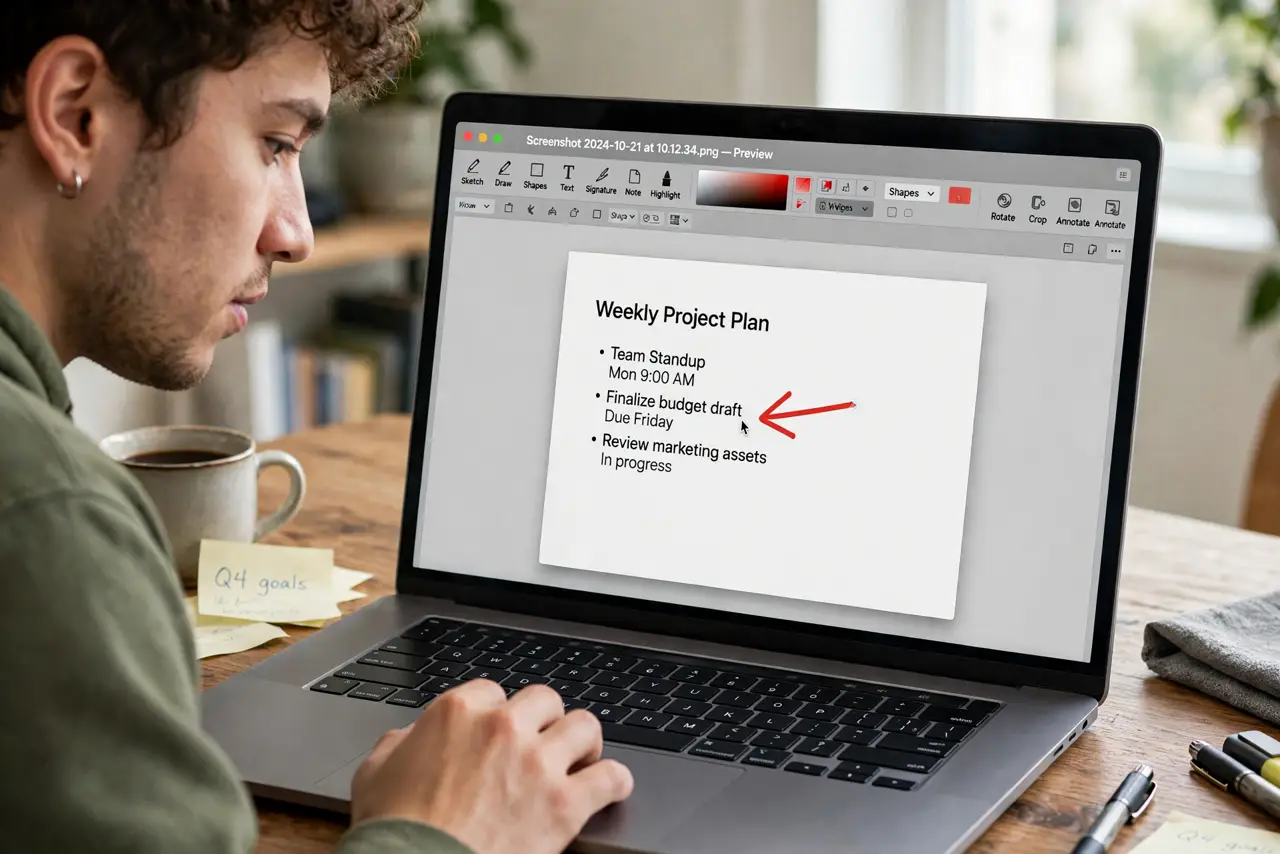
Arrows pointing at the bug, a circle around the typo, a text box saying 'fix this' — Preview's markup toolbar does all of it without a single download. The toolbar hides until you summon it, which is why most Mac owners never knew it existed.
TL;DR / Quick Fix
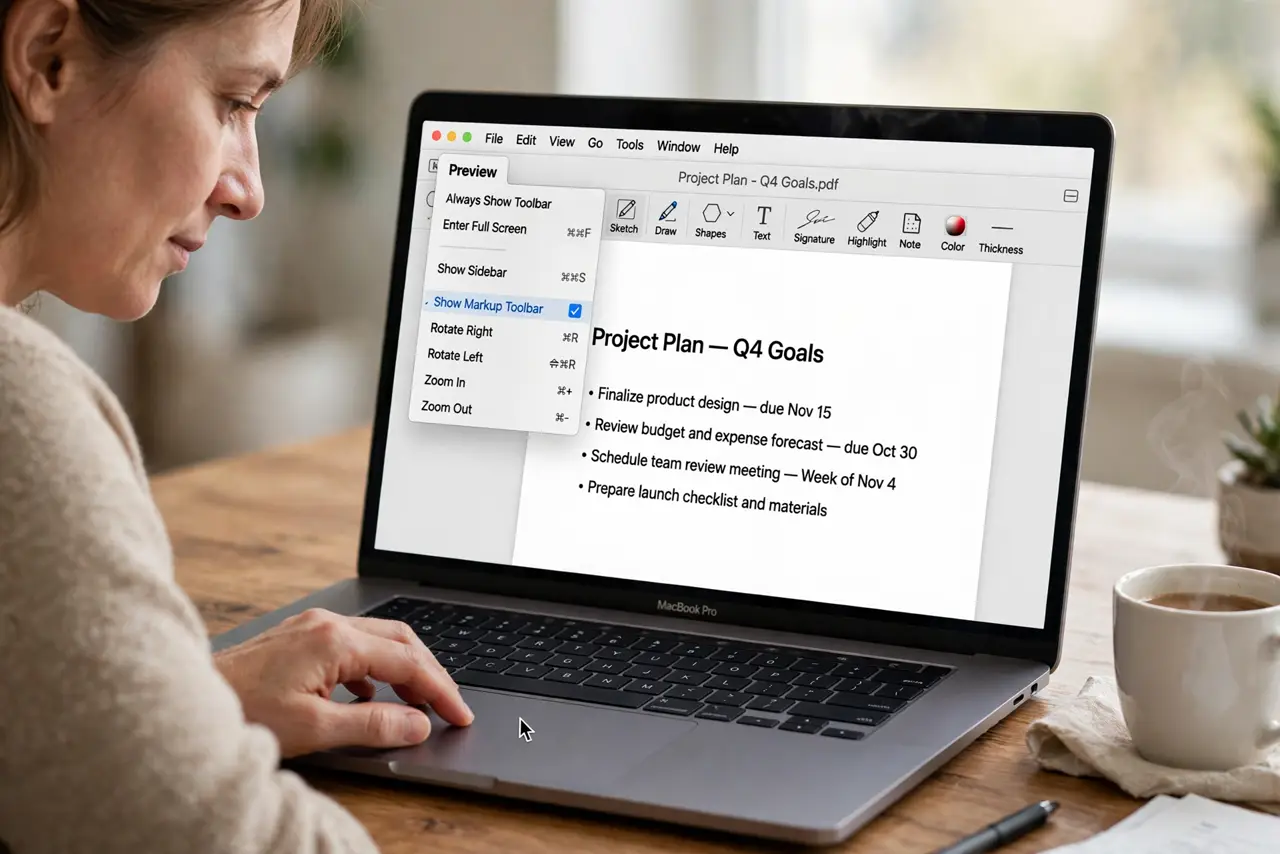
Quick fix: in Preview, choose View > Show Markup Toolbar. Click the shapes, text, or sketch tools and draw directly on the image. Adjust color and line thickness from the style buttons. Save with Command-S when done to keep your markup.
Follow these steps
- Reveal the markup toolbar. View > Show Markup Toolbar — or click the markup icon in the toolbar. The row of shapes, text, and signature tools appears.
- Draw shapes and arrows. Click a shape, then drag on the image. Arrows, rectangles, ovals, and lines all work — drag the handles to resize after placing.
- Add text boxes. Click the Text tool, click on the image, and type. Change font and size from the text style button — the default is often too small.
- Use the sketch tool for freehand. The squiggle icon smooths your rough circles and arrows into neat shapes automatically — surprisingly good at it.
- Adjust colors and thickness. The style buttons set line color, fill, and weight. Red arrows on screenshots are the universal 'look here' — for good reason.
- Save or duplicate first. Command-S overwrites. For annotated copies alongside originals, File > Duplicate before you start drawing.
What NOT to do
- Do not annotate the original evidence photo. Duplicate first — a red circle over the original is permanent once saved.
- Do not use tiny default text. Bump the font size before typing — the default text box is nearly unreadable in a shared screenshot.
- Do not forget the tools also work on PDFs. Markup on a PDF page annotates the document — handy for quick review notes.
- Do not hunt for the toolbar in the menus twice. Once shown, Preview remembers — it stays visible until you hide it.
Frequently asked questions
Where did the markup toolbar go?
View > Show Markup Toolbar brings it back — updates and new windows sometimes hide it again.
Can I remove an annotation I just made?
Click it and press Delete — annotations stay selectable until you save and close. After that they are baked in.
Why are my shapes the wrong color?
The style buttons remember the last used color. Set red (or your pick) before drawing, not after.