Crop an Image in Preview
Preview — the app that opens every image on your Mac — hides a perfectly good crop tool. No Photoshop, no new app: draw a box, hit Crop, save. It handles quick trims, aspect cleanups, and screenshot tightening in seconds.
TL;DR / Quick Fix
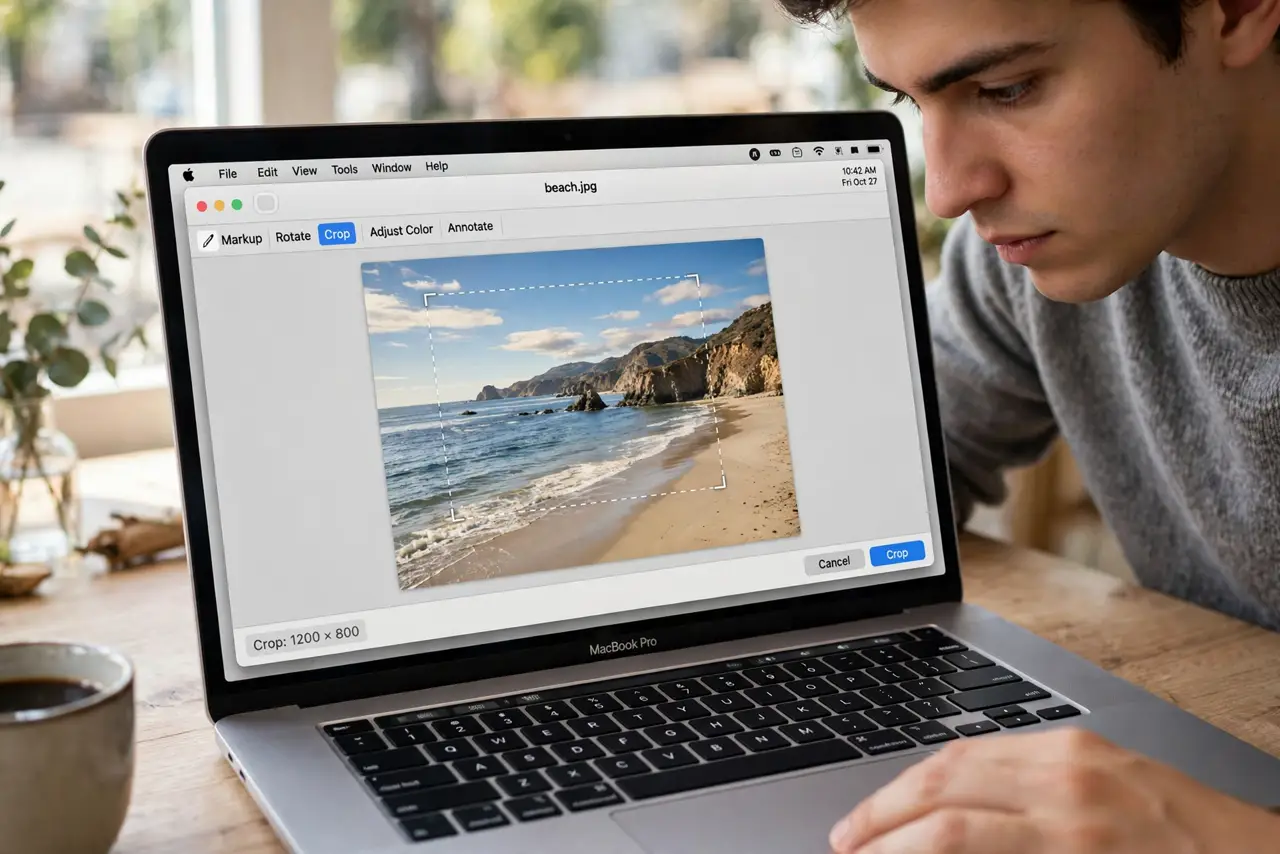
Quick fix: open the image in Preview, drag a rectangle over the part to keep, then press Command-K or choose Tools > Crop. Save with Command-S. To undo, close without saving — or press Command-Z right after cropping, before saving.
Follow these steps
- Open the image in Preview. Double-click any image — Preview is the default. If another app opens, right-click > Open With > Preview.
- Drag a selection box. Click and drag over the area to keep. The marching-ants rectangle is your crop boundary — resize it by the handles.
- Press Command-K or Tools > Crop. The image snaps to your selection. One keystroke, no dialog boxes, no fuss.
- Fine-tune before committing. Press Command-Z to undo the crop and reselect. You can re-crop as many times as you like before saving.
- Save with Command-S. This overwrites the original — for safety, use File > Duplicate first when the original matters.
- Use it on screenshots too. Screenshots open in Preview the same way. Crop away menu bars and docks before sharing — see clean captures for shadow-free shots.
What NOT to do
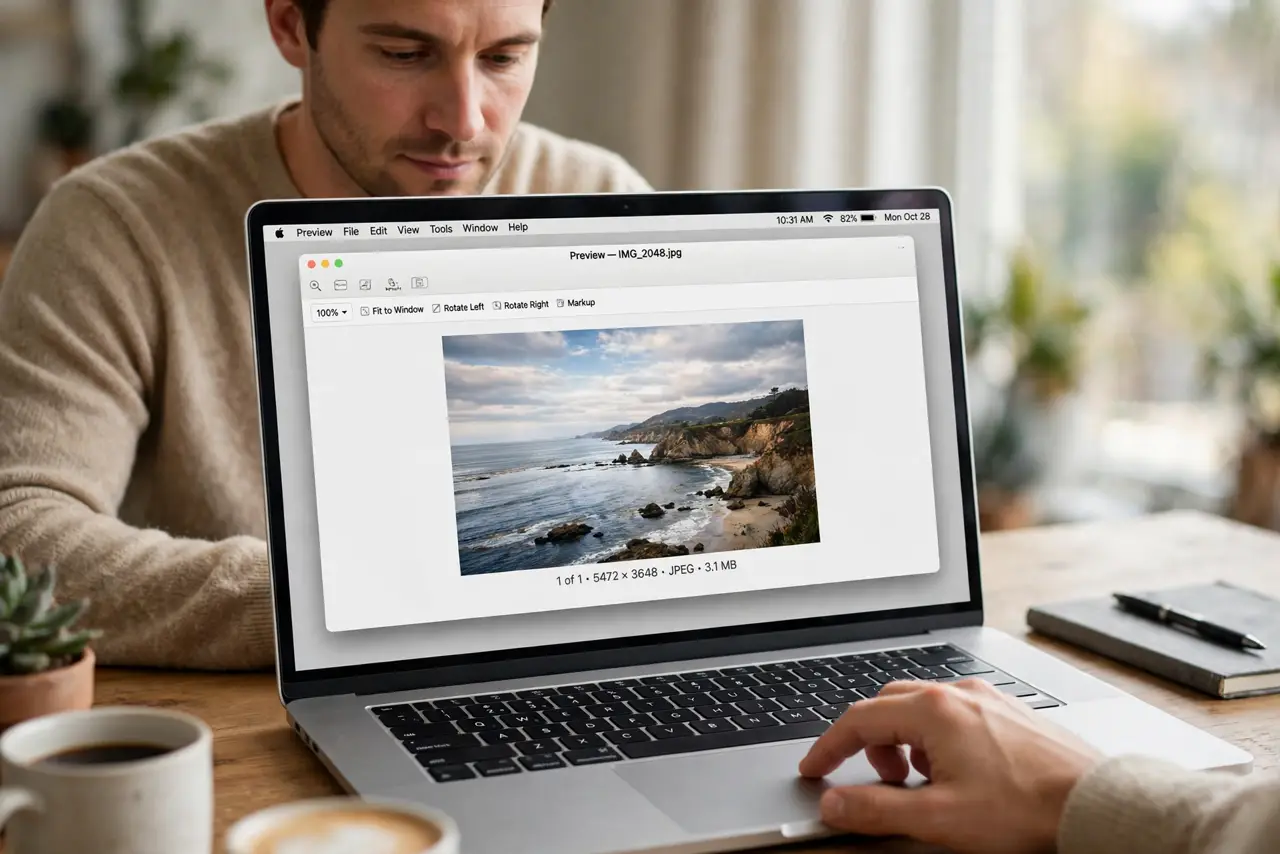
- Do not crop the only copy of a precious photo. Duplicate first — Crop plus Save is destructive on the original file.
- Do not expect non-destructive editing. Preview crops are permanent once saved — unlike Photos, there is no revert-to-original.
- Do not crop tiny and upscale later. Cropping throws pixels away; a 200-pixel crop will never make a sharp full-screen image.
- Do not forget the selection tools. An oval or lasso selection crops to that shape — the rectangle is just the default.
Frequently asked questions
How do I crop to an exact size?
Preview has no pixel-size crop box — drag carefully, or check the selection size in Tools > Show Inspector while dragging.
Can I crop a PDF page in Preview?
The Crop tool works on PDF pages too — same selection, same Command-K. It crops the visible page content.
Why is Tools > Crop greyed out?
No selection is active — drag a box on the image first. The menu only enables with marching ants showing.