Crop in Preview
You need to cut someone out of a photo or trim a screenshot, and opening a photo editor feels like overkill. Preview — the app that opens your images — crops in seconds: drag a box, hit crop, done. The fastest image edit on the Mac is the one you already have.
TL;DR / Quick Fix
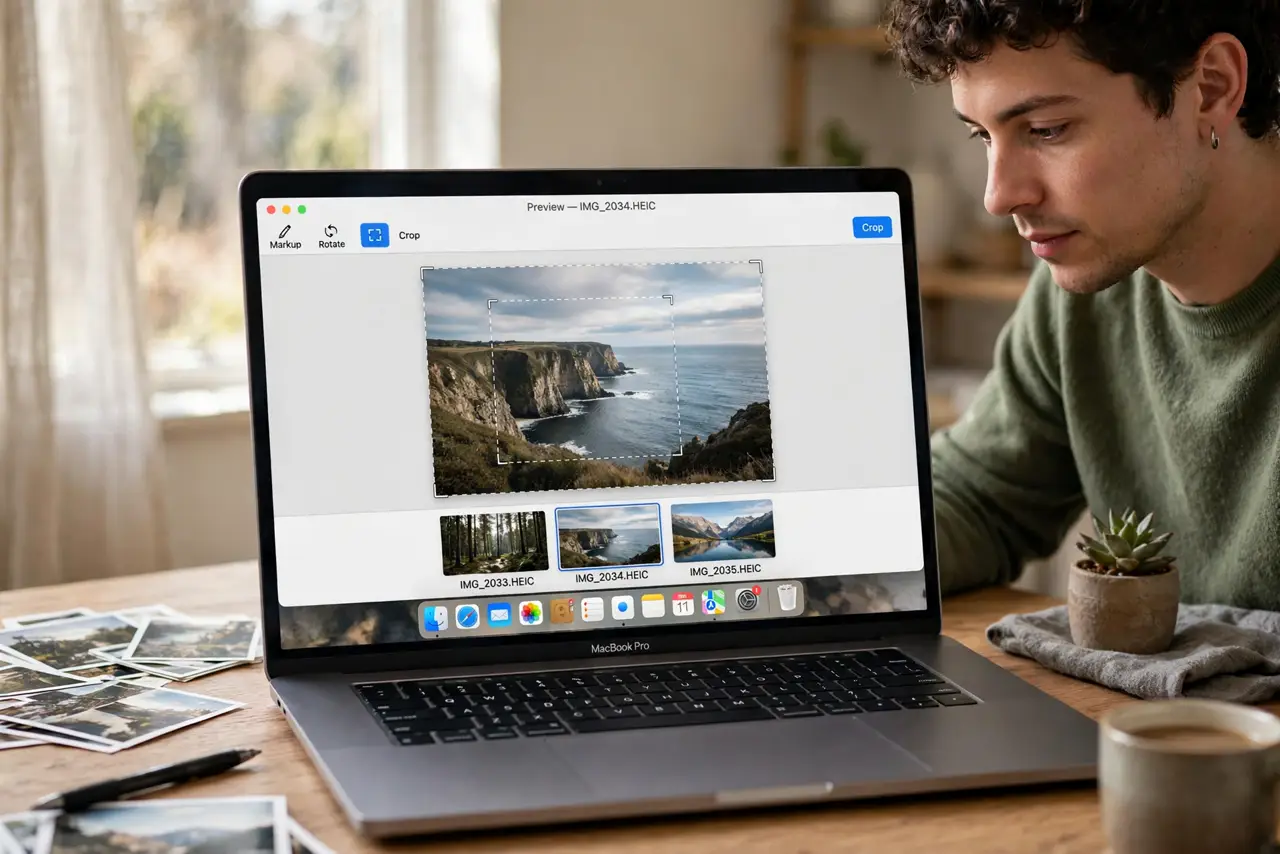
Quick fix: open the image in Preview, drag a selection box around the part to keep, then press Command+K or choose Tools, Crop. Save to keep the crop. For precise crops, zoom in before selecting. Undo with Command+Z if the crop misses.
Follow these steps
- Open in Preview. Double-click the image — Preview is the default. No imports, no libraries, just the file.
- Drag your selection. Click and drag a box around the area to keep. The marching ants show exactly what survives.
- Crop it. Press Command+K or go to Tools, Crop. Instant — the rest of the image is gone from view.
- Zoom for precision. Zoom in before dragging for pixel-level control. Small crops need the magnified view.
- Undo freely. Command+Z reverses the crop until you save. Experiment without fear — see more crop tips for refinements.
- Explore markup tools. Preview also annotates: arrows, text, signatures — the markup tools guide covers them. Cropping is just the gateway drug.
What NOT to do
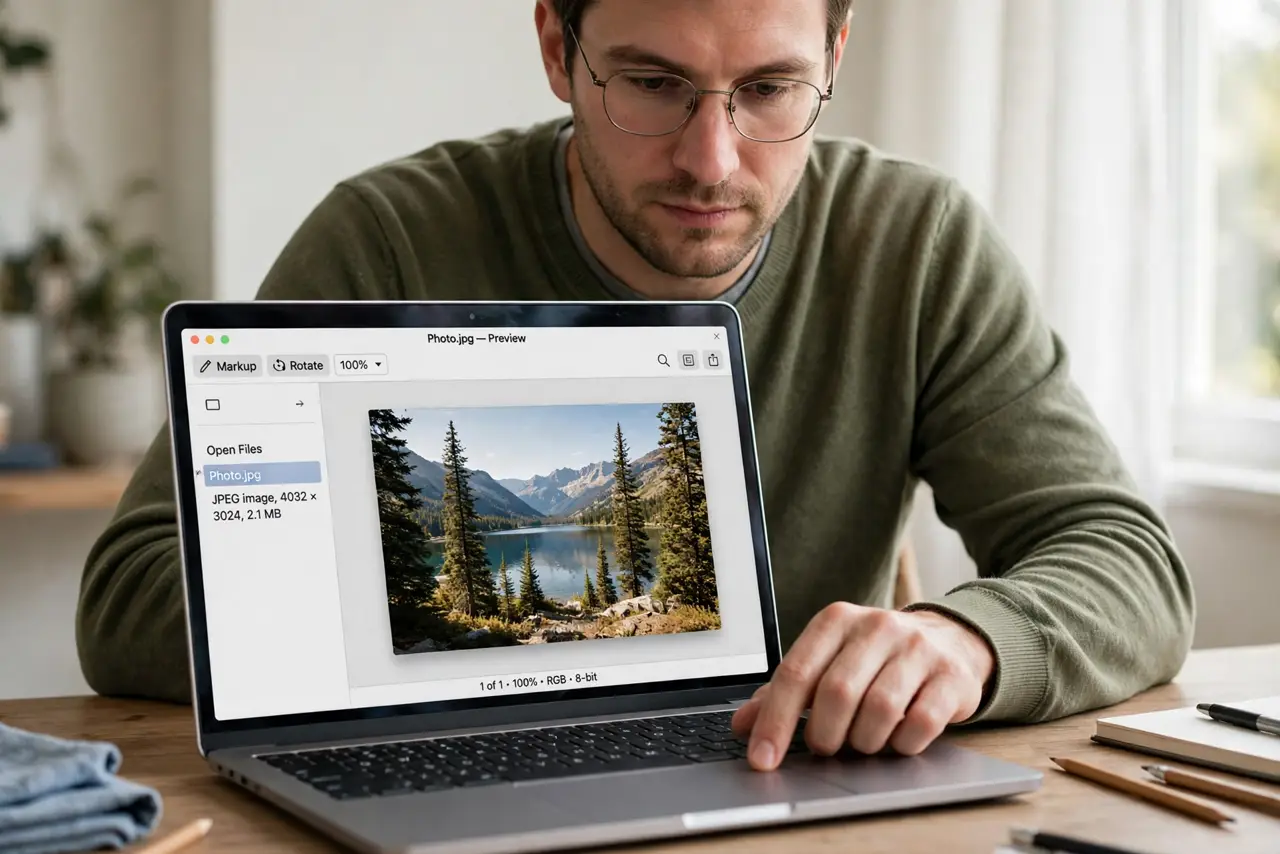
- Do not crop the only copy. Duplicate first for precious photos — destructive saves are forever.
- Do not expect non-destructive editing. Preview crops destructively on save — the undo window closes when you close.
- Do not crop screenshots tiny. Over-cropping a low-res screenshot yields mush — keep enough pixels.
- Do not forget aspect ratios. For profile pictures and prints, mind the shape — freeform crops surprise later.
Frequently asked questions
Can I crop a PDF in Preview?
Yes — select and crop works on PDF pages too, though it hides rather than deletes content.
How do I crop to a specific size?
Preview crops freeform; for exact dimensions, use the Adjust Size tool after cropping.
Where did the rest of my image go?
Cropped away on save. Keep a duplicate of originals you might want whole later.