Sign PDFs in Preview
You received a contract that needs your signature, and printing, signing, and scanning feels absurd in the modern age. macOS Preview signs PDFs digitally in under a minute — draw with the trackpad, snap a photo of your paper signature, or use your iPhone. No extra software, no account, no printing.
TL;DR / Quick Fix
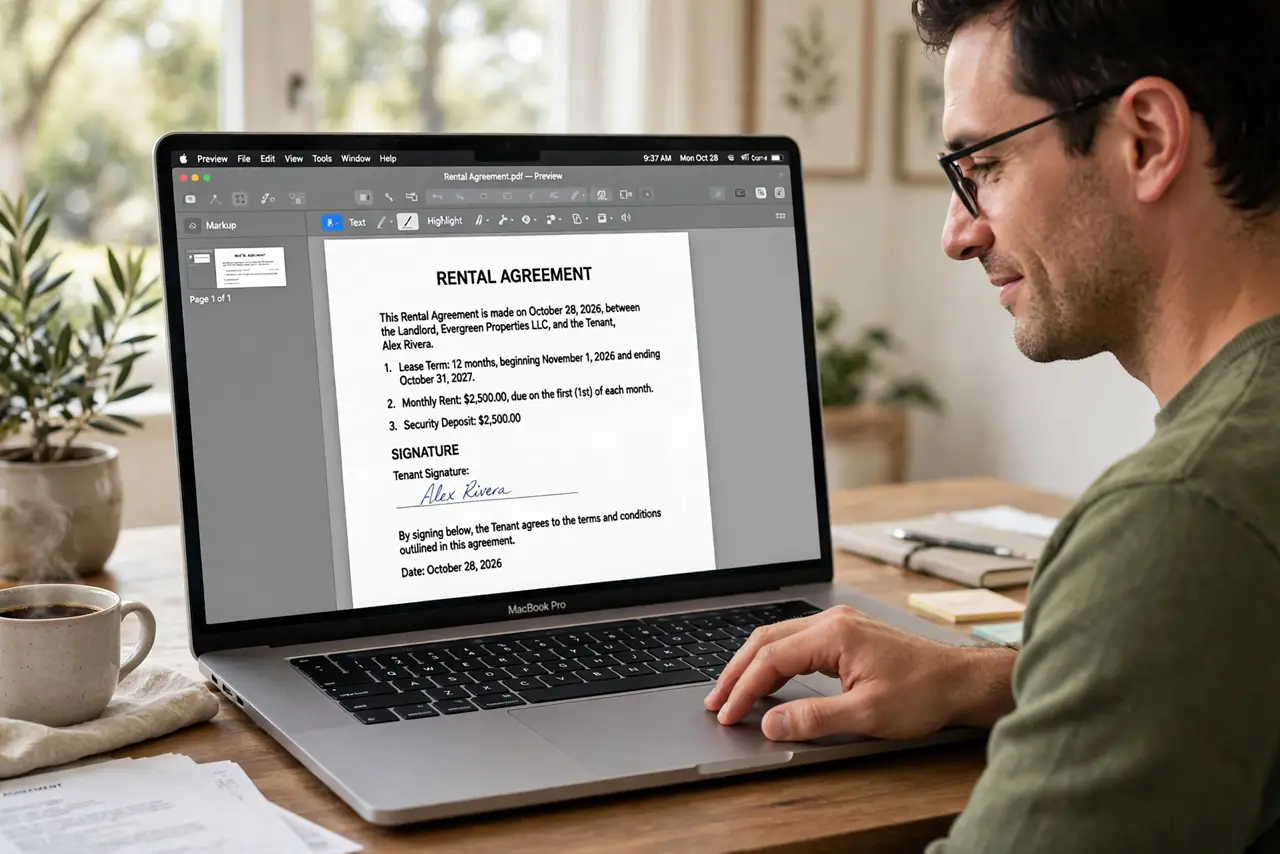
Quick fix: open the PDF in Preview, click the markup toolbar, then the signature button, and create a signature with the trackpad or camera. Click where you want it placed, resize, and save. Preview stores signatures for reuse — create one clean signature now and signing takes seconds forever.
Follow these steps
- Open the PDF in Preview. Double-click the PDF — it should open in Preview by default. If another app grabs it, right-click, choose Open With, then Preview.
- Show the markup toolbar. Click the markup icon (a pen tip) in the toolbar. The signature button — a squiggle — appears among the markup tools.
- Create your signature. Click the signature button, then Create Signature. Draw with the trackpad, hold a signed paper to the camera, or use your iPhone — pick whichever gives the cleanest result.
- Place and resize it. Click the signature, then click where it belongs on the document. Drag the corners to size it — match the signature line, not the whole page.
- Save the signed PDF. Save or export the PDF. The signature is now part of the document — send it as usual. For forms with many fields, see filling PDF forms too.
- Reuse it forever. Preview stores your signatures. Next time, it is two clicks: signature button, place, done — signing goes from chore to afterthought.
What NOT to do
- Do not photograph your signature in bad light. A shadowy photo makes a smudgy signature — use even, bright light.
- Do not stretch the signature disproportionately. A warped signature looks fake; resize from the corners to keep proportions.
- Do not assume every signature is legally equal. For high-stakes contracts, ask whether a certified digital signature is required — a Preview signature is an image of your signature.
- Do not sign before reading. The ease of digital signing makes it tempting to skip the document — read first, sign second.
Frequently asked questions
Is a Preview signature legally binding?
For most everyday agreements, yes — it demonstrates intent like a wet signature. Regulated or high-value contracts may require certified digital signatures; ask the other party.
Can I sign with my iPhone instead of the trackpad?
Yes — choose iPhone when creating the signature and sign on the phone screen. It is the easiest way to get a natural-looking result.
How do I remove a signature I placed?
Select it and press Delete before saving. After saving and closing, removal gets harder — keep an unsigned copy for important documents.