Add Printers by IP
The office printer does not do AirPrint, or it sits on a network your Mac cannot auto-discover — so macOS shrugs and shows nothing. Adding it by IP address skips the discovery magic: you point the Mac straight at the printers network address and pick the protocol. Thirty seconds, and it prints.
TL;DR / Quick Fix
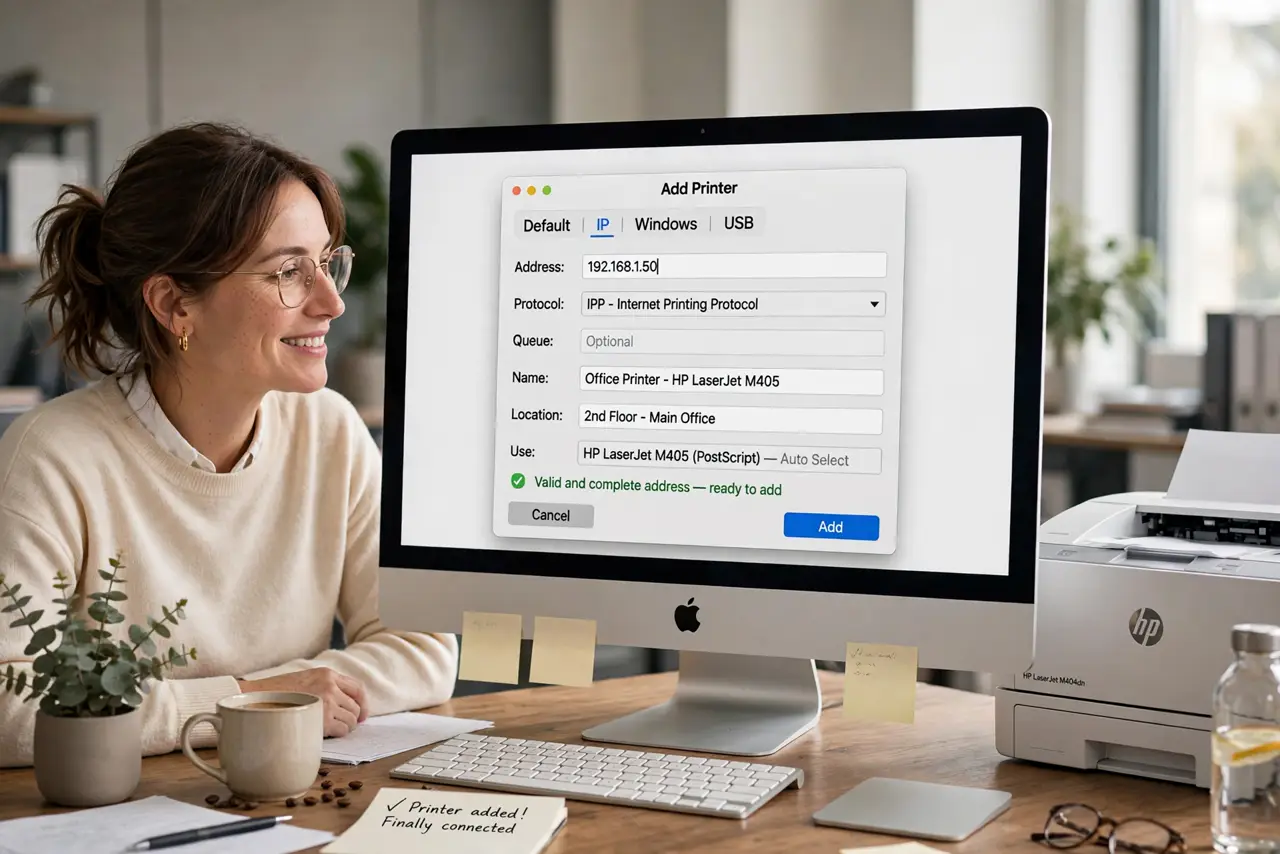
Quick fix: open System Settings, Printers and Scanners, click Add, switch to the IP tab, and enter the printers IP address with the IPP protocol. macOS fetches the right driver automatically in most cases. Print a test page — if it works, you are done forever.
Follow these steps
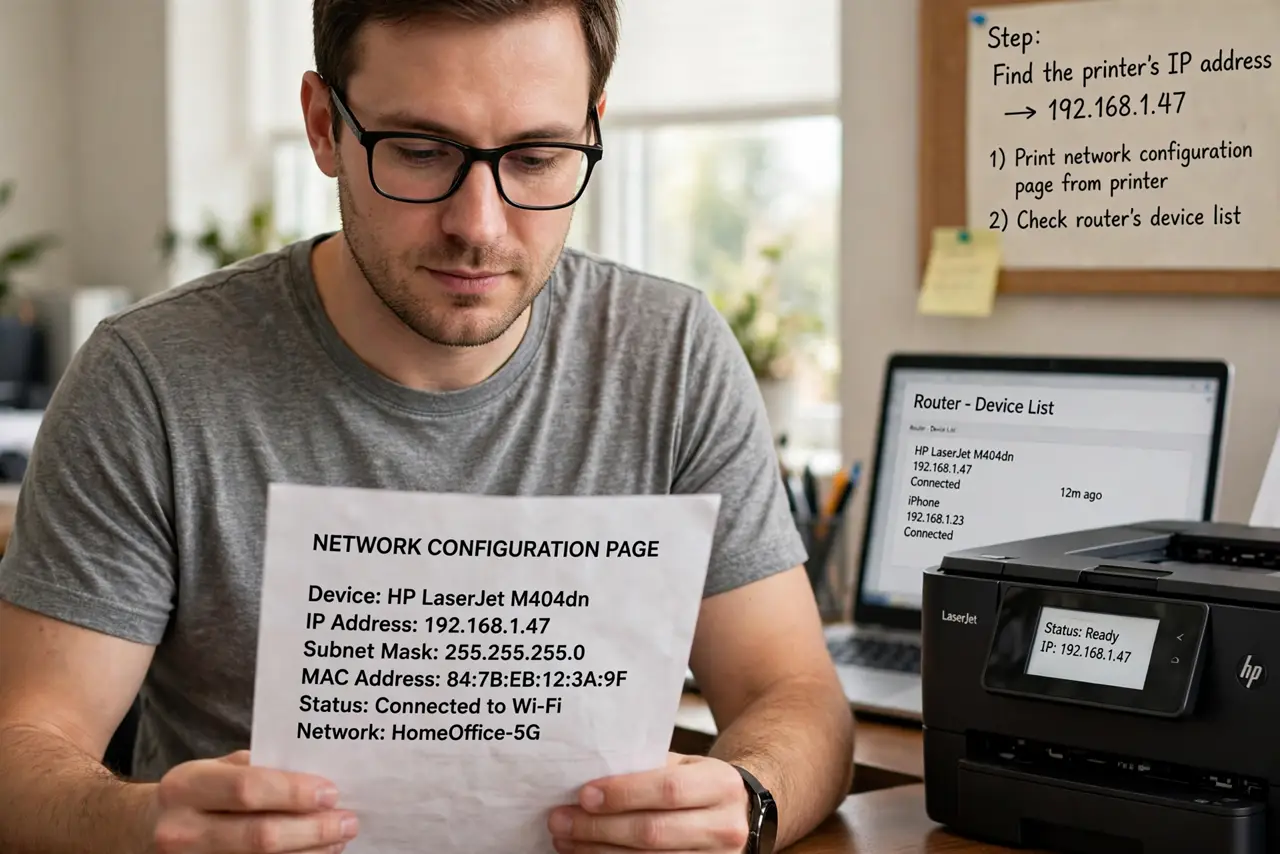
- Find the printers IP address. Print a network configuration page from the printer itself, or check your routers device list. The network printer hunt covers finding shy printers — you need those four numbers.
- Open Printers and Scanners. System Settings, then Printers and Scanners, then Add Printer. The dialog defaults to auto-discovery; you are about to bypass it.
- Switch to the IP tab. Click the globe icon for IP. Enter the address, choose IPP as the protocol — IPP is the modern standard and works with most network printers.
- Let macOS pick the driver. In most cases macOS finds the right driver automatically. If it offers generic, try it first — generic PCL or PostScript drivers print fine for documents.
- Print a test page. One test page proves the whole chain: address, protocol, driver. If it prints, save the setup and move on.
- Reserve the IP in the router. Printers that get a new address from DHCP break this setup monthly. The DHCP reservation keeps the address fixed — five minutes that prevents recurring mystery outages.
What NOT to do
- Do not guess the IP address. Wrong numbers print nowhere; get the real address from the printer or router.
- Do not use ancient protocols first. IPP beats LPD and raw sockets for modern printers — start there.
- Do not skip the test page. Untested printer setups fail exactly when the deadline looms.
- Do not forget guests on other networks. A printer invisible across VLANs or guest networks is a network design issue, not a Mac issue — see the guest network blind spot.
Frequently asked questions
What is IPP?
Internet Printing Protocol — the modern standard for network printing. It handles discovery, drivers, and job control better than the older options.
Why can my Mac not find the printer automatically?
Discovery protocols get blocked by network segmentation, VPNs, or cranky routers. IP printing bypasses discovery entirely.
Do I need the makers driver?
Usually not — macOS ships excellent generic drivers. Grab the makers driver only for exotic finishing features.