Scan Straight to PDF
You need a PDF of a paper document and the scanner came with a bewildering app full of tabs. macOS has scanning built in — no downloads, no accounts: open the scanner from Printers and Scanners or Preview, and save straight to PDF. The maze was optional all along.
TL;DR / Quick Fix
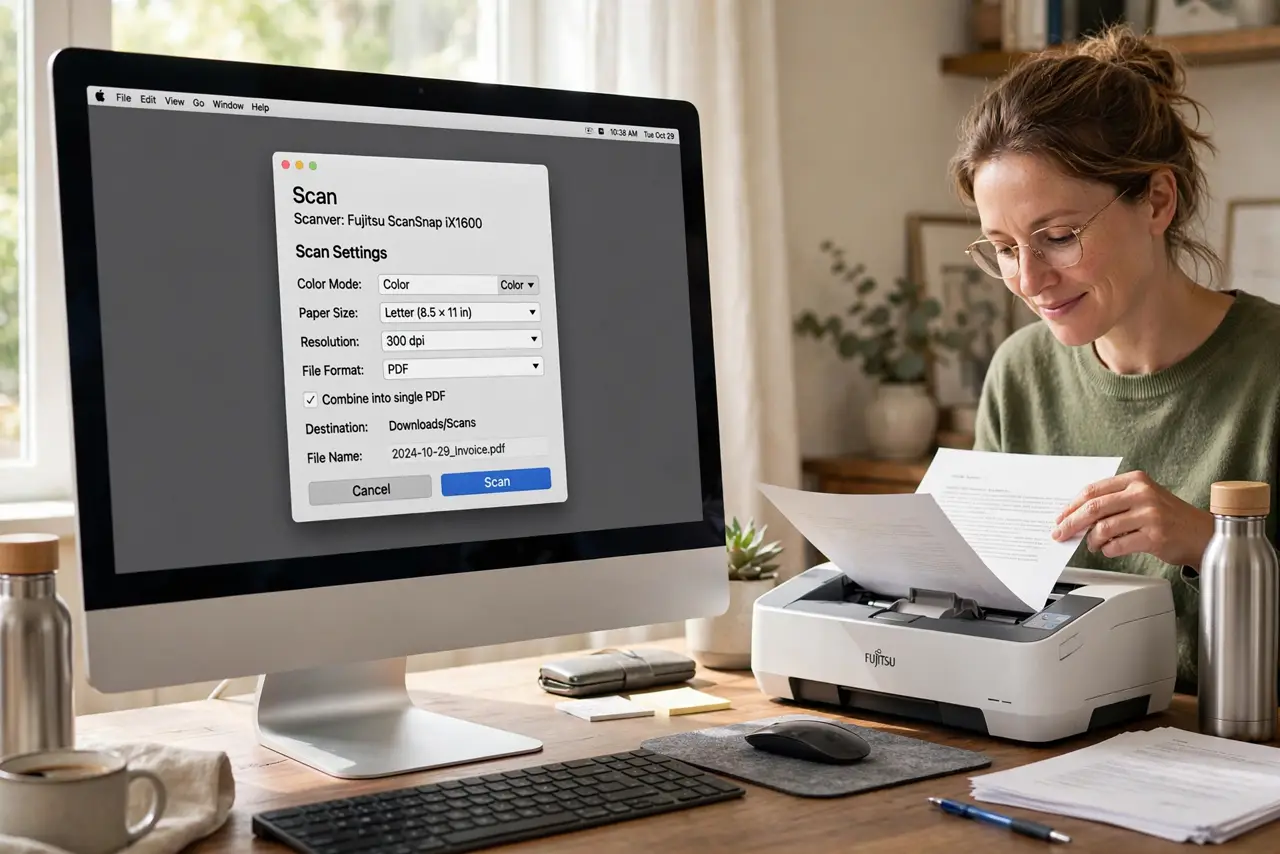
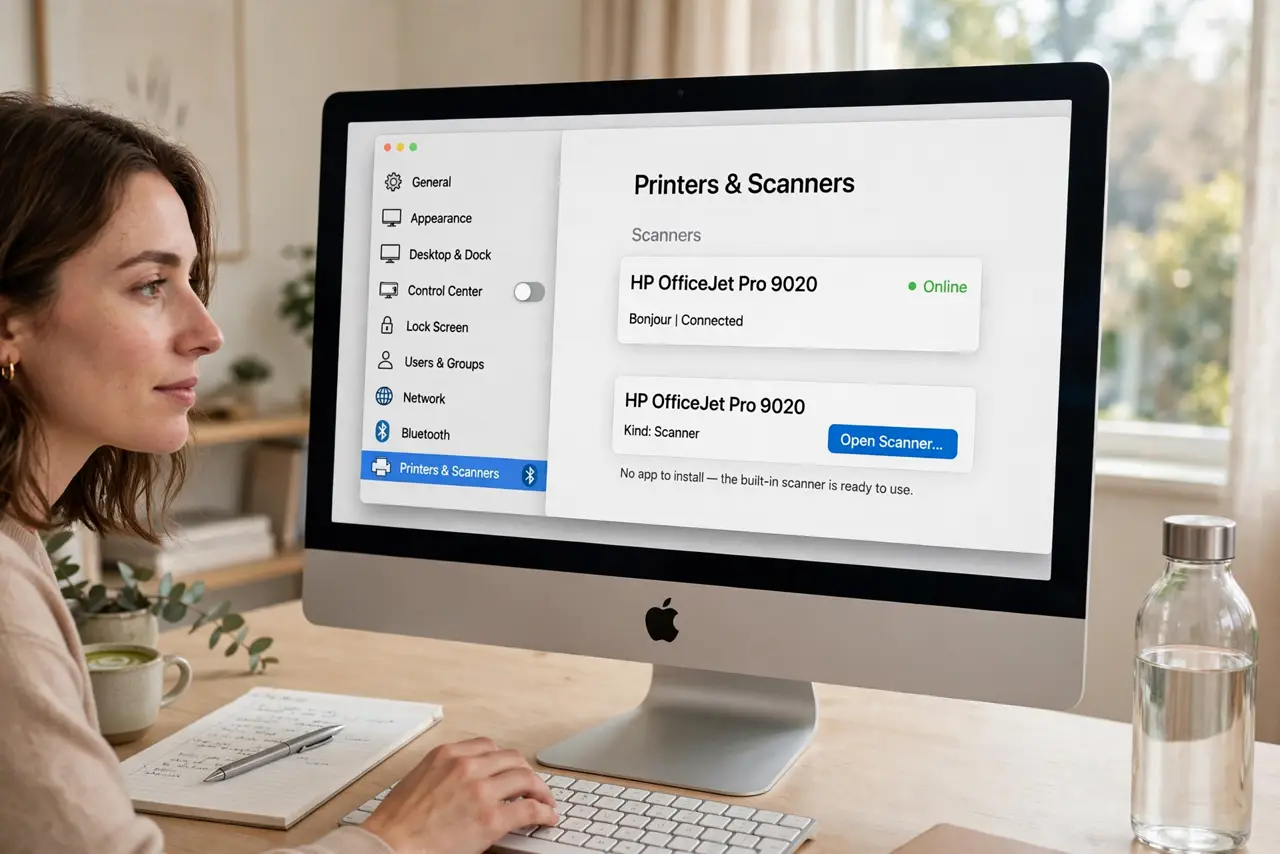
Quick fix: open System Settings, Printers and Scanners, select your scanner, and click Open Scanner — choose PDF as the format and scan. Or open Preview, File, Import from Scanner. Skip the makers app entirely; the built-in path is faster and saves exactly where you want.
Follow these steps
- Open the built-in scanner. System Settings, Printers and Scanners, select the scanner, Open Scanner. No app to install — it was there all along.
- Choose PDF as the format. In the scan dialog, set Format to PDF. The sideways save quirk explains the odd rotation some scanners produce — check orientation on the first page.
- Set a sane resolution. 300 DPI for documents, 150 for drafts. Higher DPI means bigger files with no visible benefit for text — 300 is the sweet spot.
- Use Preview as the alternative. Preview, File, Import from Scanner works when Settings feels clunky. Same engine, different door — and the Image Capture path is the third built-in route.
- Name and file it immediately. Scan 2026-10-29 beats Document 47. Name on save, file on save — the scan pile is how paper chaos goes digital.
- Troubleshoot a missing scanner. Scanner vanished? The not-found fix and the setup walkthrough cover the usual network and driver hiccups.
What NOT to do
- Do not install the makers bloated scanning suite. The built-in macOS scanner does the job with zero bloat.
- Do not scan documents at photo resolutions. 1200 DPI text files are enormous and gain nothing.
- Do not save as JPG for documents. PDF is the document format — searchable, compact, universal.
- Do not ignore the sideways first page. Check orientation immediately; re-scanning beats rotating fifty pages later.
Frequently asked questions
Can my iPhone scan instead?
Yes — the Notes app scans beautifully. For multi-page documents the flatbed still wins on consistency.
Why is my PDF huge?
Too-high DPI or color mode for text. 300 DPI grayscale keeps documents small and crisp.
Scanner not showing up?
Network scanners drop off; USB needs the right cable. The not-found fix walks through both.