Slideshow Files with Quick Look
You have a folder of thirty photos and you are opening them one at a time like it is 2005. Quick Look's slideshow mode plays through them all in a full-screen show — select, press a shortcut, and lean back. It works for images, PDFs, and more, and most Mac users never discover it.
TL;DR / Quick Fix
Quick fix: in Finder, select multiple files and press Option+Space to start a full-screen slideshow. Use the arrow keys to move through, and Escape to exit. It works with photos, PDFs, and videos mixed together. For a single file, plain Space gives the classic Quick Look preview.
Follow these steps
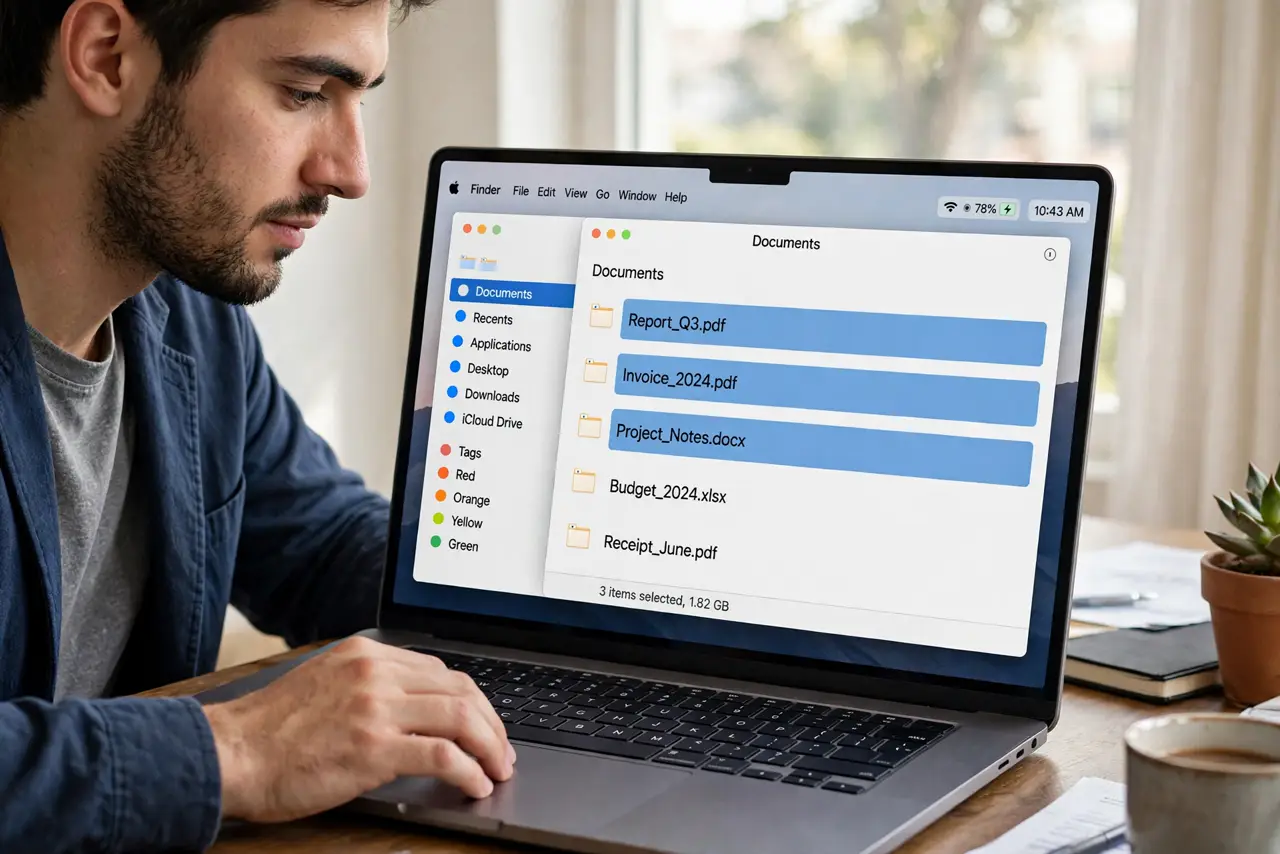
- Select the files. In Finder, click the first file, then Shift-click the last one for a range, or Command-click individual files. The slideshow plays exactly what you selected, in the order shown.
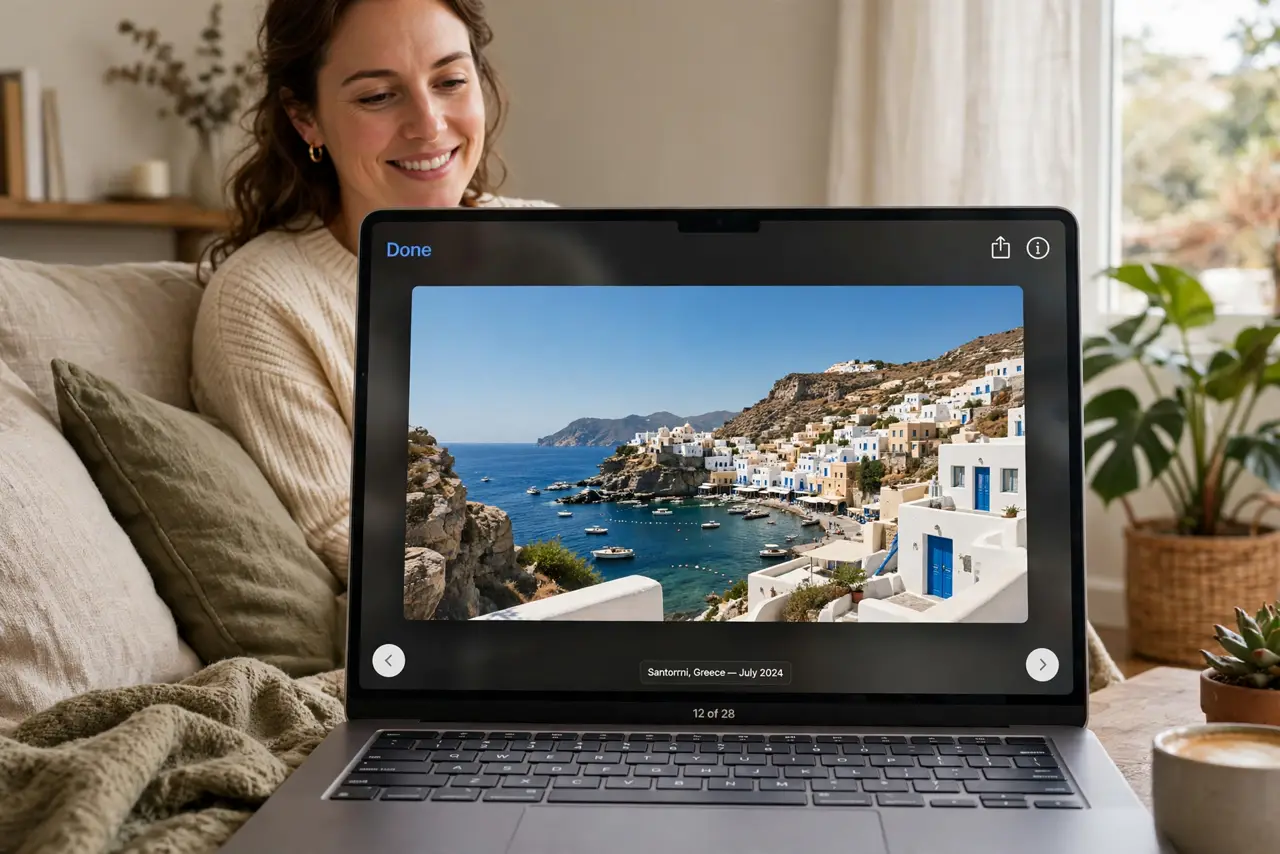
- Press Option+Space. With the files selected, hold Option and press Space. The first file opens full-screen with slideshow controls — this is the step most people never try.
- Navigate with arrow keys. Left and right arrows move through the show; the slideshow also advances on its own if you leave it. Use the on-screen controls for play, pause, and the handy grid overview.
- Mix file types freely. Photos, PDFs, and short videos can all ride in one slideshow. Quick Look handles each type natively, so a mixed folder of trip photos and scanned tickets plays straight through.
- Use plain Space for single files. One file selected plus Space gives the standard Quick Look preview — no slideshow, just a fast peek. Learn both: Space to peek, Option+Space to present.
- Press Escape to exit. Escape drops you back to Finder exactly where you were. Nothing is changed, moved, or modified — slideshows are view-only.
What NOT to do
- Do not double-click through thirty photos. That is the slow way; the slideshow exists precisely to replace it.
- Do not forget Escape. Clicking around in full-screen slideshow mode just advances slides — Escape is the exit.
- Do not select the whole drive. The slideshow plays your selection; selecting thousands of files makes a very long show.
- Do not expect editing. Quick Look is view-only — for cropping or rotating, open the file in Preview or Photos.
Frequently asked questions
Can I share from the slideshow?
Yes — the share button in the slideshow controls sends the current file without exiting the show. Handy for picking winners from a batch.
Does it work with videos?
Yes, short videos play inside the slideshow. Long movies are better opened in their own player, but clips ride along fine.
Why does Option+Space do nothing?
Nothing is selected, or the selection includes a type Quick Look cannot preview. Select a few plain photos and try again.