Reach Recovery on Apple Silicon
You are pressing Command+R like every guide says, and the Mac ignores you completely — because those Intel key combos do not exist on Apple silicon. Apple changed the entire recovery dance when it changed chips: no more key combos at boot, just the power button held down. Once you know the new move, Recovery Mode is just as reachable — and it is the doorway to reinstalling macOS, running Disk Utility, and changing startup security.

TL;DR / Quick Fix
Quick fix: on Apple silicon Macs, shut down, then press and hold the power button until startup options appear, and choose Options — that is Recovery Mode. Intel key combos like Command+R do nothing on these Macs. From there you can reinstall macOS, run Disk Utility, or change startup security.
Follow these steps
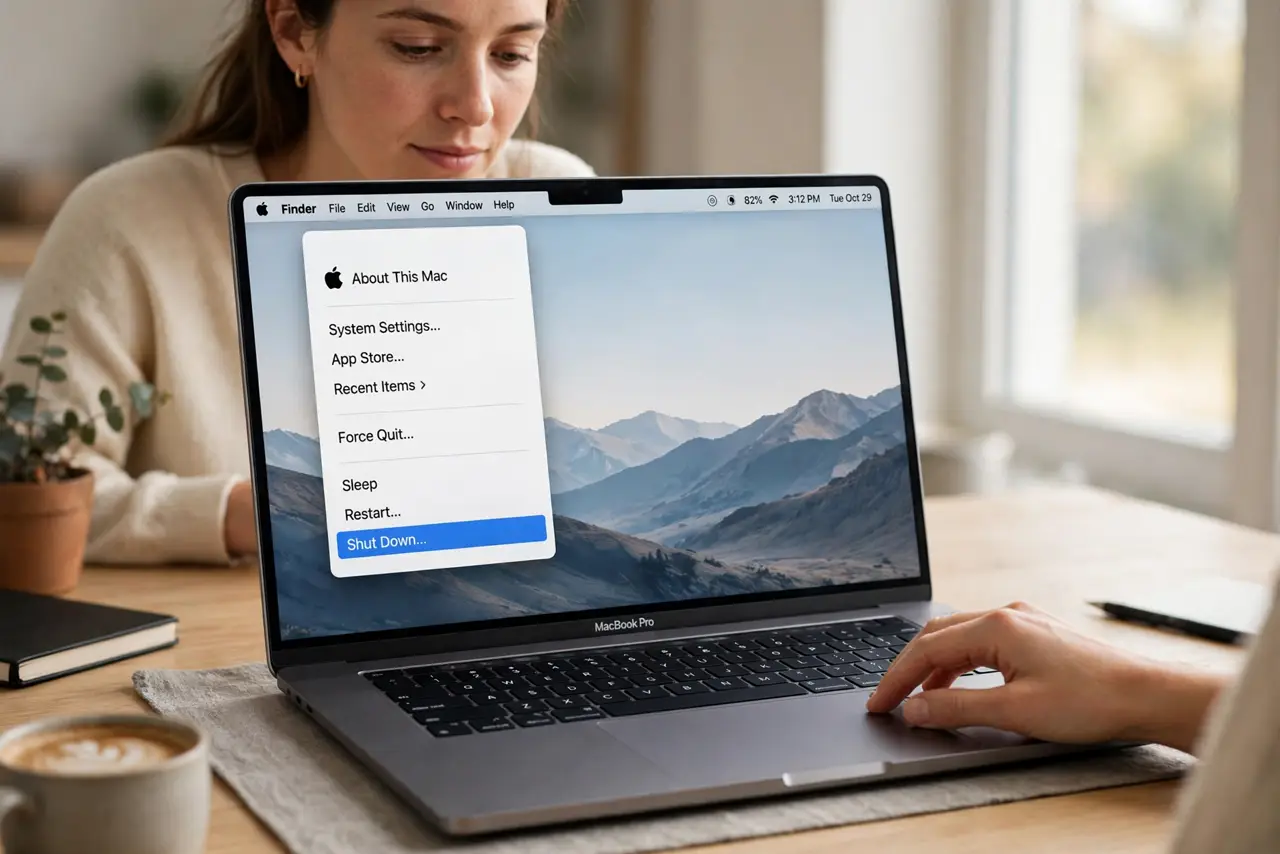
- Shut the Mac down fully. Apple menu, Shut Down — not sleep, not restart. The power-button hold only works from a fully off state, so give it ten seconds after the screen goes dark.
- Press and hold the power button. Press and keep holding — past the Apple logo, past the urge to let go — until 'Loading startup options' appears. This takes about ten seconds and feels wrong the first time.
- Choose Options, then Continue. Click Options (the gear icon) and Continue. Enter an administrator password if asked — Recovery needs to verify you are allowed in.
- Use the Recovery tools. You are in: Reinstall macOS, Disk Utility, Terminal, and the Startup Security Utility all live here. Do the job you came for — the environment is deliberately minimal.
- Know the Intel equivalent for reference. On Intel Macs it is Command+R at boot; on Apple silicon that combo does nothing. If you support both kinds of Mac, learn the two dances separately.
- Restart normally to exit. Apple menu, Restart — the Mac boots back into macOS as usual. Recovery changes nothing by itself; it is a workshop, not a commitment.
What NOT to do
- Do not keep tapping Command+R on Apple silicon. It does nothing and the frustration is avoidable — the power button is the whole method.
- Do not release the power button at the Apple logo. Too early boots normally — hold until the startup options text appears.
- Do not run Disk Utility repairs blindly. First Aid is safe, but erasing volumes is not — know which button you are pressing in Recovery.
- Do not assume Recovery can fix hardware. Clicking drives and dead logic boards are beyond software repair — Recovery diagnoses, it does not resurrect.
Frequently asked questions
What if holding power does nothing?
Then the Mac may not be fully shut down, or there is a deeper power issue — see reviving a dead Mac before assuming Recovery is broken.
Can I reach Recovery from a restart?
On Apple silicon, shutting down first is the reliable path. The hold works from off; from a restart it is timing-dependent and frustrating.
Does Recovery need the internet?
Only for reinstalling macOS, which downloads the installer. Disk Utility, Terminal, and Startup Security work fully offline.