Use Display Reference Modes
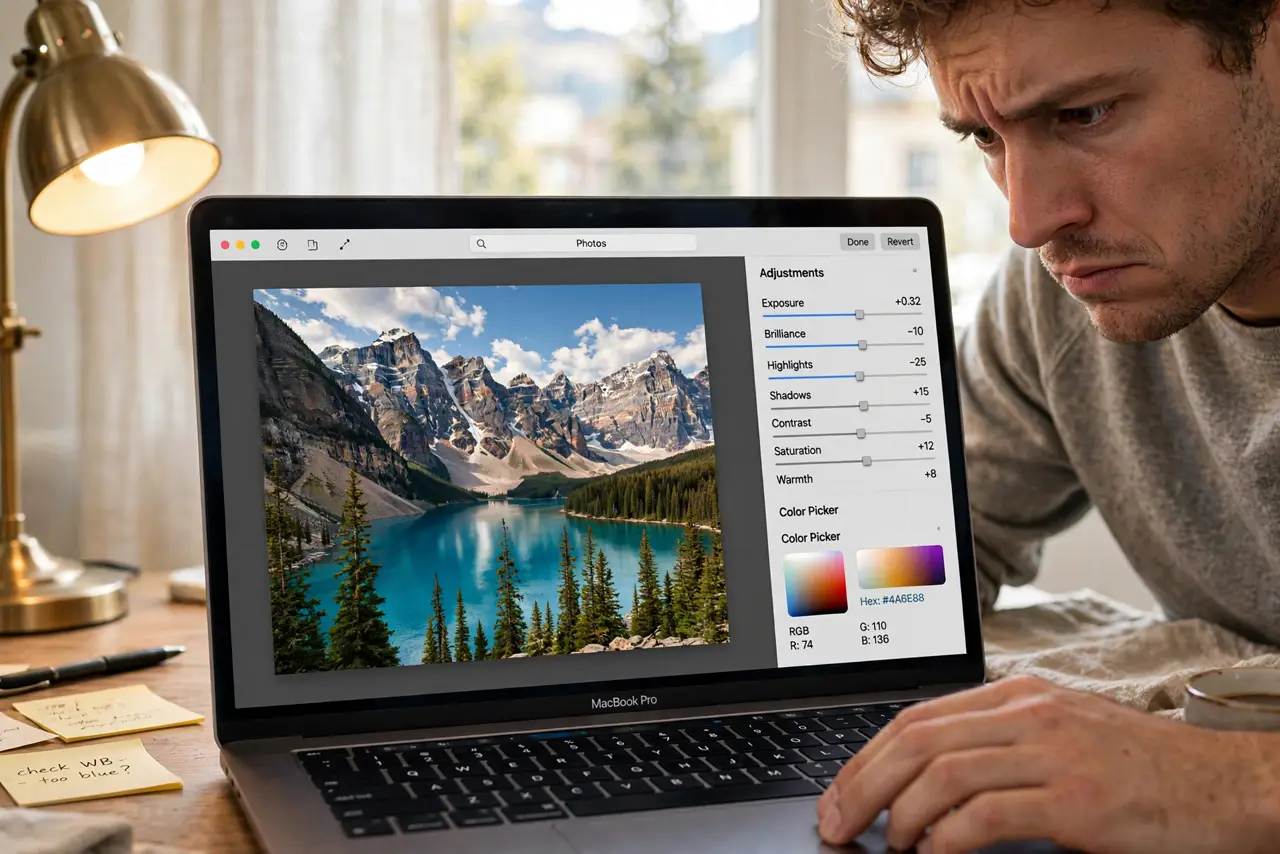
You edited a photo until it looked perfect on your Mac, then opened it on your phone and the colors looked completely different. Washed out, or too saturated, or the skin tones went weird. The culprit is often the Mac's display profile quietly lying to you. Reference Modes lock the screen to a known standard, so what you see is what everyone else gets. Here is how to use them.
TL;DR / Quick Fix
Quick fix: Display Reference Modes lock your Mac screen to a real color standard like sRGB or DCI-P3, so edits look the same everywhere. Enable one in System Settings, match the mode to your delivery target, and stop trusting the default vivid preset.
Follow these steps
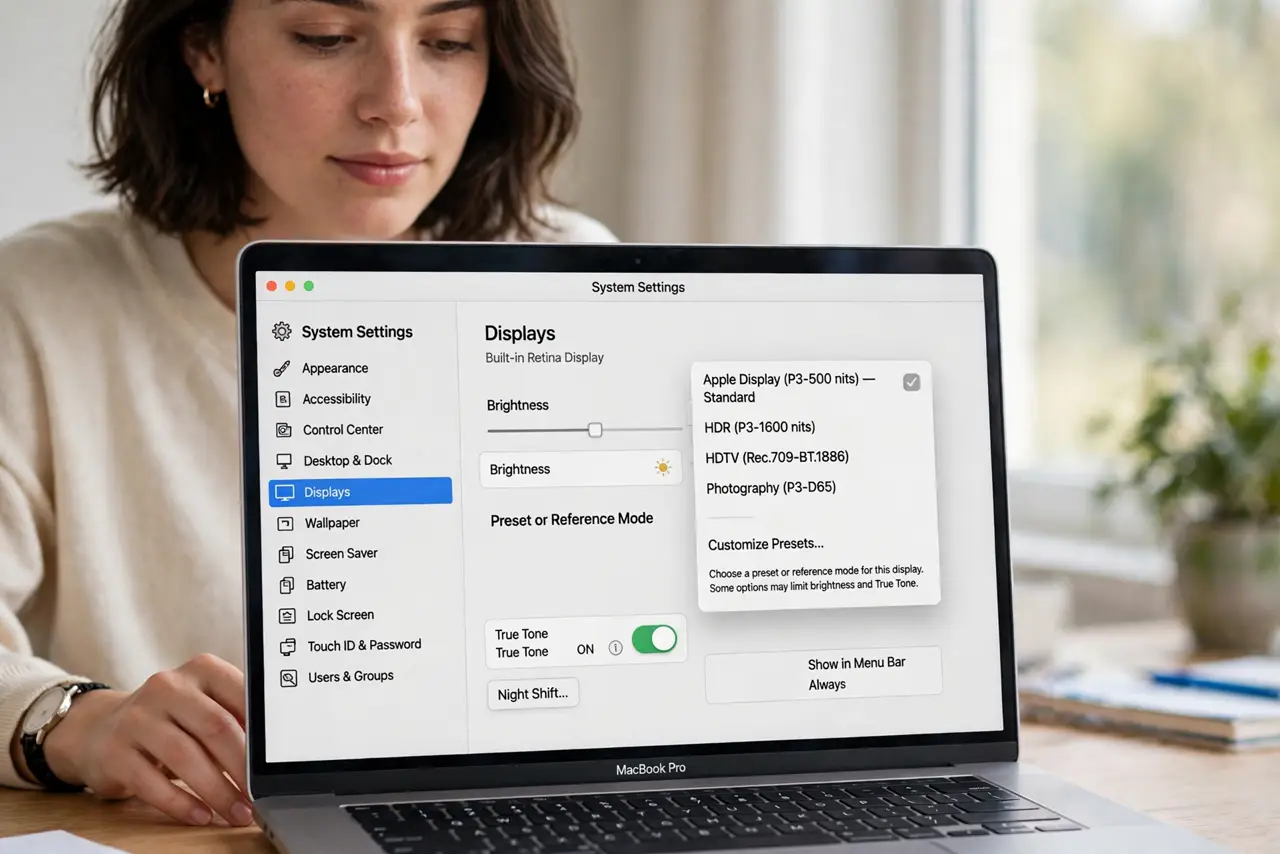
- Open Display settings. Go to System Settings, then Displays. On supported Macs you will see a Preset or Reference Mode dropdown next to the display — this is where Apple hides the color standards.
- Pick the mode that matches your delivery target. Editing for the web or social media: choose the sRGB or Internet preset. Video for modern screens: DCI-P3. The wrong standard here is the whole problem, so match the audience's screens, not the prettiest option.
- Turn off True Tone and Night Shift while judging color. Both features warm the screen and shift what you see. They are fine for reading at night, but they corrupt color decisions — disable them before any serious edit, then re-enable after.
- Do not confuse a preset with calibration. Reference Modes apply a fixed standard; they do not measure your actual panel. For paid client work, a real color profile check or hardware calibration still matters.
- Test across devices before trusting it. Export one test image and view it on your phone and a second screen. If the reference mode is right, the colors now agree — that cross-check is the proof the mode works.
- Leave the mode on for the whole project. Switching presets mid-project re-tints everything you already judged. Set it once at the start and finish the job under the same standard.
What NOT to do
- Do not edit color with True Tone on. It warms everything and you will compensate by cooling the image — which then looks blue everywhere else.
- Do not pick the most vivid preset and call it accurate. Vivid is a sales mode, not a standard.
- Do not judge color on a sun-faded screen at full glare. Reflections and heat wash out the panel — shade the screen first.
- Do not assume two Macs match out of the box. Different models ship with different default presets; set the same standard on both.
Frequently asked questions
Which Reference Mode should I use for Instagram?
The sRGB / Internet preset. Phones and the web speak sRGB, so that mode shows what your followers will actually see.
Why does my Mac have no Reference Mode option?
It is only on newer Apple-silicon Macs and Pro/Studio displays. On older Macs, pick the matching display color profile manually instead.
Does a Reference Mode replace a calibrator?
No — it is a huge improvement over the default, but a hardware calibrator measures your specific panel and is still the gold standard for paid work.