Remap Keys on Mac
Caps Lock is a key you hit by accident and never on purpose. The Globe key does nothing for you. macOS lets you remap modifier keys natively, and a free tool remaps everything else — turning your keyboard into exactly the layout your fingers want.
TL;DR / Quick Fix
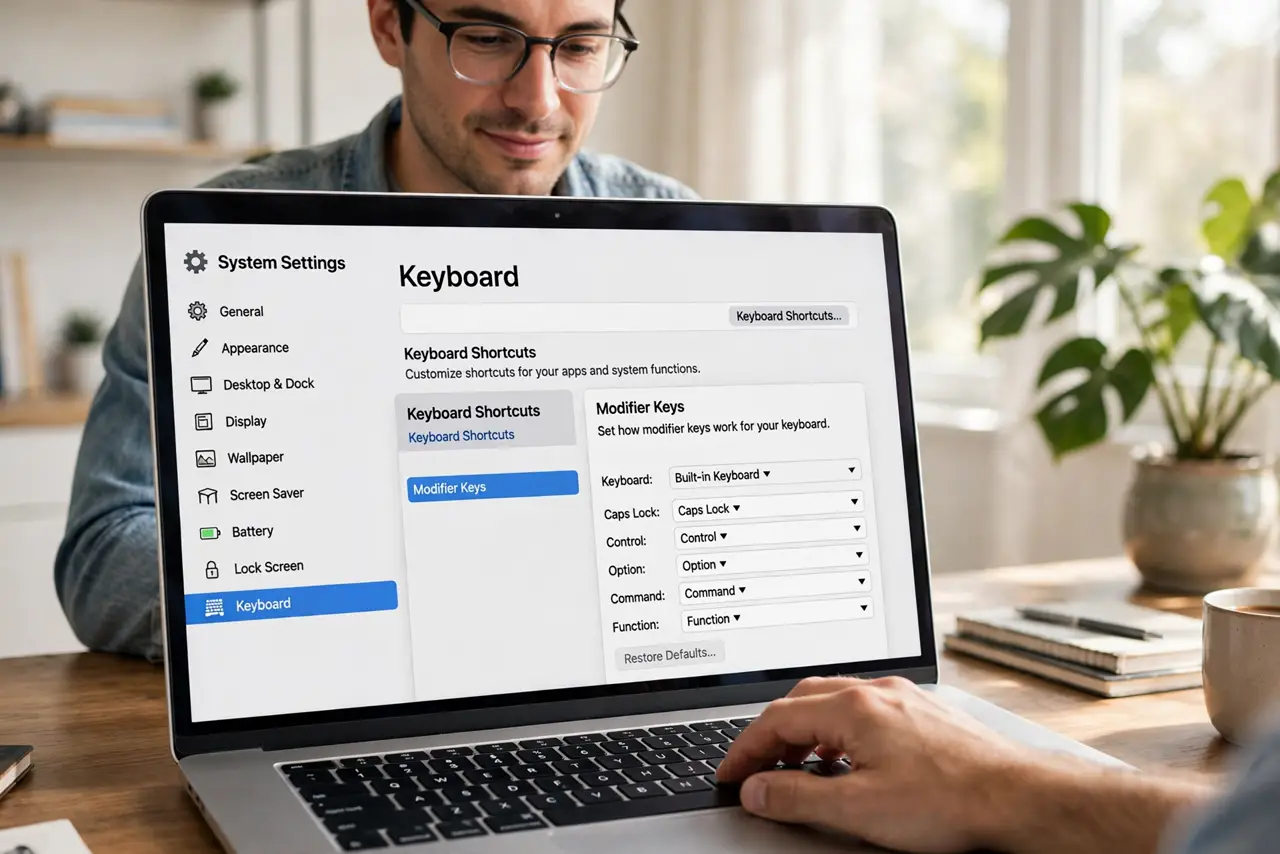
Quick fix: remap any Mac key in System Settings, Keyboard, Keyboard Shortcuts, Modifier Keys — swap Caps Lock for Escape or Control in seconds. For deeper remapping of any key to any other, the free app Karabiner-Elements handles it. Changes apply instantly and reverse just as fast.
Follow these steps
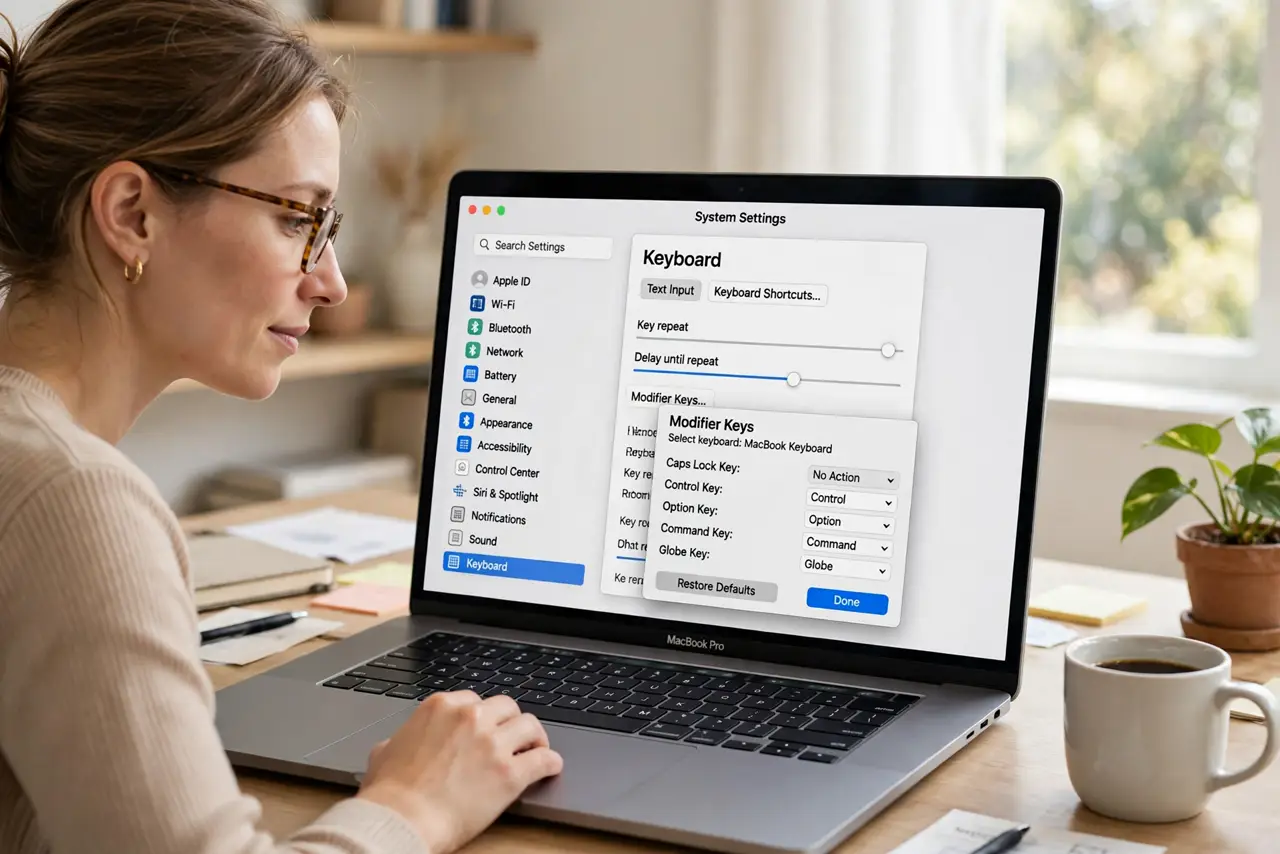
- Open the modifier key settings. Go to System Settings > Keyboard > Keyboard Shortcuts > Modifier Keys. This native panel remaps Caps Lock, Control, Option, Command, and the Globe/Fn key — no software needed.
- Give Caps Lock a real job. The classic move: Caps Lock becomes Escape or Control. One dropdown change, and your most annoying key becomes your most useful. The Caps Lock specific guide covers the details.
- Swap modifiers to match muscle memory. Coming from Windows? Swap Command and Option so the layout feels familiar. The setting is per-keyboard, so your laptop and external keyboard can differ.
- Reassign the Globe/Fn key. The Globe key can trigger Dictation, show Emoji, or change input sources. Pick the action you actually use — a dedicated key for your most frequent action is pure efficiency.
- Go deeper with Karabiner-Elements. For remapping any key to any other key — not just modifiers — install the free, open-source Karabiner-Elements. Complex rules (tap Caps Lock for Escape, hold for Control) live here.
- Test and revert freely. Every change applies instantly and reverses the same way. Try a mapping for a full workday before judging — muscle memory needs hours, not minutes, to adapt.
What NOT to do
- Do not remap everything on day one. Change one key, live with it a week, then change the next — wholesale remaps just confuse your fingers.
- Do not forget which keyboard you changed. Modifier remaps can be per-device; a mapping that works on the laptop may not follow to the external keyboard.
- Do not install sketchy 'keyboard managers.' Karabiner-Elements is the trusted free standard — random alternatives are a keylogging risk by design.
- Do not remap keys you need for shortcuts. Turning Command into something exotic breaks every keyboard shortcut you know — modifiers have jobs.
Frequently asked questions
Will remapping affect the login screen?
Modifier remaps apply system-wide including login. Karabiner rules apply after login — keep that in mind for FileVault passwords.
Can I have different mappings per keyboard?
Yes for the native modifier settings — each connected keyboard gets its own mapping. Karabiner can do per-device rules too.
Does remapping void anything?
No — it is all software settings, fully reversible. No warranty or system integrity implications whatsoever.