See All Flagged Reminders
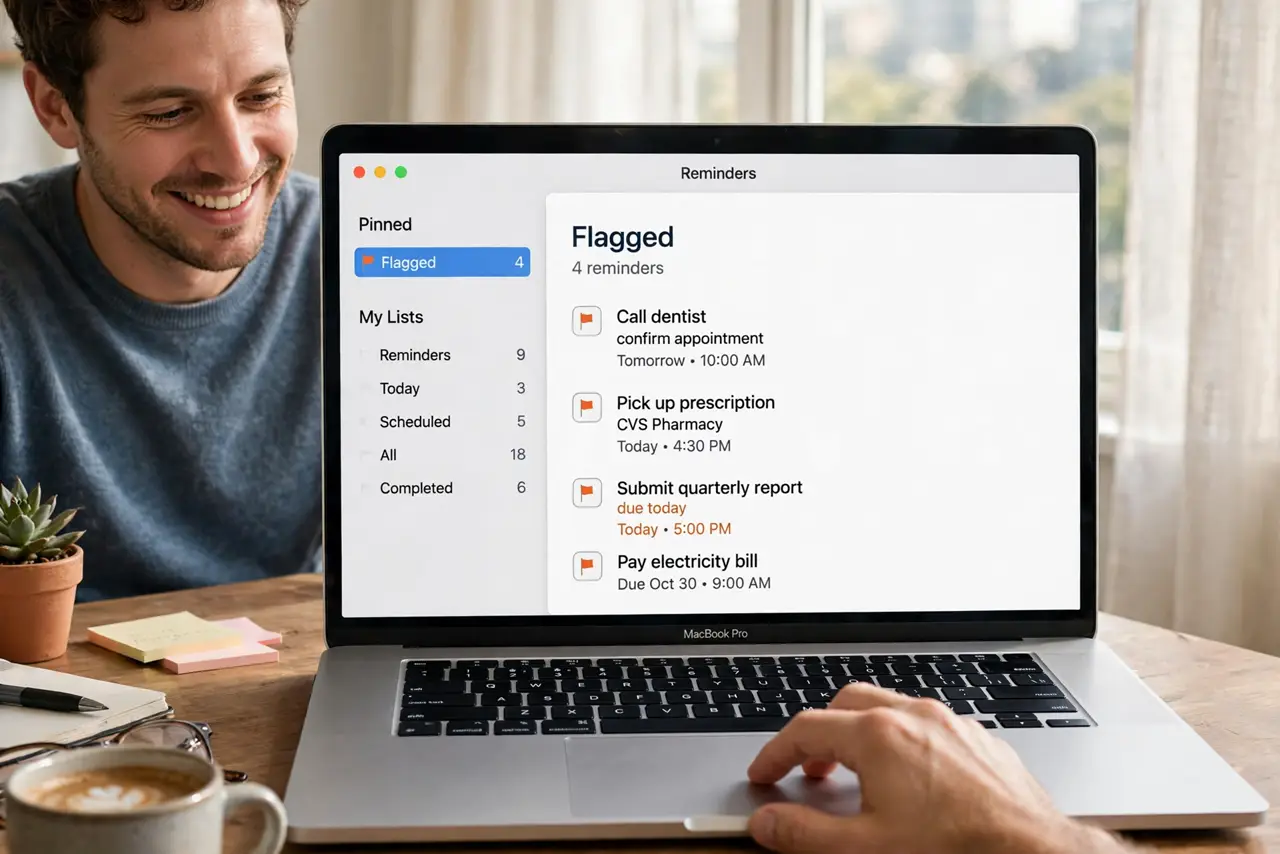
Flagged reminders are supposed to be your VIP list — the things that truly cannot slip. But the flag only helps if you look at the Flagged smart list, which hides in plain sight in the Reminders sidebar. One tap, and every flagged item across all lists stands at attention.
TL;DR / Quick Fix
Quick fix: open Reminders and click Flagged in the sidebar — every flagged reminder from every list appears together. To flag one, open the reminder's details and turn on the flag. The Flagged list is a smart view: unflag an item and it leaves automatically.
Follow these steps
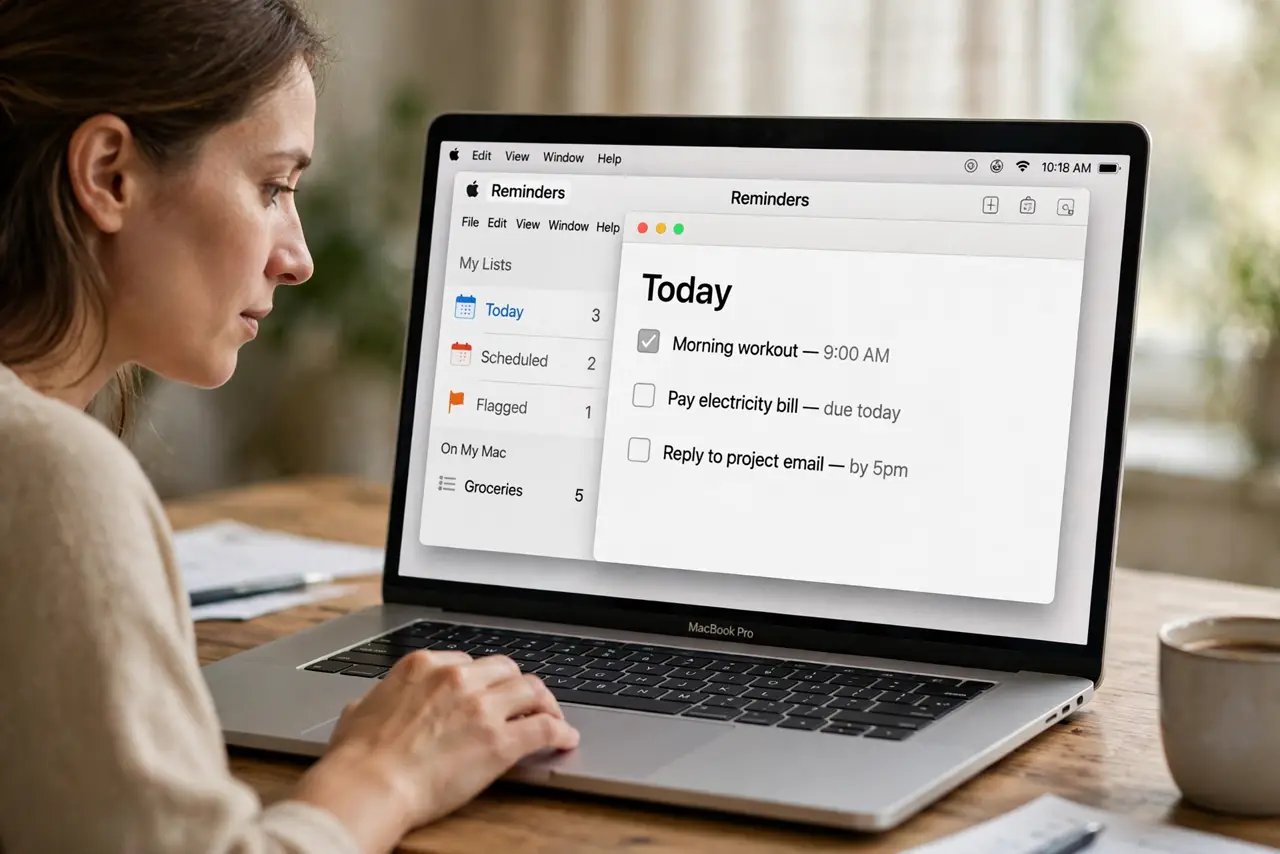
- Open the Reminders sidebar. Launch Reminders — the sidebar shows your lists plus the smart lists: Today, Scheduled, Flagged, and any custom ones.
- Click Flagged. Every flagged reminder across all your lists gathers here, sorted usefully. This is your cannot-slip view.
- Flag from the details pane. Select a reminder, click the i, and turn on Flag. Or right-click the reminder > Flag — two seconds.
- Flag on the iPhone too. Swipe left on a reminder > Details > Flag. Flags sync through iCloud — flag anywhere, see everywhere.
- Unflag to dismiss from the view. Done with the VIP status? Unflag it — it stays in its list, it just leaves the Flagged gathering.
- Check it each morning. Make the Flagged list your first glance. A VIP list you never open is just decoration.
What NOT to do
- Do not flag everything. A Flagged list with forty items is a second inbox — reserve the flag for the true cannot-slips.
- Do not confuse flags with priorities. Flags gather; priorities sort within a list — use both, for different jobs.
- Do not delete the Flagged smart list. You can hide smart lists, but deleting the view does not delete the flags — still, keep it visible.
- Do not expect flags to nag you. Flagging organizes; alerts remind — set a date if it needs a nudge.
Frequently asked questions
Where did my flagged reminder go?
It was unflagged, or its list was deleted. Check the list it lived in — the flag follows the reminder, not the view.
Can I flag a subtask?
Yes — subtasks flag independently. A flagged subtask appears in the Flagged list under its parent's name.
Do flags sync to other devices?
Yes — through iCloud, to iPhone, iPad, and other Macs on the same Apple ID.