See Reminders in Calendar
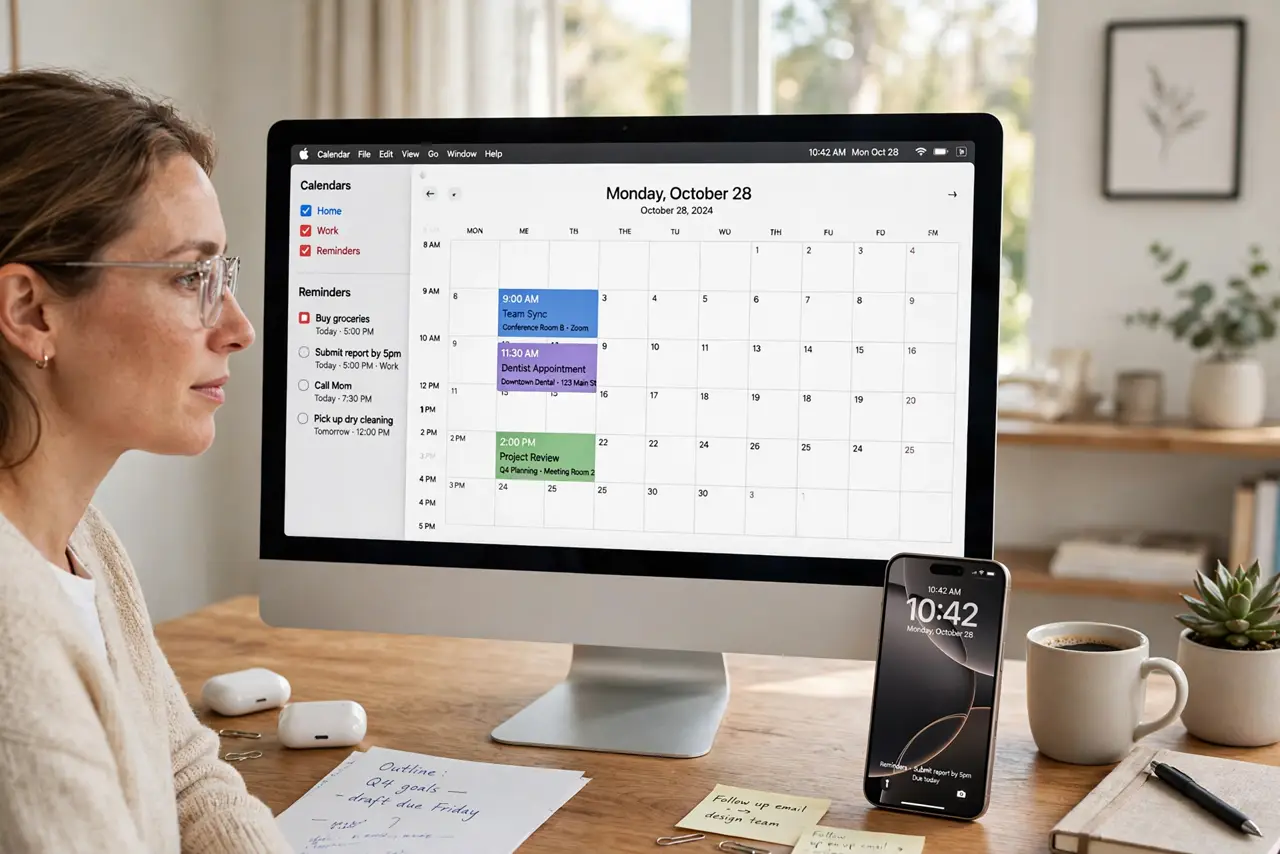
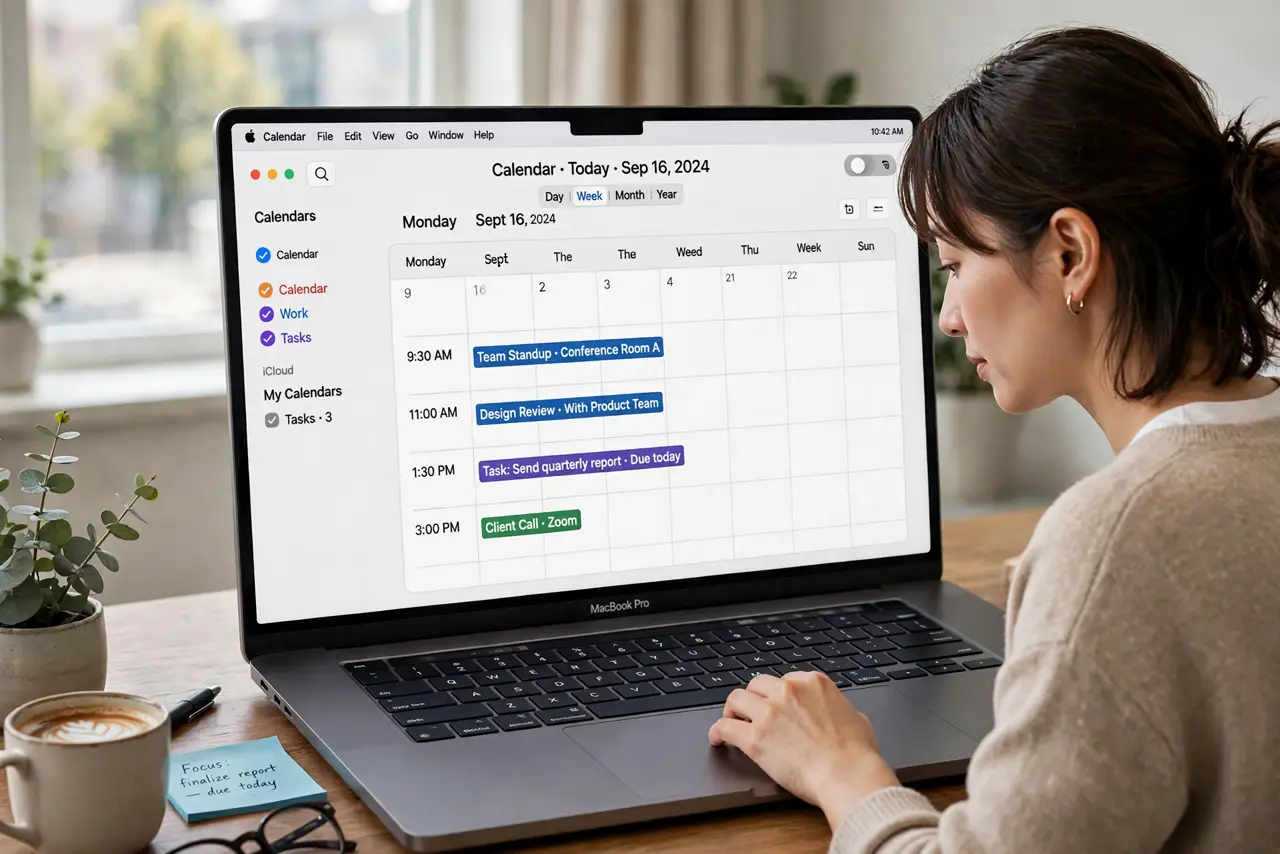
Your day is split in two: meetings live in Calendar, tasks live in Reminders, and neither shows the full picture. You double-book yourself against a deadline because the deadline was in the other app. The fix is simple — scheduled reminders can appear right inside the Calendar app, tasks and events side by side, so one glance shows everything competing for your day.
TL;DR / Quick Fix
Quick fix: scheduled reminders now appear inside the Calendar app — open Calendar and enable the Reminders calendar to see tasks alongside events. It finally shows your day in one view. Create time-sensitive reminders with due dates so they surface on the right day, not buried in a list.
Follow these steps
- Open the Calendar app. On iPhone or Mac, open Calendar — not Reminders. The integration lives on the Calendar side: your tasks come to your schedule, not the other way around.
- Enable the scheduled reminders view. In Calendar, turn on the Reminders calendar (Calendars list on iPhone, View menu on Mac). Reminders with due dates now appear on their days, woven in with your events.
- Give important tasks due dates. Only reminders with dates show up — a dateless task stays invisible in Calendar. For anything time-sensitive, set a due date and time so it lands on the right day at the right hour.
- Use it for day planning. Each morning, glance at the combined view: events are fixed, reminders flex around them. Drag the day's tasks into open gaps mentally — the single view is what prevents the double-booking.
- Keep lists tidy with templates. Recurring tasks (weekly reports, packing) deserve reusable templates so they spawn with dates and structure — templated reminders with due dates flow straight into the calendar view.
- Mind the notification balance. Two apps can now ping about the same task. Pick one notification source per task — usually the reminder's own alert — and silence the duplicate so your day is not a chorus of pings.
What NOT to do
- Do not expect dateless reminders to appear. No due date, no calendar presence — the integration only shows scheduled items.
- Do not duplicate every task as a calendar event. That was the old workaround; the integration replaces it, and duplicates just create noise.
- Do not enable it and never look. The view only helps if checking it becomes the morning habit — one glance, every day.
- Do not set fake urgent dates to force visibility. Bogus deadlines train you to ignore real ones; keep dates honest or the system rots.
Frequently asked questions
Do completed reminders disappear from Calendar?
Yes — checking off a reminder clears it from the calendar view too, keeping the day clean as you work through it.
Can I create reminders from inside Calendar?
Yes — you can add a dated reminder directly in the Calendar app, and it lands in your Reminders lists with the date attached.
Does this sync to my other devices?
Yes, through iCloud — the combined view follows your Apple Account to iPhone, iPad, and Mac alike.