Read Clutter-Free in Safari
Reader mode strips a web article down to clean text and images — no ads, no popups, no auto-playing videos. It works on most article pages in Safari and takes one click. If the reader icon is missing, there is usually a reason, and the iPhone version has the same fix.
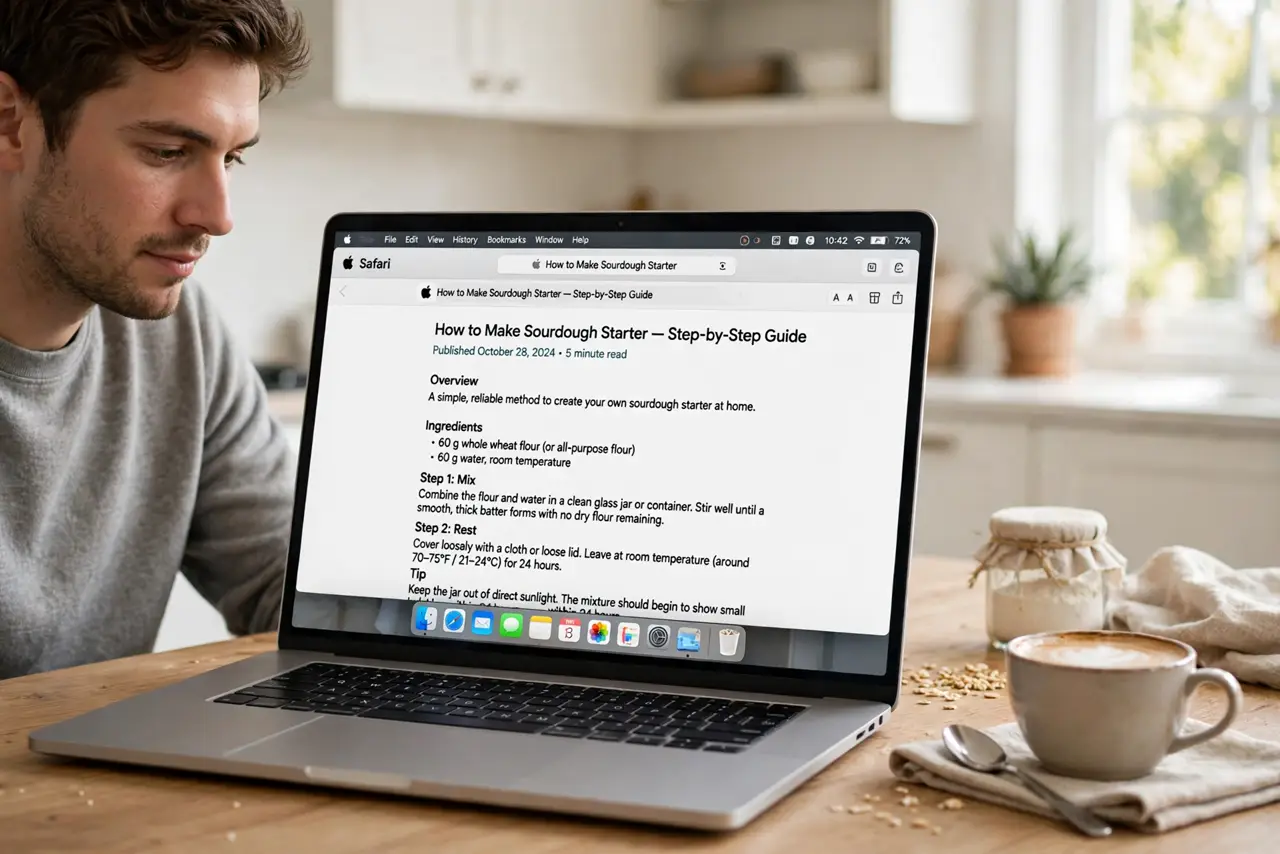
TL;DR / Quick Fix
Quick fix: when an article page is cluttered, click the reader icon at the left of Safari's address bar — the page becomes clean text on a plain background. If the icon is missing, the page is not an article and Reader cannot run. Press Shift-Command-R as a shortcut.
Follow these steps
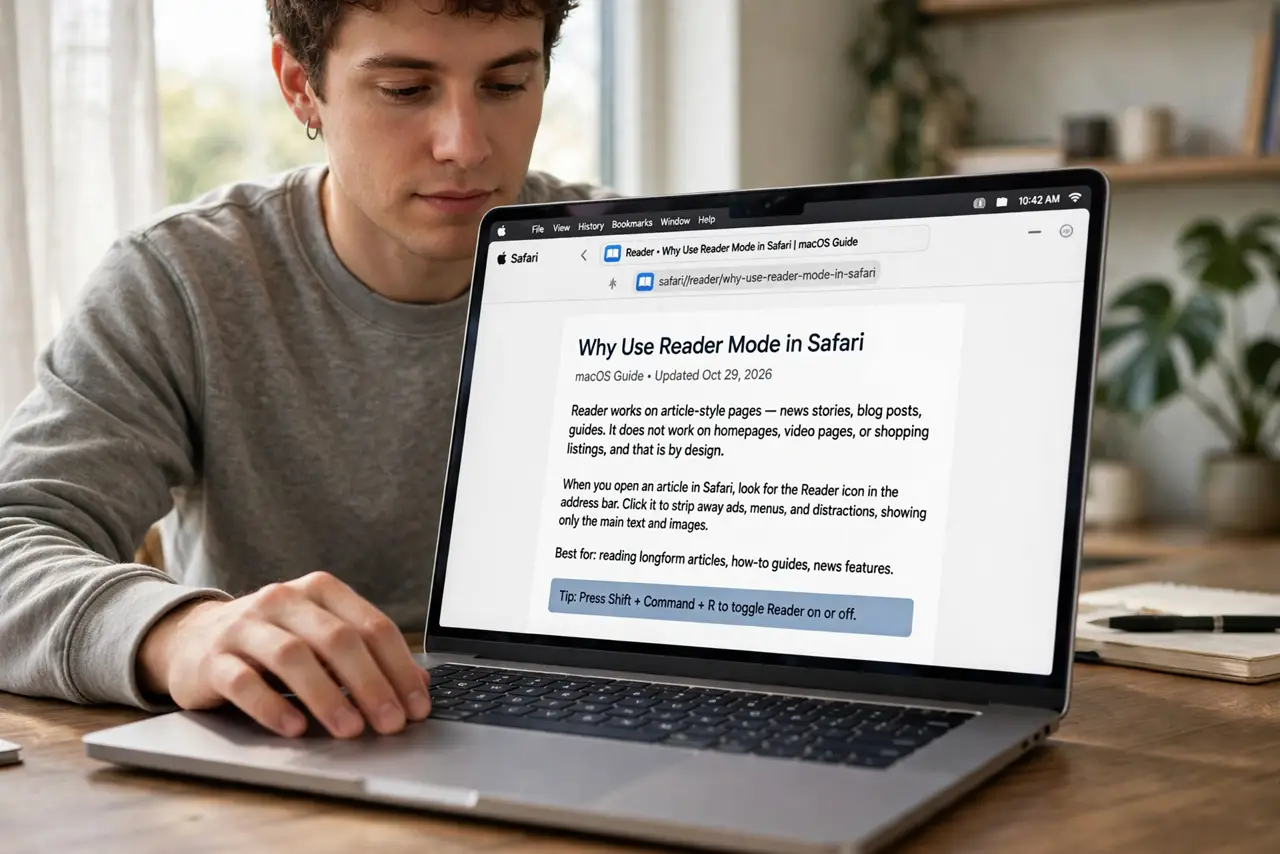
- Open an article page in Safari. Reader works on article-style pages — news stories, blog posts, guides. It does not work on homepages, video pages, or shopping listings, and that is by design.
- Click the reader icon in the address bar. When a page supports Reader, an icon appears at the left of the address bar. Click it and the page reformats instantly into clean text.
- Or press Shift-Command-R. The keyboard shortcut toggles Reader on and off without reaching for the mouse. If nothing happens, the page does not support Reader.
- Adjust the text to your liking. Click the reader icon again while in Reader to change font size, background color, and font. Larger text on a warm background is easier on the eyes for long reads.
- Set Reader to run automatically on a site. Right-click the reader icon and choose to use Reader automatically on that website. News sites you read daily become clutter-free every visit.
- Exit Reader to see the full page. Click the reader icon or press Shift-Command-R again to return to the normal page — useful when comments or interactive elements only exist outside Reader.
What NOT to do
- Do not expect Reader on every page. Homepages, feeds, and paywalled previews often cannot be simplified.
- Do not assume missing content is a bug. Reader drops sidebars, ads, and sometimes embedded media on purpose.
- Do not confuse Reader with a PDF print. Reader is for reading now; print to PDF if you want to save it.
- Do not enable automatic Reader on sites where you need the full layout, like banking or shopping.
Frequently asked questions
Why does the reader icon sometimes disappear?
The icon only appears on pages Safari recognizes as articles. Dynamic pages, homepages, and some paywalled content are not recognized — try the article's direct link.
Does Reader mode block all ads?
It removes the page clutter including ads, which is the point. It is not an ad blocker for the rest of your browsing, though.
Can I use Reader in other Mac browsers?
Chrome and Firefox have their own reading modes with similar ideas but different buttons. Safari's version is the most integrated on a Mac.