Customize Safari Start Page
Every new Safari window opens to the same bland page, and most people never realize it is fully customizable — favorites, reading list, iCloud tabs, privacy report, even your own photo as the background. It takes about a minute. Here is where the controls hide.
TL;DR / Quick Fix
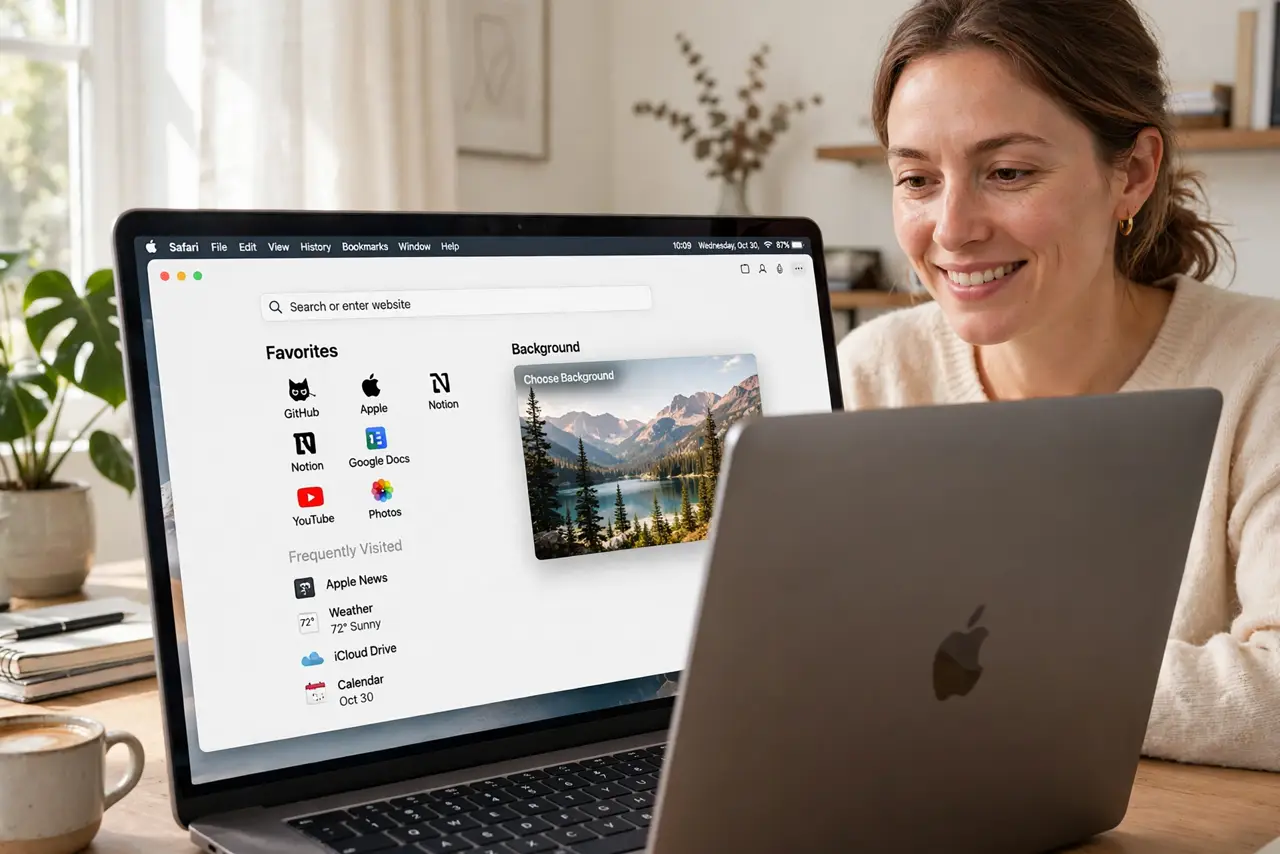
Quick fix: open Safari, click the gear icon at the bottom-right of the start page, and check the sections you want — favorites, reading list, iCloud tabs, background image. Changes apply instantly. Set the start page as your homepage in Safari settings so new windows open there.
Follow these steps
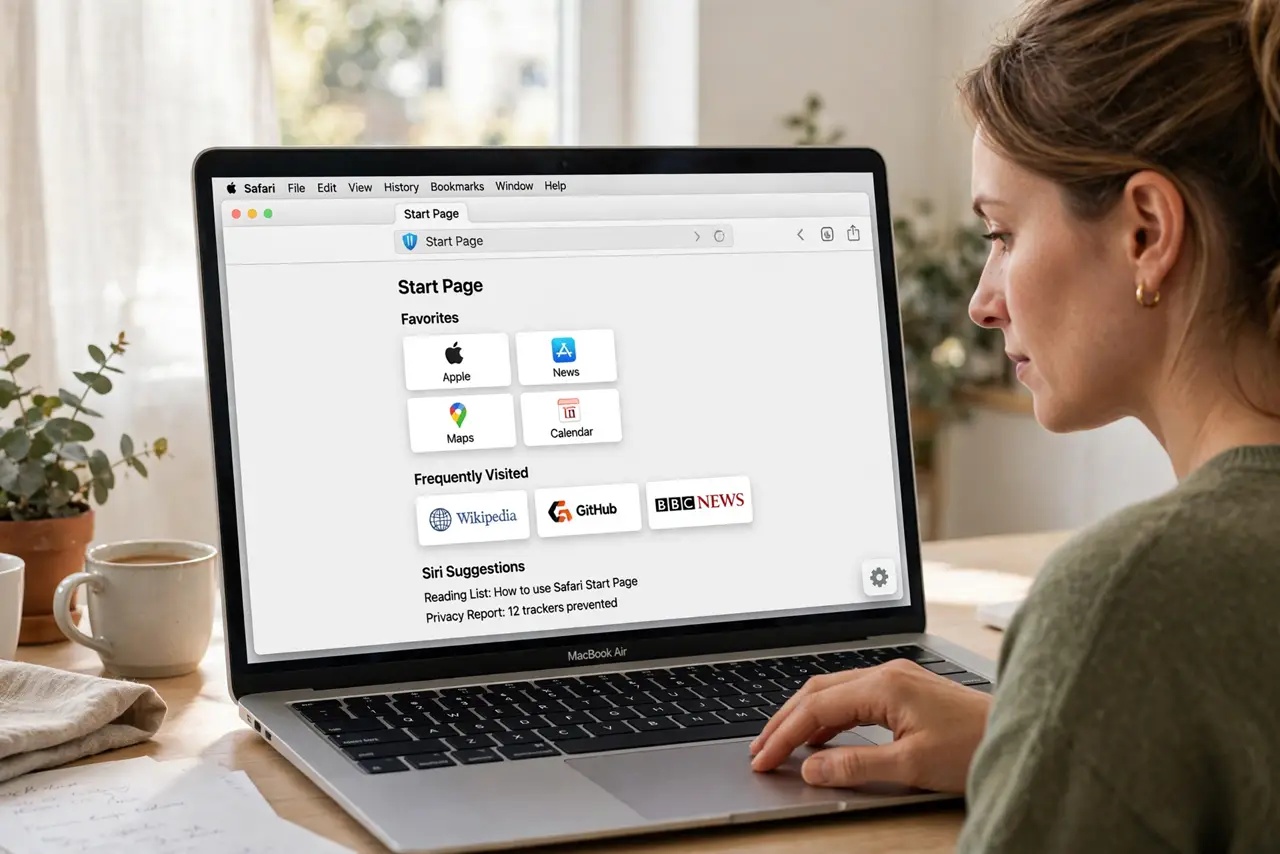
- Open a new start page. In Safari, open a new window or tab set to the start page. Look for the small gear (settings) icon at the bottom-right corner of the page.
- Toggle the sections you want. Check Favorites, Frequently Visited, Privacy Report, Reading List, iCloud Tabs, and Shared with You. Uncheck anything you never use — a clean start page loads faster visually.
- Set a background image. In the same panel, pick one of Apple's backgrounds or choose your own photo. A personal photo makes the start page feel like yours.
- Arrange your favorites. Drag favorite site icons to reorder them. Your most-visited sites belong top-left, where your eyes land first.
- Make it your homepage. In Safari > Settings > General, set new windows and tabs to open with the start page. Now every fresh window shows your setup.
- Sync it across devices. With iCloud Safari sync on, your start page layout follows you to iPhone and iPad — customize once, enjoy everywhere. The iPhone start page works the same way.
What NOT to do
- Do not confuse the start page with the homepage setting. The start page is the customizable dashboard; the homepage is just which page opens — set both to match.
- Do not enable every section. A start page crammed with widgets is slower to scan than a focused one — keep what you actually use.
- Do not use a busy background photo. Dark or detailed images can make text hard to read; pick something calm.
- Do not forget iCloud sync needs to be on. Without it, your careful layout stays on one Mac — check sync settings on each device.
Frequently asked questions
Can I use the start page on iPhone too?
Yes — iOS Safari has its own customizable start page with the same sections. With iCloud sync, favorites and tabs carry over; see the iPhone guide.
Why did my start page reset?
A Safari update or a corrupted preference can reset it. If it keeps happening, check for misbehaving extensions or reset Safari's preferences.
Can I remove 'Frequently Visited'?
Yes — uncheck it in the gear panel. Many people prefer a favorites-only page for a cleaner, more deliberate start.