How to Boot Safe Mode on Apple Silicon Macs
The old Shift-at-startup trick does nothing on Apple silicon Macs, which confuses everyone used to Intel. Safe Mode still exists; the way in just changed to a power-button hold and a volume menu. This guide shows the new steps and what to do once you are in.
TL;DR / Quick Fix
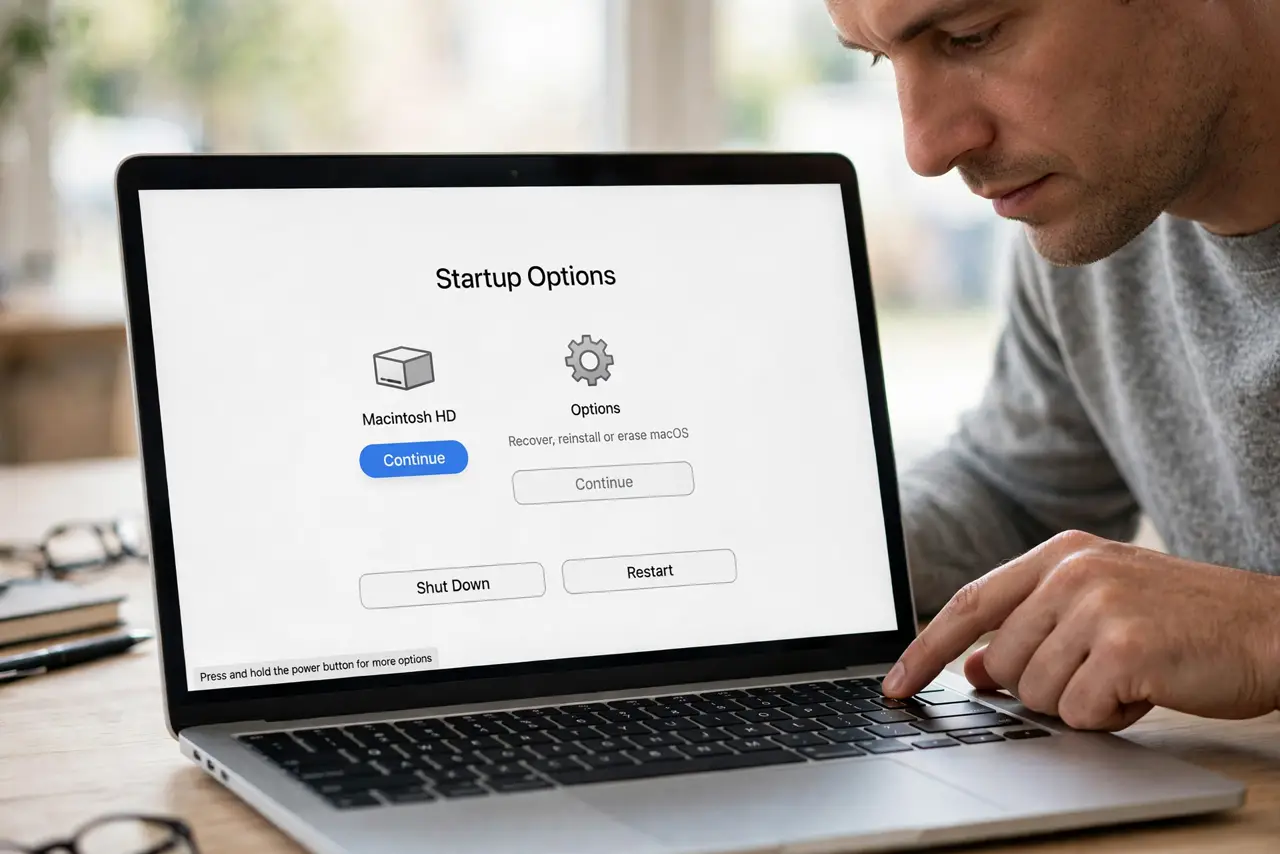
Quick fix: shut the Mac down, press and hold the power button until startup options appear, select your disk, hold Shift, and click Continue in Safe Mode. Log in, carefully test the problem, then restart normally to leave Safe Mode.
Follow these steps
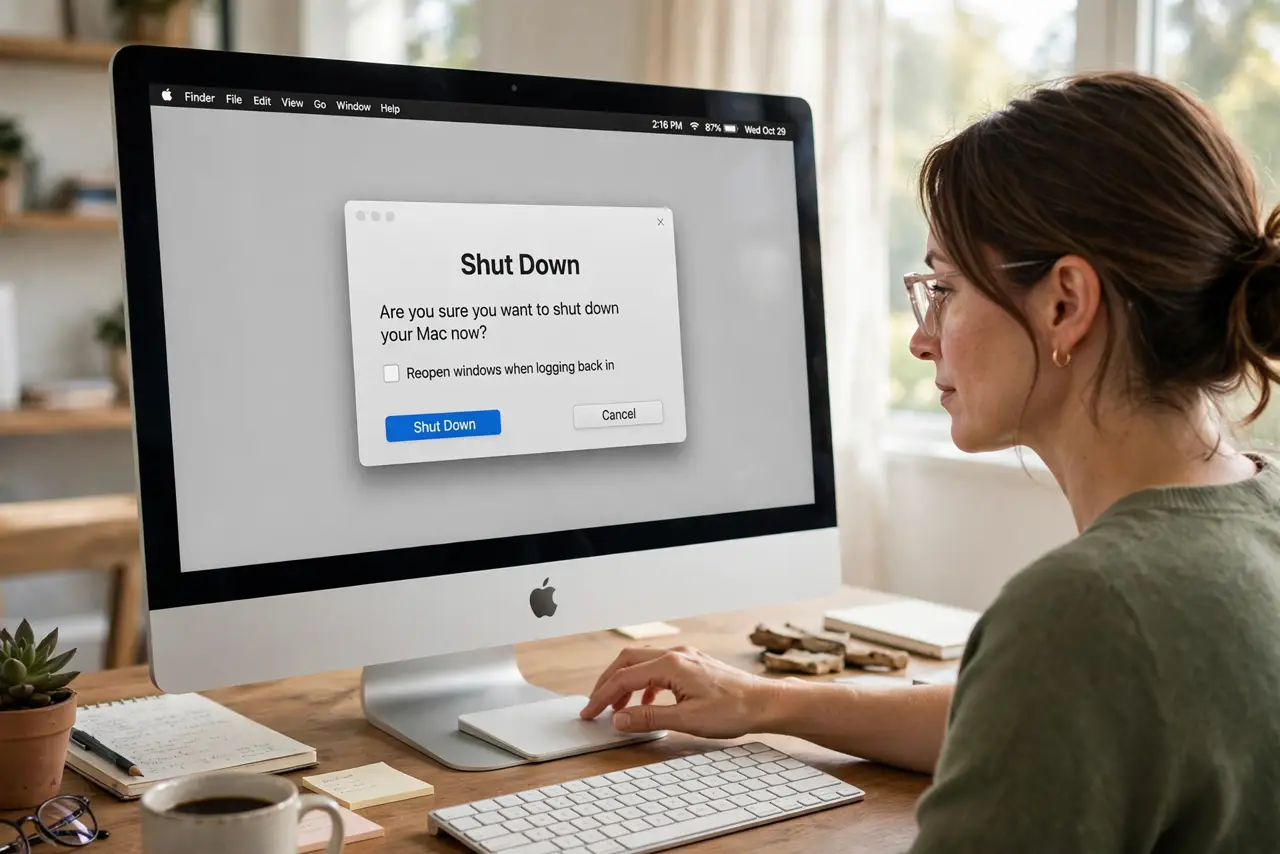
- Shut the Mac down fully. Choose Shut Down from the Apple menu and wait until the screen is completely dark. Sleep is not enough; the startup options only appear from a true shutdown.
- Hold the power button. Press and hold the power button or Touch ID key until you see startup options or the Apple logo with loading text. Keep holding past the first logo until the options screen appears.
- Select your startup disk. Click your normal startup volume once to select it. Do not click Options; Safe Mode is chosen from the disk itself.
- Hold Shift and continue. Press and hold the Shift key, then click Continue in Safe Mode. Release Shift after you click, and log in when prompted.
- Test the problem in Safe Mode. Safe Mode loads only Apple software, so if a kernel_task spike or crash disappears here, a third-party app or driver is the cause.
- Restart to leave Safe Mode. Choose Restart from the Apple menu. The Mac boots normally with no special step, so there is nothing to undo.
What NOT to do
- Do not hold Shift at the chime like on Intel Macs. That method does nothing on Apple silicon and just wastes a boot.
- Do not change system settings while testing. Change nothing in Safe Mode except running your test, so the result stays clean.
- Do not panic at the slow boot. Safe Mode runs disk checks first, so the first boot takes noticeably longer than normal.
- Do not stay in Safe Mode for daily work. Wi-Fi, graphics, and audio run limited there; it is a diagnostic mode, not a home.
Frequently asked questions
How do I know I am in Safe Mode?
The menu bar says Safe Boot in red, and everything feels slower with limited graphics effects.
Does Safe Mode delete anything?
No. It only skips third-party software for that boot. Your files and settings are untouched.
Why does Apple silicon use a different method?
The new startup security model replaced the old key-combo boot with the power-button options screen.