Use a Scaled Resolution
Text on your new Mac is either microscope-small or billboard-large, and neither feels right. Retina displays do not really run at their native pixel count — macOS scales everything so it looks like a comfortable lower resolution while staying razor sharp. Picking the right scale is a two-click comfort upgrade.
TL;DR / Quick Fix
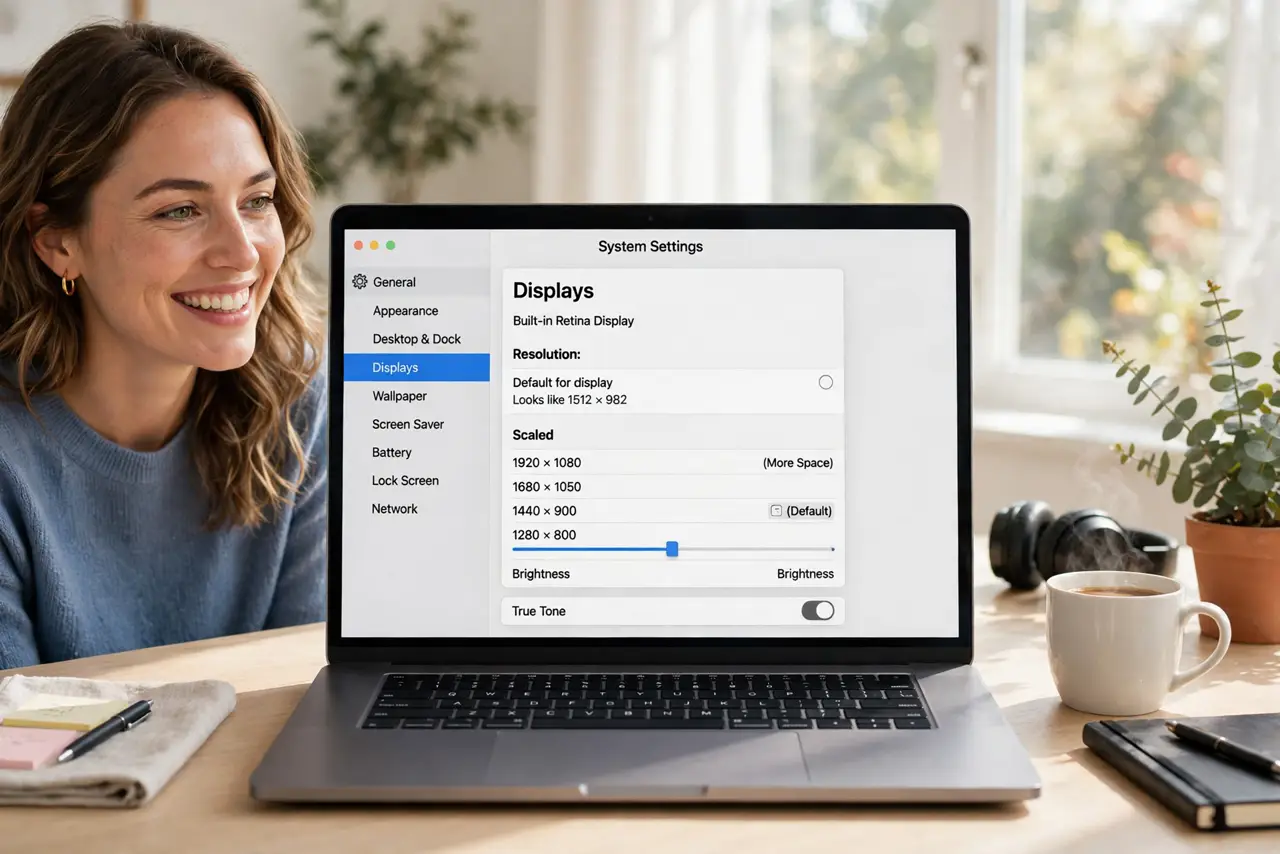
Quick fix: open System Settings, go to Displays, and pick a scaled resolution that looks like a lower resolution without losing sharpness. 'More Space' fits more on screen; 'Larger Text' is easier on the eyes. macOS renders everything sharp regardless, so choose purely for comfort.
Follow these steps
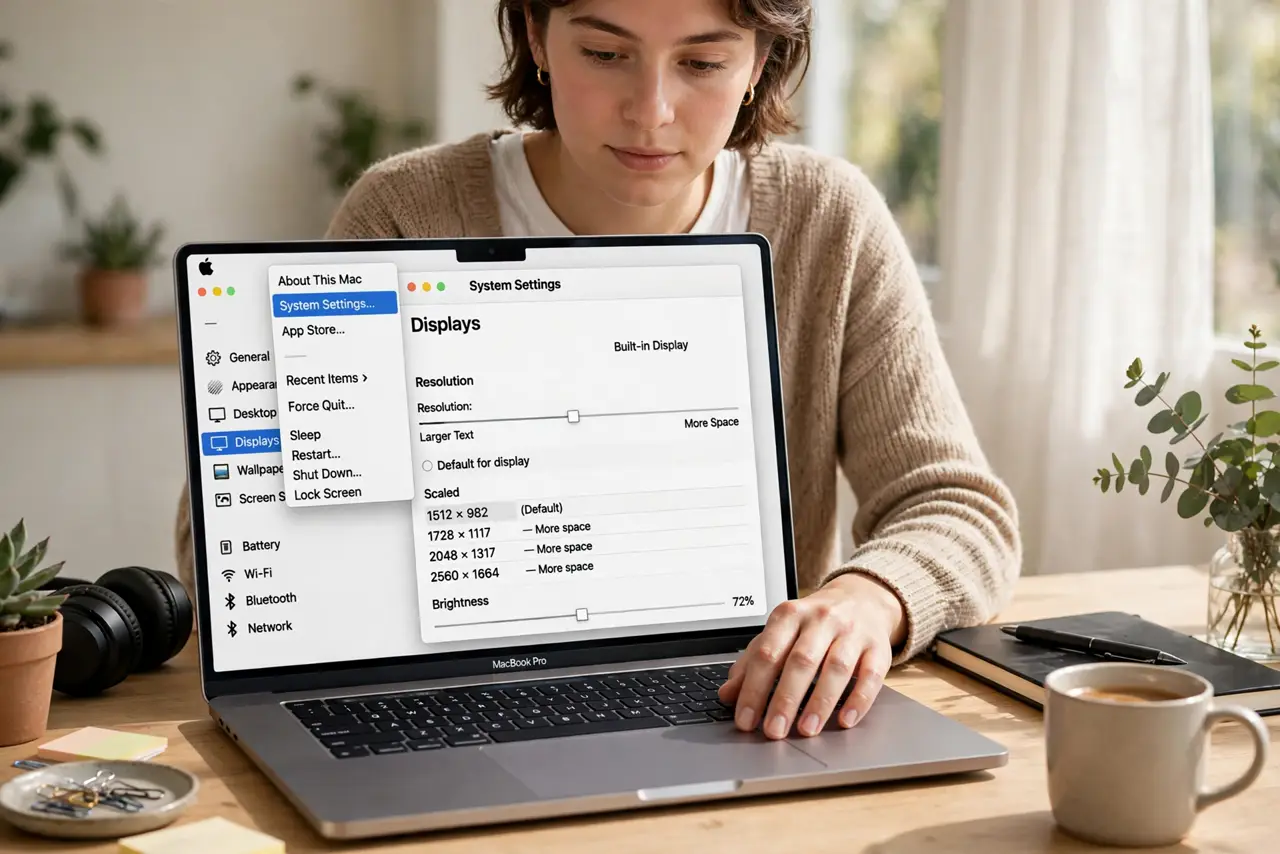
- Open the Displays settings. Click the Apple menu, choose System Settings, then Displays. The resolution options appear as a visual scale, not raw numbers.
- Understand the scale choices. 'Larger Text' zooms everything in; 'More Space' shrinks it to fit more. The middle default suits most eyes on most screens.
- Pick for comfort, not pixel count. macOS renders at full Retina sharpness at every scale. Choosing 'More Space' does not make text fuzzy — it just makes it smaller.
- Match the scale to the task. Coding and spreadsheets love More Space. Long reading sessions love Larger Text. Change it when the task changes — it takes seconds.
- Check external monitors separately. Each display gets its own scale. Your laptop can run Larger Text while the big monitor runs More Space.
- Leave True Tone alone for this. Resolution scaling and True Tone are independent — changing one never affects the other.
What NOT to do
- Do not chase the highest 'looks like' resolution for bragging rights. If you squint, you picked wrong — comfort beats numbers.
- Do not assume scaled resolutions blur text. macOS renders at full pixel density underneath; scaling only changes element size.
- Do not set different scales and then blame the Mac for 'inconsistent' windows. Windows remember their size per display — that is normal.
- Do not ignore the default. Apple picks the middle scale for a reason — it is right for most people, most of the time.
Frequently asked questions
Will scaling hurt performance?
Slightly — the GPU works harder rendering at scaled resolutions. On modern Macs the difference is invisible in everyday use.
Why do screenshots look huge?
Screenshots capture actual pixels, not the 'looks like' size. A scaled display produces bigger screenshots than the screen appears.
Can I get even more space than offered?
Holding Option while clicking Scaled reveals extra resolutions. They work, but text can get uncomfortably small.