Scan to PDF Saves Pages Sideways on Mac
Pages that save sideways usually were fed or placed sideways, or the scanner app guessed the orientation wrong. The scan itself is fine; only its rotation is wrong, which is quick to fix before or after saving.
TL;DR / Quick Fix
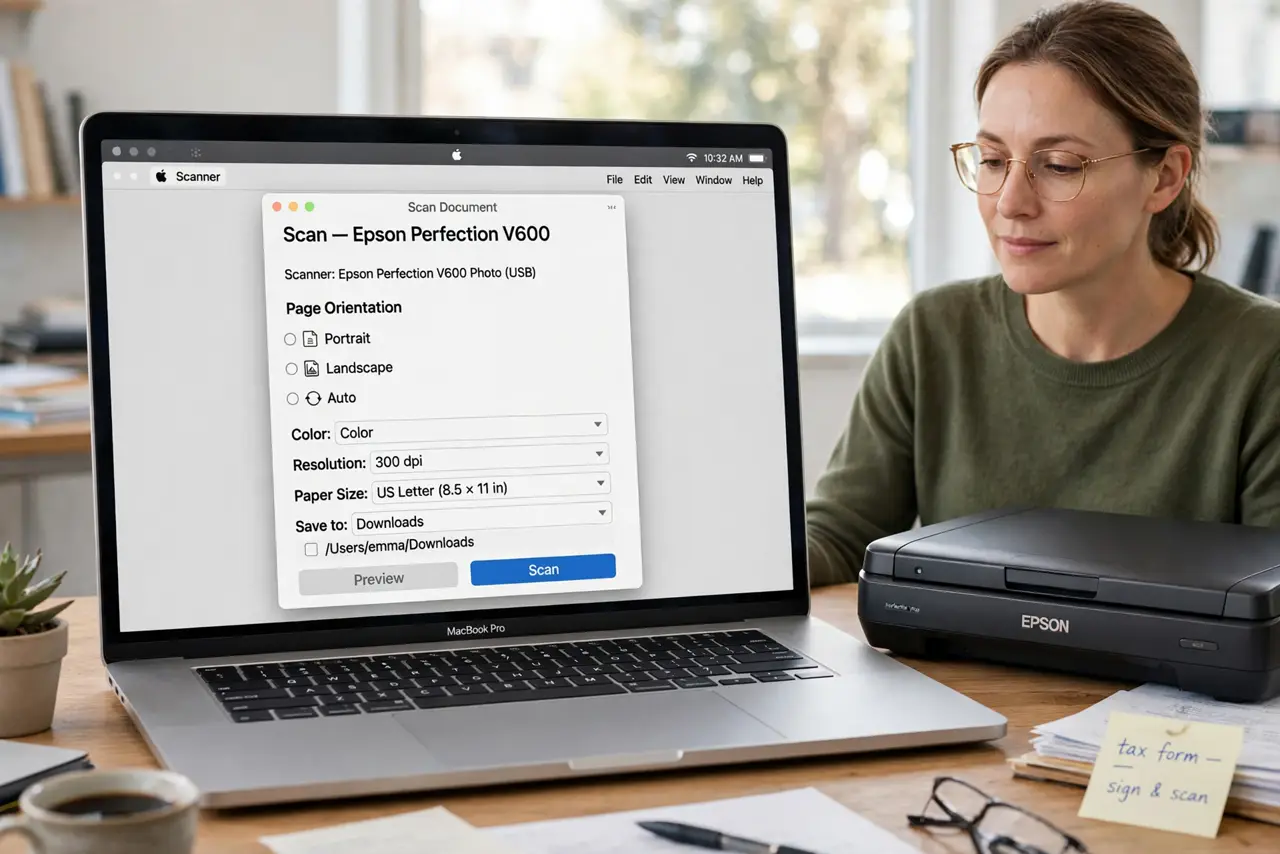
Quick fix: check how pages sit in the scanner feeder or on the glass, set the orientation in the scan app before scanning, and rotate any sideways pages in Preview after saving. Fixing orientation at scan time beats rotating every PDF afterwards.
Follow these steps
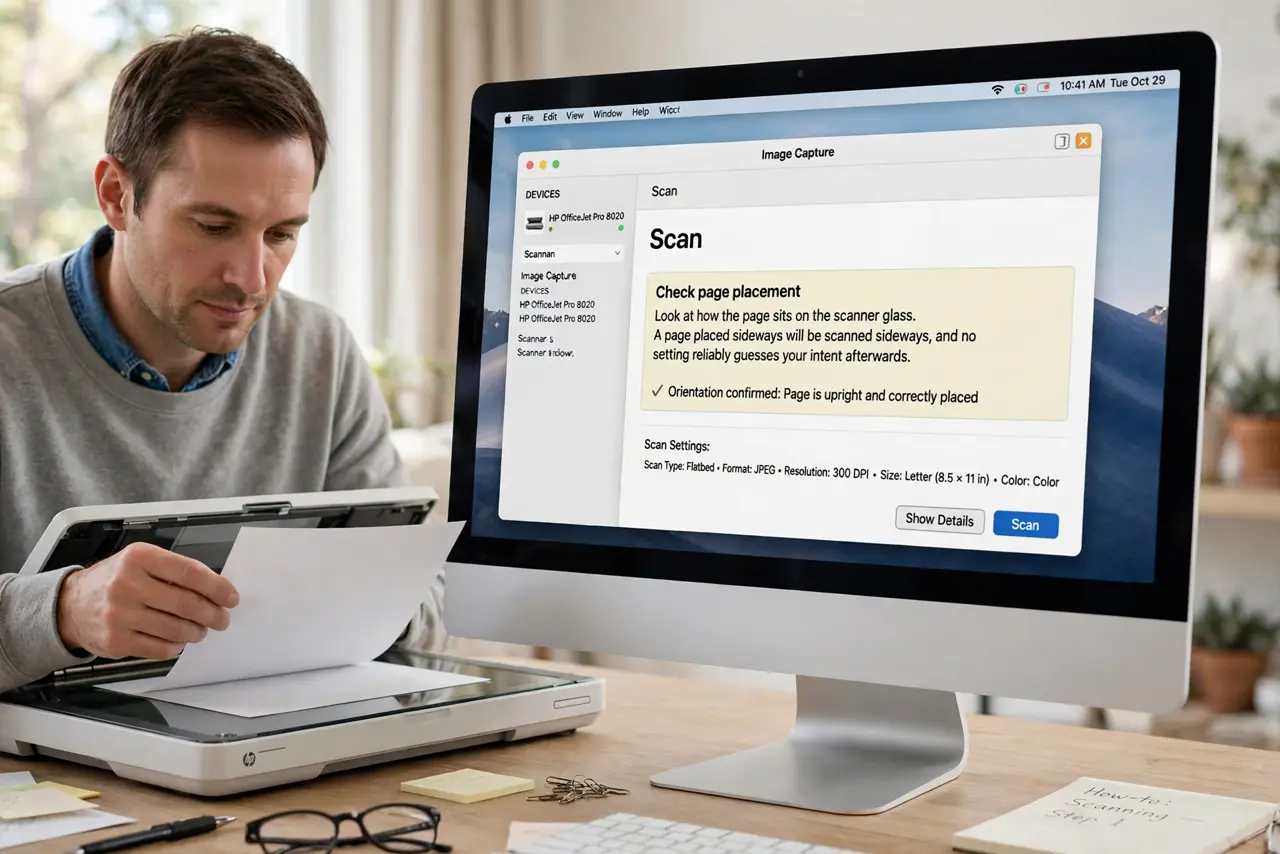
- Check page placement. Look at how pages sit in the feeder or on the glass. A page placed sideways scans sideways, and no setting reliably guesses your intent afterwards.
- Set orientation before scanning. In the scan app, set orientation to portrait or landscape to match the original page. Scanning with the right orientation saves rotation work later.
- Scan one test page. Scan a single page first and check its orientation in the saved file. A one-page test catches a sideways setup before a whole document scans wrong.
- Rotate in Preview. Open the saved PDF in Preview, select the sideways pages, and rotate them to the correct orientation, then save. Preview rotation fixes finished scans without rescanning.
- Check the feeder direction. Confirm whether the feeder expects pages face up or face down, and top first or bottom first. A feeder loaded backwards produces sideways or upside-down pages consistently.
- Rescan if rotation looks bad. If rotated pages look blurry or cropped, rescan with the correct orientation instead of forcing a rotated image. A clean rescan beats a corrected bad scan.
What NOT to do
- Do not rescan a whole document before trying Preview rotation. Rotation fixes most sideways scans in seconds, while rescanning wastes the whole batch.
- Do not assume the scanner is broken. Sideways scans are almost always placement or orientation settings, not hardware faults.
- Do not rotate only the first page of a sideways document. Check every page, since mixed orientations happen when pages were fed inconsistently.
- Do not save over the original scan until the rotated version looks right. Keep the original until you confirm the fixed PDF reads correctly.
Frequently asked questions
Why do my scans save sideways?
Because the page was placed sideways, the feeder loaded it that way, or the scan app set the wrong orientation before scanning.
Can I fix a sideways PDF without rescanning?
Yes. Open it in Preview, rotate the sideways pages, and save. That fixes orientation without a new scan.
How do I stop it happening again?
Set orientation before scanning, load the feeder correctly, and scan one test page to confirm before the full batch.