Scan Documents on Mac
Your scanner is plugged in, but the Mac cannot see it — or you have never set one up and the process looks more complex than it is. macOS handles most scanners with zero extra software: add it in Printers and Scanners, then scan from Preview or Image Capture. The missing-driver case has a fix too.
TL;DR / Quick Fix
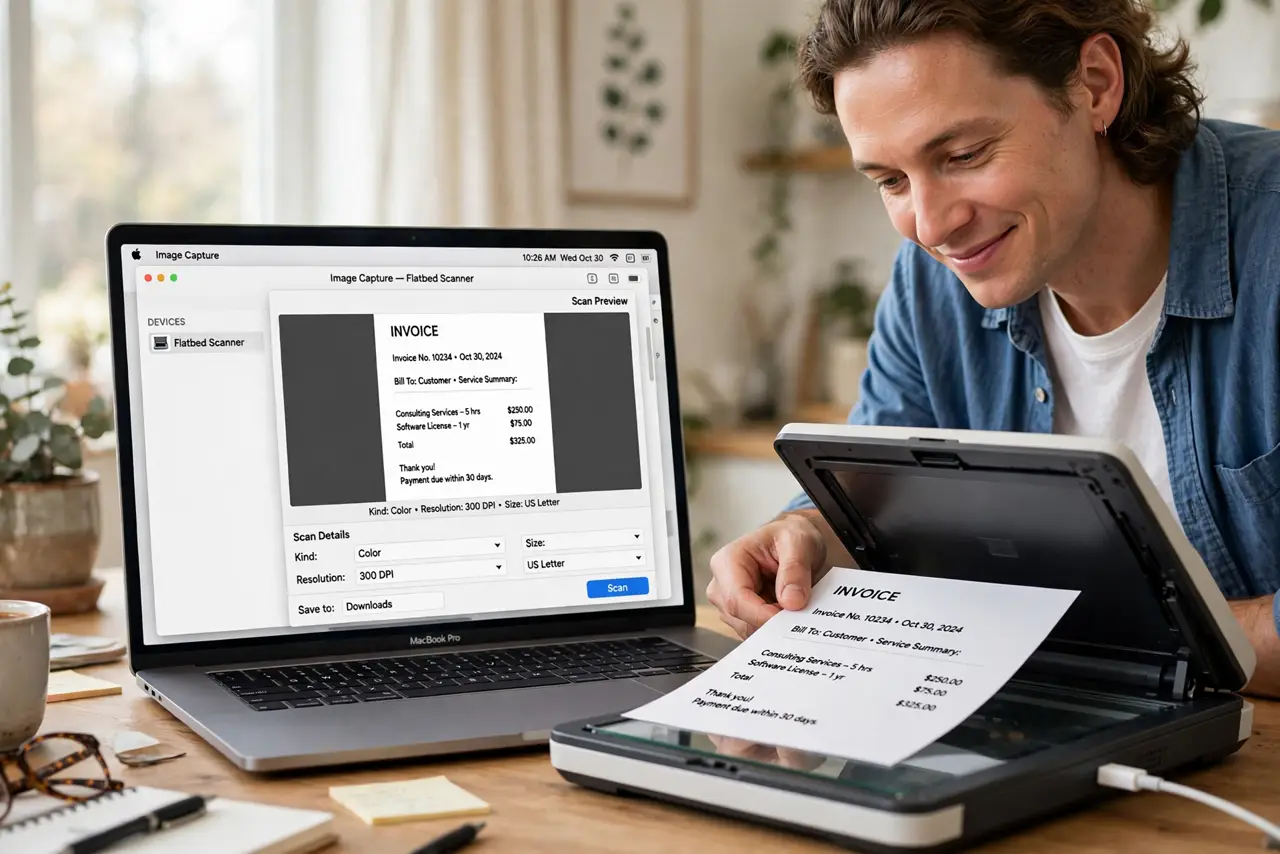
Quick fix: connect the scanner, open System Settings, go to Printers and Scanners, and click Add — your Mac usually finds it automatically. Then scan from Preview or Image Capture. If it never appears, check the maker's site for a driver, and try a different USB port or cable first.
Follow these steps
- Connect the scanner. Plug it in via USB or join it to your Wi-Fi network. For network scanners, make sure the Mac and scanner share the same network — different bands stall discovery.
- Add it in Printers and Scanners. Open System Settings, go to Printers and Scanners, click Add, and select your scanner. macOS installs what it needs automatically for most models.
- Scan from Preview. Open Preview, go to File, then Import from Scanner. Pick your scanner, set color and resolution, and scan — the result opens ready to save or sign.
- Or use Image Capture. Image Capture gives more control: batch scanning, file naming, and destination folders. See the Image Capture guide for the full walkthrough.
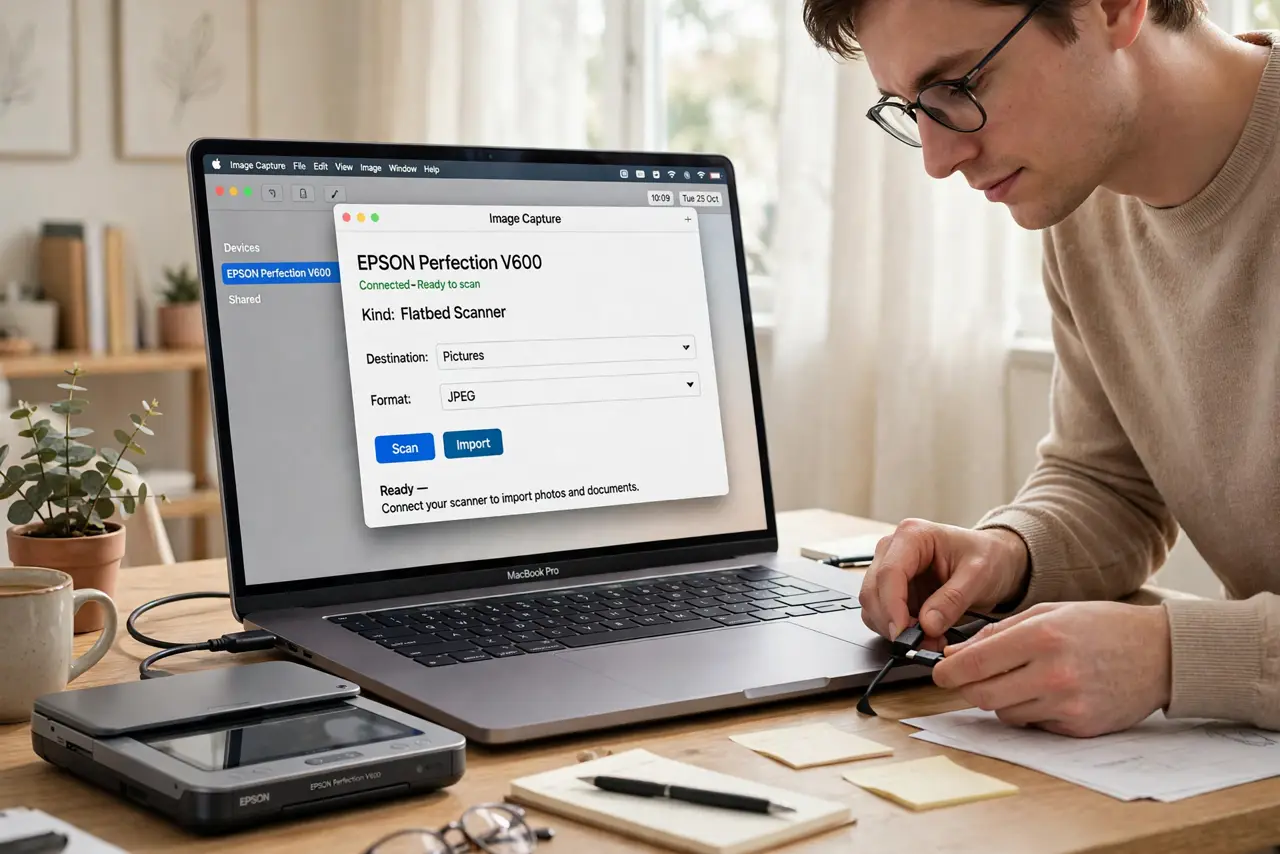
- Fix the not-found case. Try a different USB port and cable, restart both devices, and check the maker's site for a Mac driver. Some older scanners need the maker's software where newer ones do not.
- Scan wirelessly once set up. After the first successful scan, network scanners stay available. You can scan from anywhere in the house — the scanner just needs power and Wi-Fi.
What NOT to do
- Do not install sketchy driver packs. Get drivers from the scanner maker's official site only — driver aggregators bundle junk.
- Do not scan at maximum resolution by default. Huge files for text documents waste space; 300 dpi is plenty for documents.
- Do not leave the scanner lid up in bright light. It washes out scans and confuses auto-crop.
- Do not assume wireless scanners never need USB. The first setup often goes smoother over USB before switching to Wi-Fi.
Frequently asked questions
Why doesn't my Mac see the scanner?
Wrong network, missing maker driver, or a bad cable. Work through those three in order — they cover nearly every case.
Can I scan to PDF directly?
Yes — both Preview and Image Capture offer PDF as a format. Multi-page documents become one PDF automatically.
Do I need the maker's scanning software?
Usually not. macOS built-in scanning covers most needs; maker software adds extras like OCR on some models.