Fix Mac Screen Recordings With No Sound
A screen recording with no sound usually means the recording captured video only, because no microphone was selected. macOS screen recording does not record sound by default unless you choose a microphone. Check Options before you record again.
TL;DR / Quick Fix
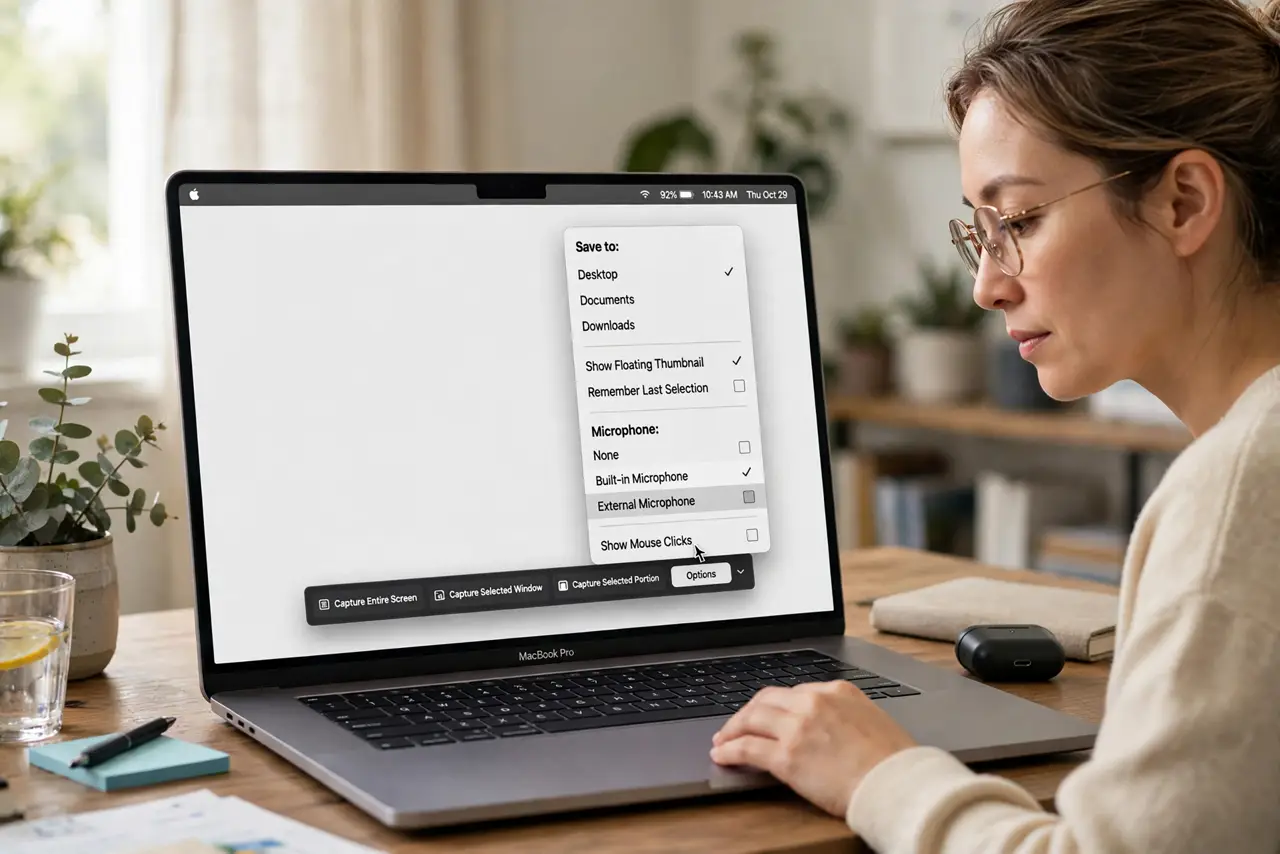
Quick fix: press Shift, Command, and 5, click Options, and select your microphone under Microphone. Then check the input volume in Sound settings, record a ten-second test clip, and play it back before recording anything important, and re-record if the test is silent.
Follow these steps
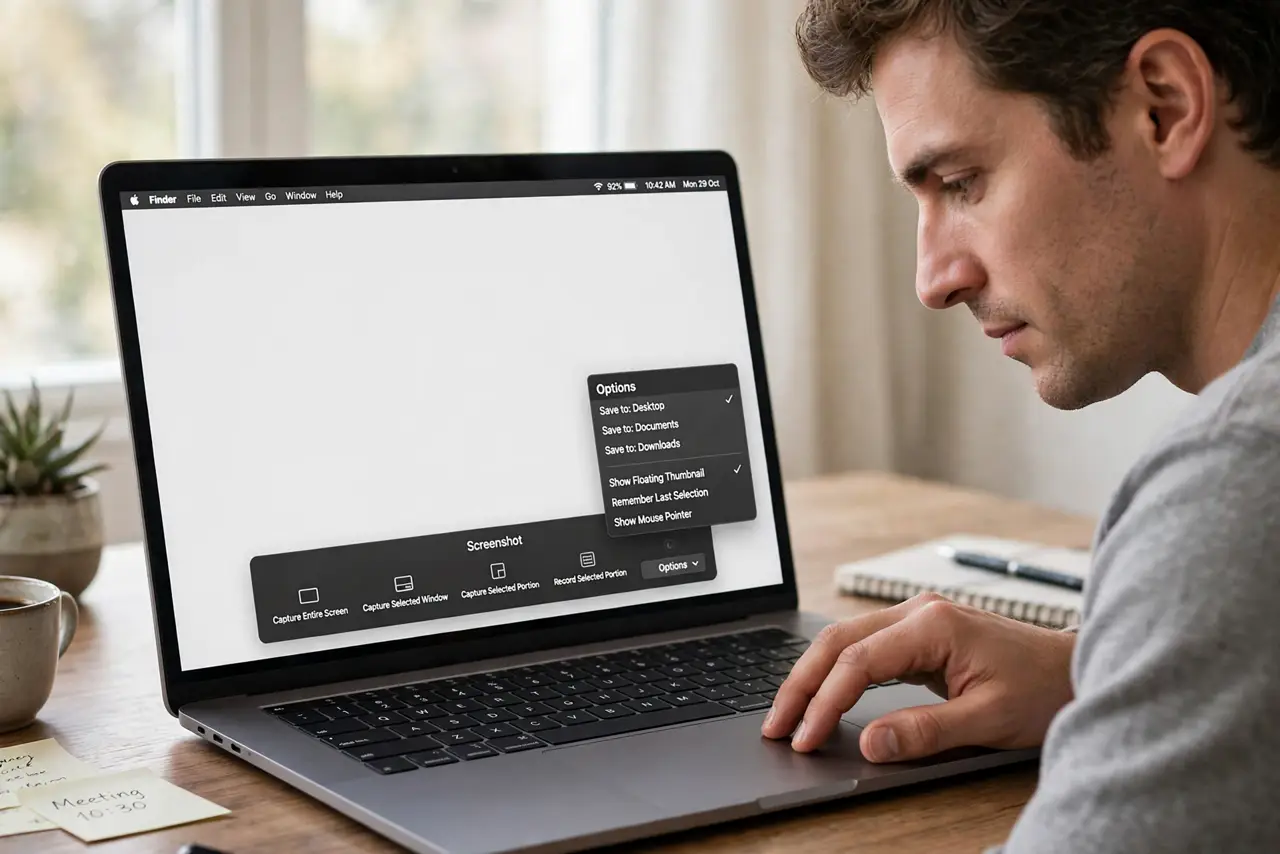
- Open Screenshot Options. Press Shift, Command, and 5, then click Options in the toolbar. This is where screen recording audio is controlled, not in the video app.
- Select a microphone. Under Microphone in Options, choose Built-in Microphone or your external microphone. If None is selected, the recording will have no sound at all.
- Check input volume. Open System Settings, then Sound, then Input, select the same microphone, and raise Input volume while speaking. The level meter should move as you speak.
- Record a ten-second test. Record a short clip while speaking, then play it back. A test clip confirms audio works before you record a long tutorial or meeting.
- Check the playback app volume. If the test clip is silent, check the playback volume and mute status in the player. A muted player can look like a recording with no sound.
- Re-record with the microphone selected. If an earlier recording has no sound, you cannot add its original audio back. Re-record it with the microphone selected, using your notes or script.
What NOT to do
- Do not assume the recording is broken. A silent recording with None selected as microphone is expected behavior, not a fault.
- Do not record a long video before testing audio. A ten-second test saves you from a long silent recording you must redo.
- Do not set input volume to maximum. Maximum volume distorts and picks up room noise, so aim for the middle of the meter.
- Do not expect system audio in a basic recording. The microphone option records your voice, and system audio needs a different setup depending on the app.
Frequently asked questions
Why does my screen recording have no sound?
No microphone was selected in Screenshot Options, so macOS recorded video only. Select a microphone before recording.
Can I add sound to a silent recording afterwards?
You cannot recover audio that was never recorded. Re-record with a microphone selected, or add a separate voiceover afterwards.
Does the microphone record system audio?
No, it records sound through the microphone, like your voice. System audio from apps needs a separate audio setup.