Screen Time Downtime Blocks a Work App? Fix It
When Screen Time downtime blocks a work app, you open a tool you need and meet a limits screen instead, right in the middle of a workday. Downtime blocks all apps except those you allow, so the fix is to allow the work app, or adjust the schedule, rather than turning Screen Time off entirely.
TL;DR / Quick Fix
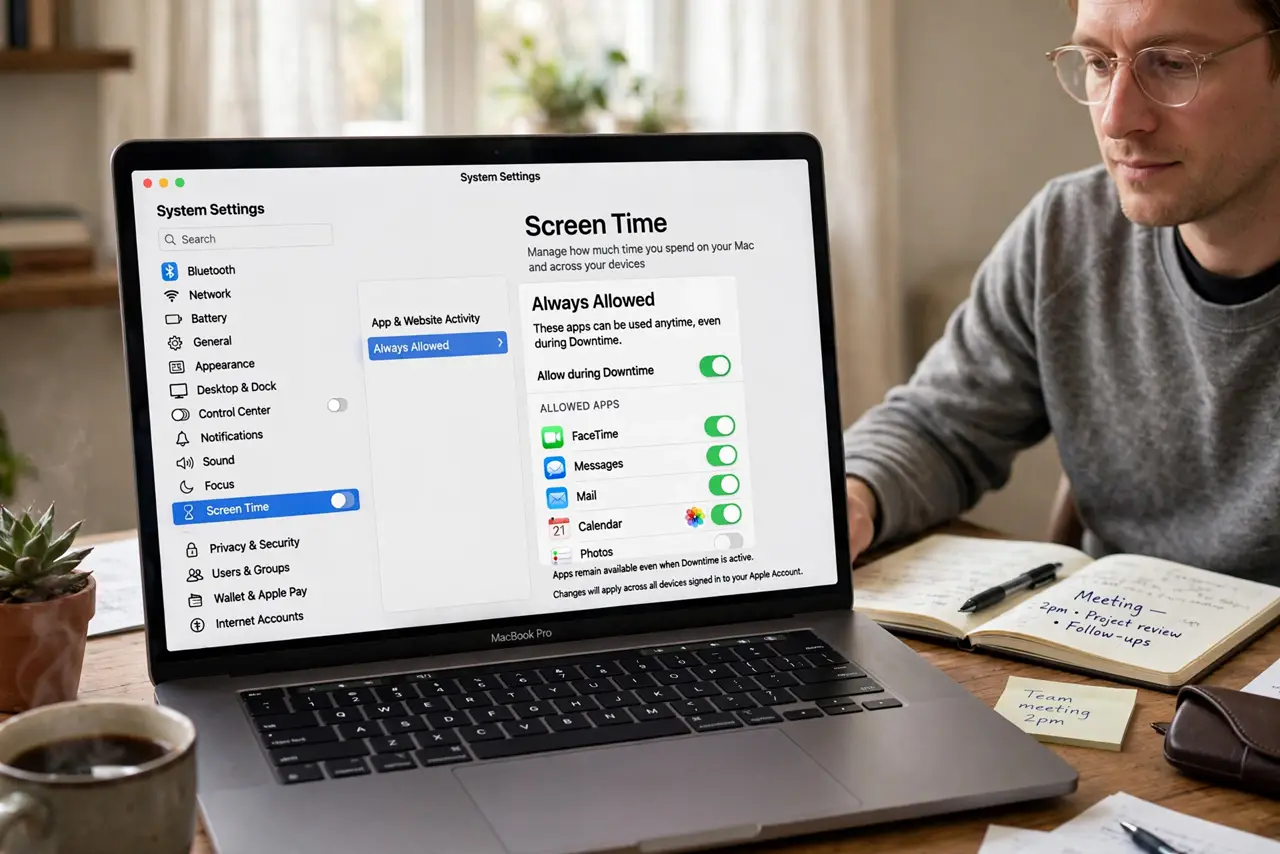
Quick fix: open System Settings, then Screen Time, then App Limits or Downtime, and add the work app to the Always Allowed list. Then try the app again during downtime: it should open normally during downtime, while other apps stay limited.
Follow these steps
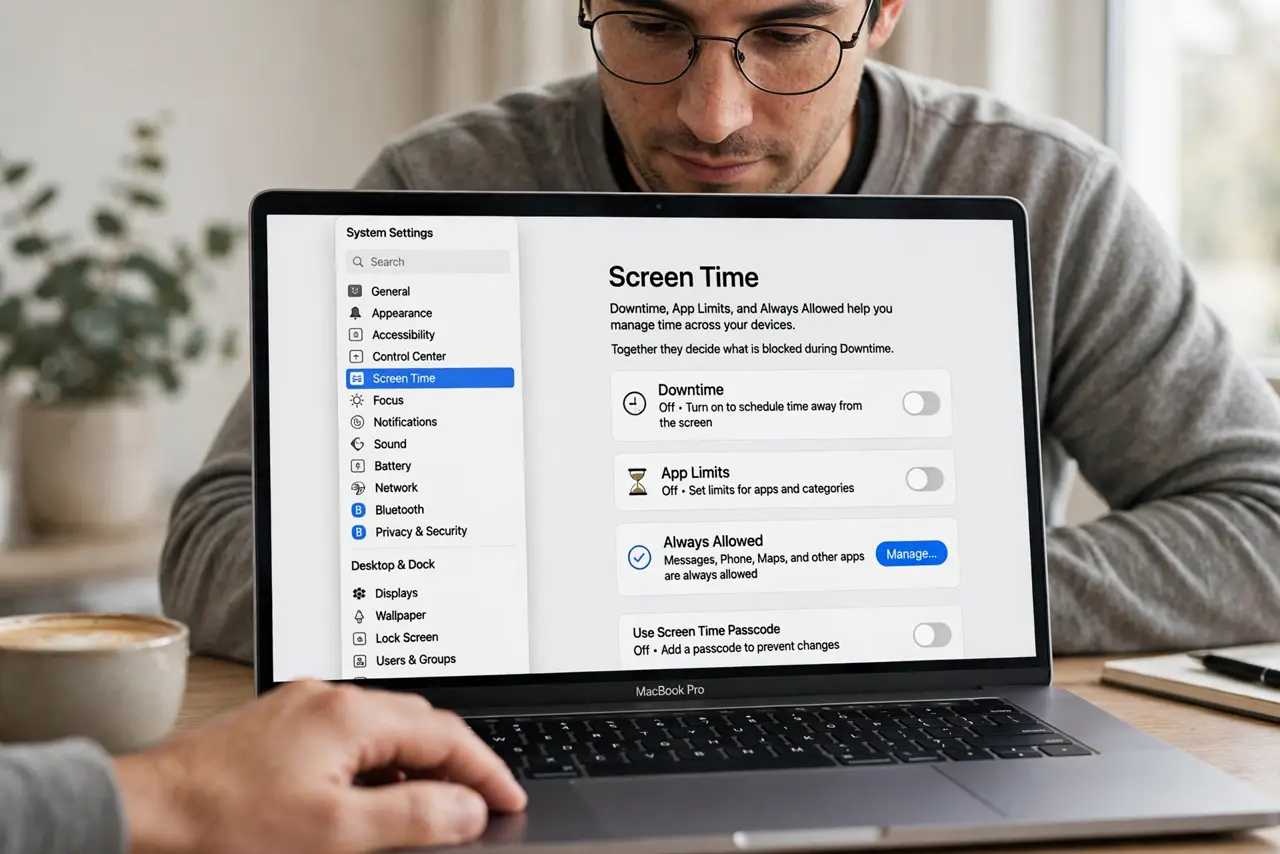
- Open Screen Time settings. Open System Settings, then Screen Time. This page holds Downtime, App Limits, and Always Allowed, which together decide what downtime blocks.
- Add the work app to Always Allowed. Open Always Allowed and add the work app to the list. Apps on this list stay available during downtime, even when other apps are blocked.
- Check the Downtime schedule. Open Downtime and confirm the schedule matches your intention. A schedule that starts too early, or runs too long, will block work apps for hours you did not mean to limit.
- Check App Limits for the same app. Open App Limits and check whether the work app has its own limit as well. An app limit can block the app even after you allow it during downtime, so adjust or remove that limit too.
- Test the app during downtime. Wait for downtime, or turn it on briefly for a test, and open the work app. If it opens normally, the fix worked. If it still blocks, check for a second limit or a different account.
- Check that you changed the right account. If the Mac has multiple accounts, confirm you changed Screen Time on the account that actually uses the work app. Screen Time settings are per account, not per computer.
What NOT to do
- Do not turn off Screen Time entirely because one work app is blocked. Turning it off removes every limit, while Always Allowed fixes just the one app you need.
- Do not allow every app during downtime to fix one block. Allowing everything defeats downtime, so allow only the work apps you genuinely need.
- Do not ask someone else for their Screen Time passcode to bypass a block. If you manage the Mac, change the setting yourself. If someone else manages it, ask them to allow the work app.
- Do not set downtime to cover the whole day and then fight it constantly. A schedule that blocks work hours is a schedule problem, not an app problem, so fix the hours.
Frequently asked questions
Why is my work app blocked during downtime?
Because downtime blocks all apps except those on the Always Allowed list. Adding the work app there is the direct fix.
What is the difference between Downtime and App Limits?
Downtime blocks apps during scheduled hours, except Always Allowed apps. App Limits cap total use per day, regardless of the hour.
Will allowing an app during downtime remove its daily limit?
No. An app can be allowed during downtime and still hit its own App Limit. Check both settings if the app still blocks.