Screen Time Limits for Kids? Setup
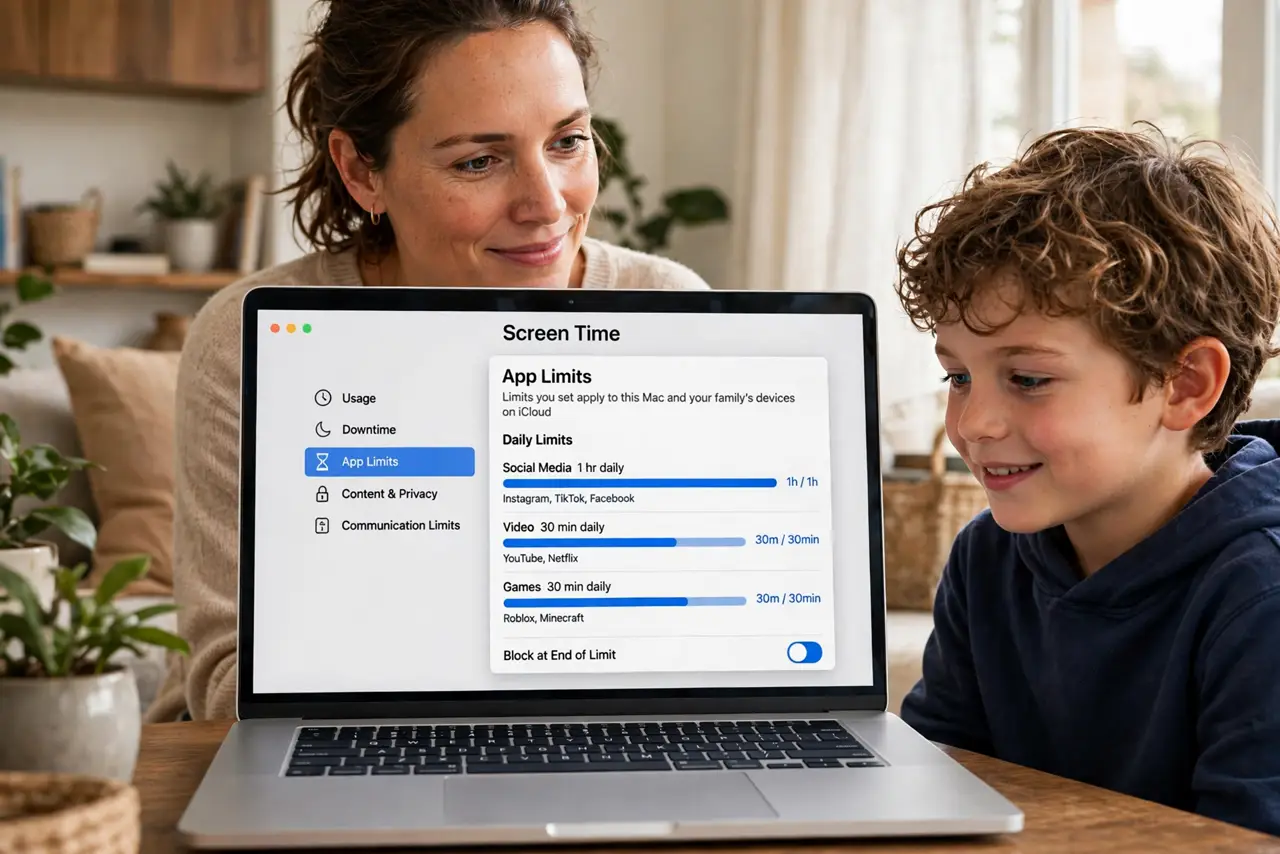
The kid's Mac time creeps from homework to midnight YouTube, and 'just five more minutes' never ends. Screen Time turns vague rules into enforced ones — app limits, bedtime downtime, and content filters — all managed from your own device. Set it once, adjust as they grow.
TL;DR / Quick Fix
Quick fix: create a child account or add your kid to Family Sharing, then open System Settings, Screen Time, and set app limits, downtime, and content restrictions. Use a Screen Time passcode so the limits cannot be changed. Review the weekly report together and adjust as they grow.
Follow these steps
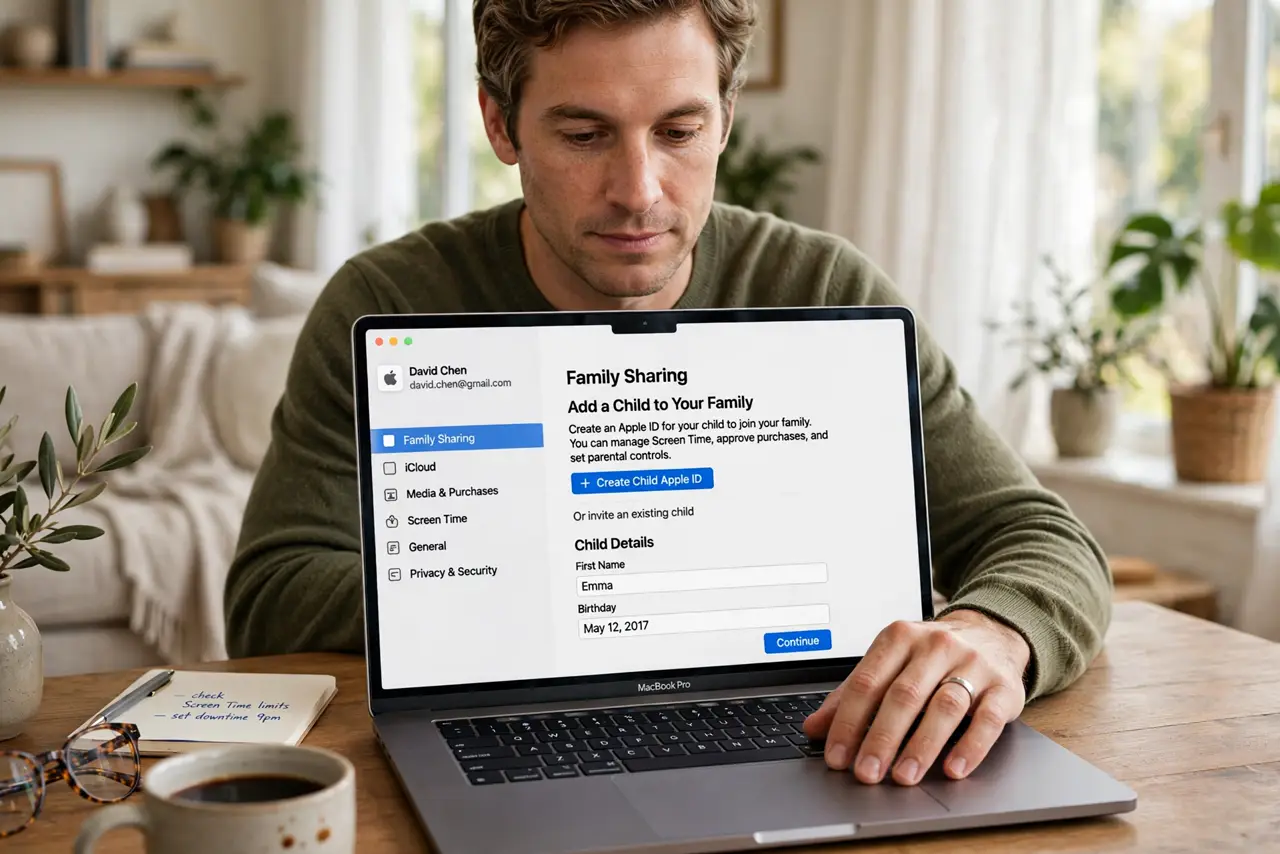
- Add the child properly first. Create a child Apple ID or invite them through Family Sharing. Screen Time manages their account — it needs the account to exist.
- Open Screen Time settings. In System Settings, go to Screen Time and select the child's account. Everything below applies to them, not to you.
- Set a Screen Time passcode. This four-digit code locks the settings. Without it, limits are suggestions — kids find the settings panel fast.
- Configure downtime for bedtime. Schedule hours when only allowed apps work — typically overnight. The Mac enforces it; you stop being the bad guy.
- Add app limits for the big time-sinks. Cap games, video, and social apps by category or individually. Warnings appear before time runs out, so endings are not abrupt.
- Set content restrictions by age. Limit web content, app store age ratings, and media. Review the weekly activity report together and adjust as they mature.
What NOT to do
- Do not set limits without telling the kid why. Secret restrictions feel like punishment; explained ones feel like parenting.
- Do not skip the passcode. Every kid eventually finds Screen Time settings — the passcode is the whole enforcement mechanism.
- Do not set it and forget it for years. A 9-year-old's limits do not fit a 14-year-old — review every few months.
- Do not rely on Screen Time alone for safety. It is a fence, not a guardian — conversations about online life matter more than any filter.
Frequently asked questions
Can kids bypass Screen Time?
Determined teens find ways — new accounts, time-zone tricks. The passcode and your Apple ID oversight close most holes; perfection is not the goal.
Does it work across iPhone and Mac?
Yes — with the child's Apple ID signed in, limits and reports sync across their Apple devices.
Will it block homework sites by accident?
Overly strict web filters sometimes do. Allowlist school sites explicitly, and check the blocked-content log when something legitimate breaks.