Screenshot Options? A Guide
macOS screenshots go far beyond Command-Shift-3: timed captures, window shots without shadows, clipboard copies, screen recordings, and a whole options panel most people never open. The toolbar (Command-Shift-5) is mission control, and the options inside decide where shots go and how they behave. This is the complete tour.
TL;DR / Quick Fix
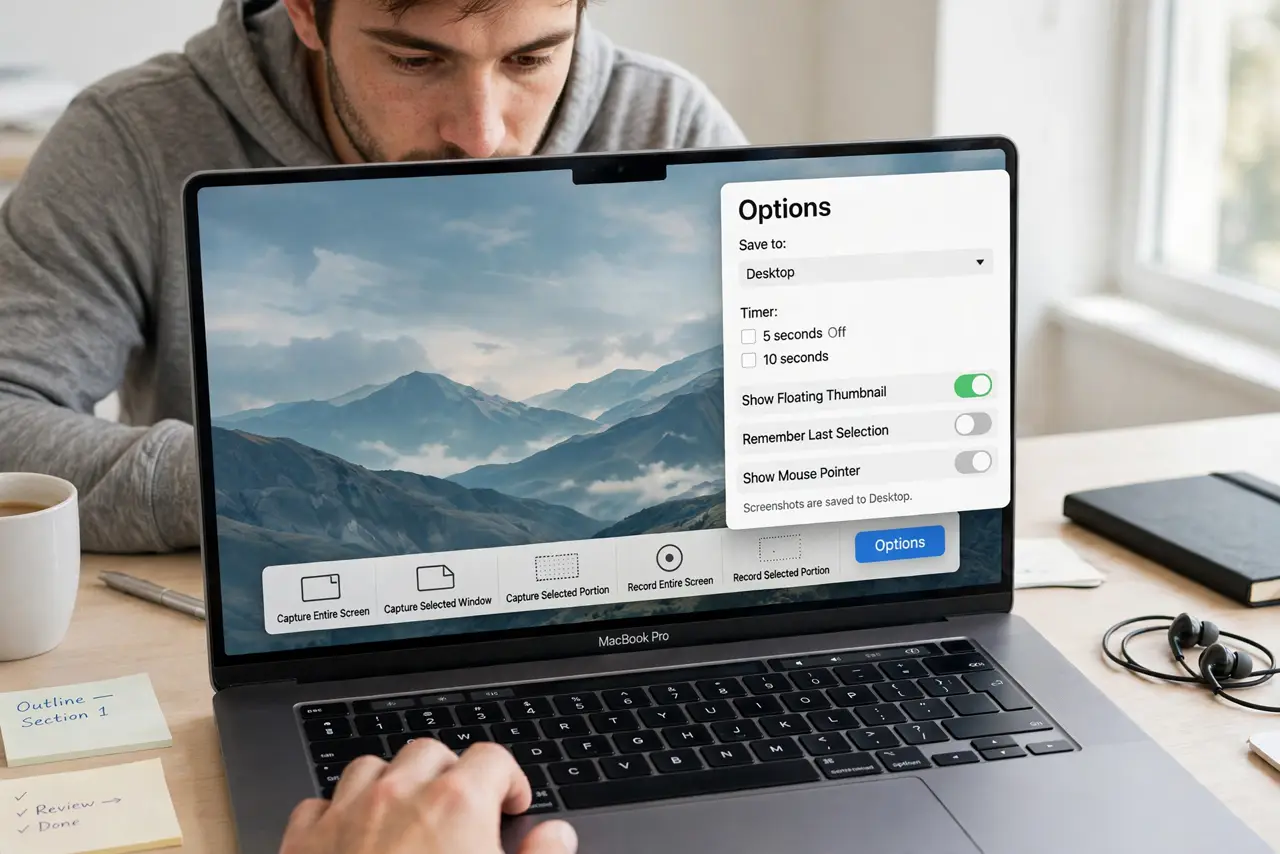
Quick fix: press Command-Shift-5 for the screenshot toolbar with all capture modes and options. Set where screenshots save in the Options menu, including timed captures. Screenshots save to the desktop by default; change it before the clutter builds up around your work.
Follow these steps
- Open the toolbar: Command-Shift-5. This one shortcut reveals capture entire screen, capture window, capture selection, record screen, and record selection — plus the Options menu. Everything lives here.
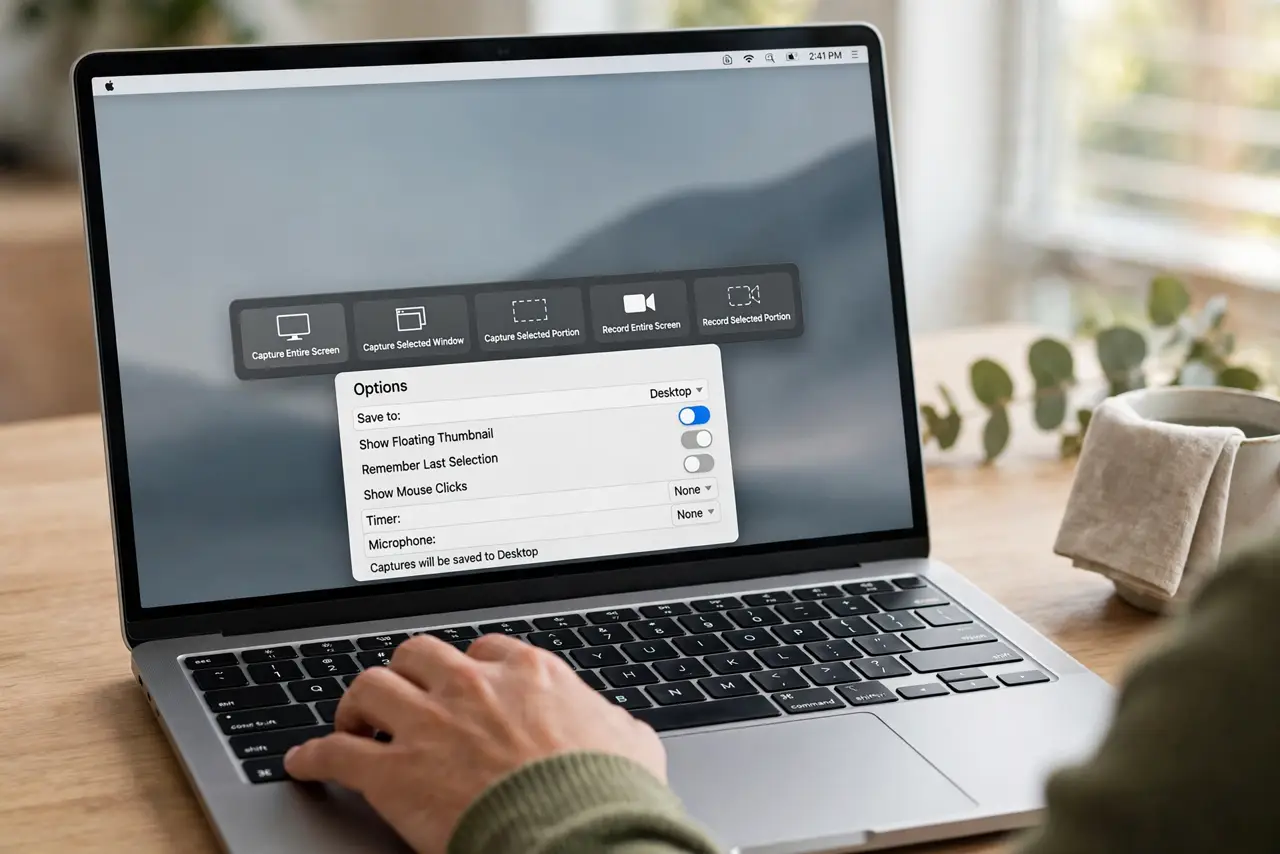
- Set your save location in Options. The Options menu chooses where screenshots land: Desktop, Documents, Clipboard, or a folder you pick. Choose once and stop the desktop pileup.
- Capture a window cleanly. Command-Shift-4, then Space, then click a window — you get the window with a shadow. Hold Option while clicking to drop the shadow for a cleaner shot.
- Copy to clipboard instead of saving. Hold Control with any screenshot shortcut to send the shot to the clipboard instead of a file. Paste it straight into a message — the clipboard vs file guide explains when each is right.
- Use the timer for tricky captures. The Options menu offers 5- and 10-second delays. Set it, click Capture, then open the menu or hover state you wanted to photograph — see the timer walkthrough for the technique.
- Record the screen when a still is not enough. The toolbar's record buttons capture video with optional microphone audio. For narrated how-tos it beats a dozen annotated screenshots.
What NOT to do
- Do not let screenshots pile on the desktop for months. Set a save folder or clipboard default on day one — future you will not organize three hundred files.
- Do not screenshot sensitive info carelessly. Screenshots of passwords, codes, and documents live in your files and cloud — treat them like the secrets they show.
- Do not forget the microphone is off by default in recordings. Narrate a whole tutorial to silence, then discover the Options mic setting — check before recording.
- Do not use screenshots for text you need to edit. A picture of text is not text — copy the actual text instead of photographing it.
Frequently asked questions
Where did my screenshot go?
Check the save location in the Options menu — it may be set to Clipboard (nothing saved) or a folder you forgot. The default is Desktop.
Can I change the file format?
Yes via Terminal, but PNG is the sensible default — crisp and universal. JPG saves space for photos of screens; for UI captures, stay with PNG.
Why is there no shadow on my window shot?
You held Option while clicking, which drops the shadow. Without Option, the shadow appears — it is a feature, not a bug.