Mac Screenshots Land in the Wrong Folder
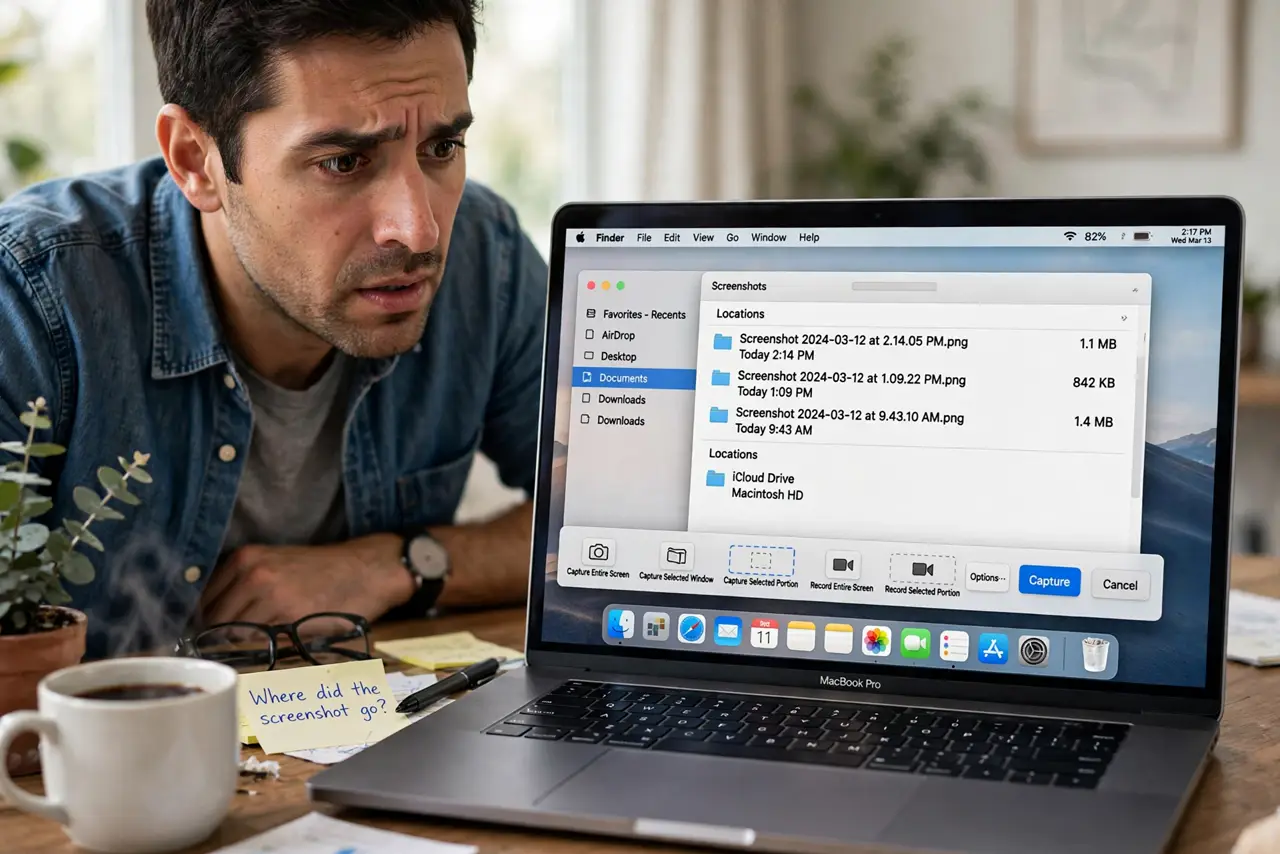
Your screenshots keep landing somewhere unexpected — a random folder, the clipboard, or nowhere you can find. macOS remembers a screenshot location per tool, and the Screenshot app's options silently decide the destination. This guide sets one predictable home for every screenshot.
TL;DR / Quick Fix
Quick fix: press Shift + Command + 5, open Options, and set 'Save to' to your chosen folder — one fixed location for every screenshot. Check whether the destination is the clipboard instead, which saves no file at all. Take a test shot to confirm.
Follow these steps
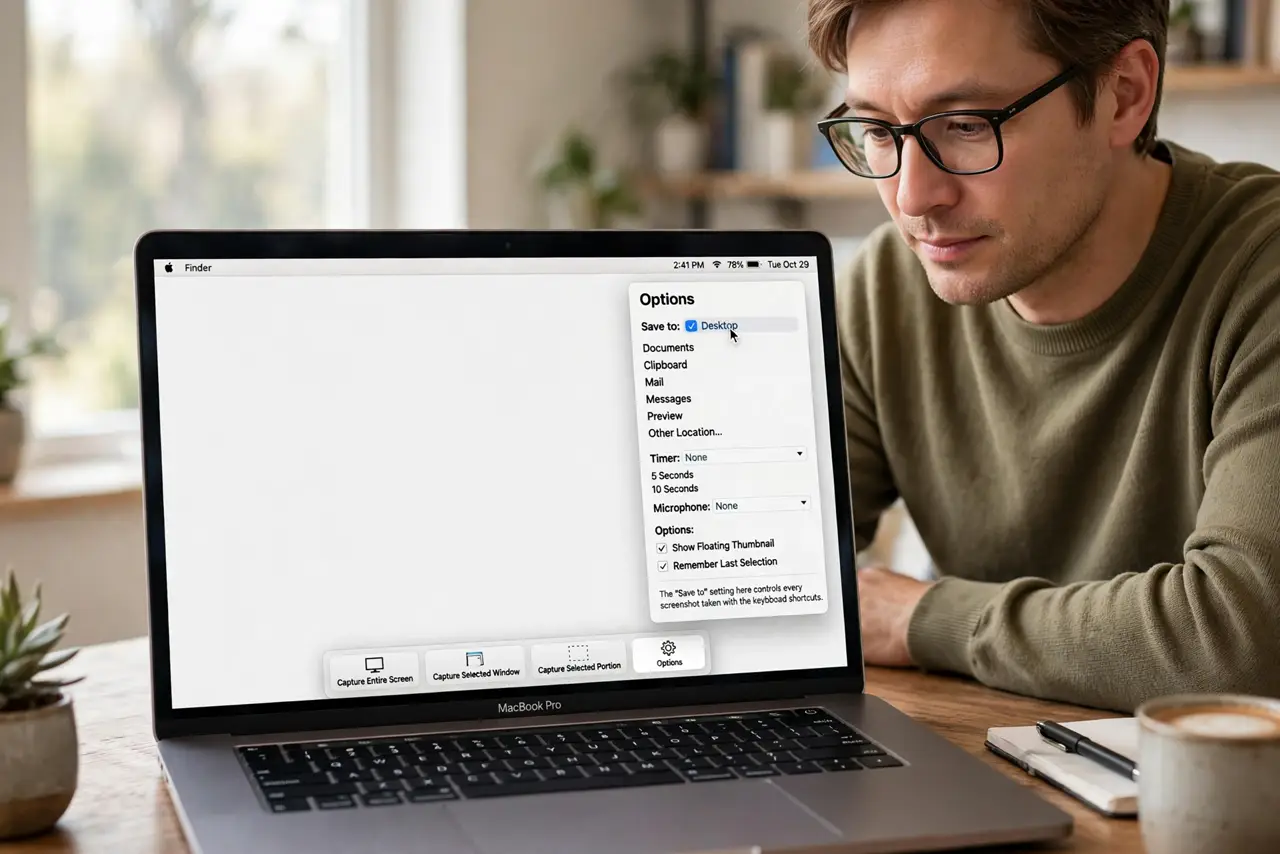
- Open the Screenshot options. Press Shift + Command + 5 to open the Screenshot toolbar, then click Options. The 'Save to' setting here controls every screenshot taken with the keyboard shortcuts.
- Set one save location. Choose Desktop, Documents, or a dedicated Screenshots folder under 'Save to.' One fixed location beats hunting through folders after every capture.
- Check the clipboard setting. In the same Options menu, see whether 'Clipboard' is selected. Screenshots sent to the clipboard instead of a file never create a file at all.
- Check third-party screenshot tools. If you installed a screenshot or annotation app, it may have claimed the shortcuts. Check its settings for its own save location.
- Look in the obvious places first. Search Finder for recent images by date, and check Desktop, Documents, and Downloads. The 'wrong' folder is often just the last one you chose.
- Reset with a test screenshot. Take one test screenshot after changing the setting and watch where it lands. One controlled test beats ten confused searches.
What NOT to do
- Do not save screenshots to a cloud-synced folder you share. Every screenshot uploads instantly and can surprise collaborators.
- Do not choose 'Clipboard' and expect files. Clipboard mode never saves a file — paste immediately or the capture is gone.
- Do not delete the Screenshots folder while it is selected. macOS then falls back to the Desktop silently, restarting the confusion.
- Do not install a second screenshot tool to fix the location. Two tools fighting over shortcuts creates worse chaos than one misconfigured tool.
Frequently asked questions
How do I change where Mac screenshots save?
Press Shift + Command + 5, click Options, and set 'Save to' to your folder. All shortcut screenshots follow that setting.
Why are my screenshots not saving as files?
The destination is set to Clipboard. Change 'Save to' in the Screenshot options to a folder.
Can different screenshot types use different folders?
No. macOS uses one save location for all screenshots taken with the built-in shortcuts.