What's New in macOS
Apple announces a new macOS with a slick name, the keynote demos look magical, and then you update and cannot find half of what they showed. Some features need newer Macs, some arrive in later point releases, and some are US-only at launch. This guide helps you sort the real highlights from the stage demos, check what your Mac actually supports, and update without the day-one regret. It pairs well with the Apple Silicon guide if your Mac is older.
TL;DR / Quick Fix
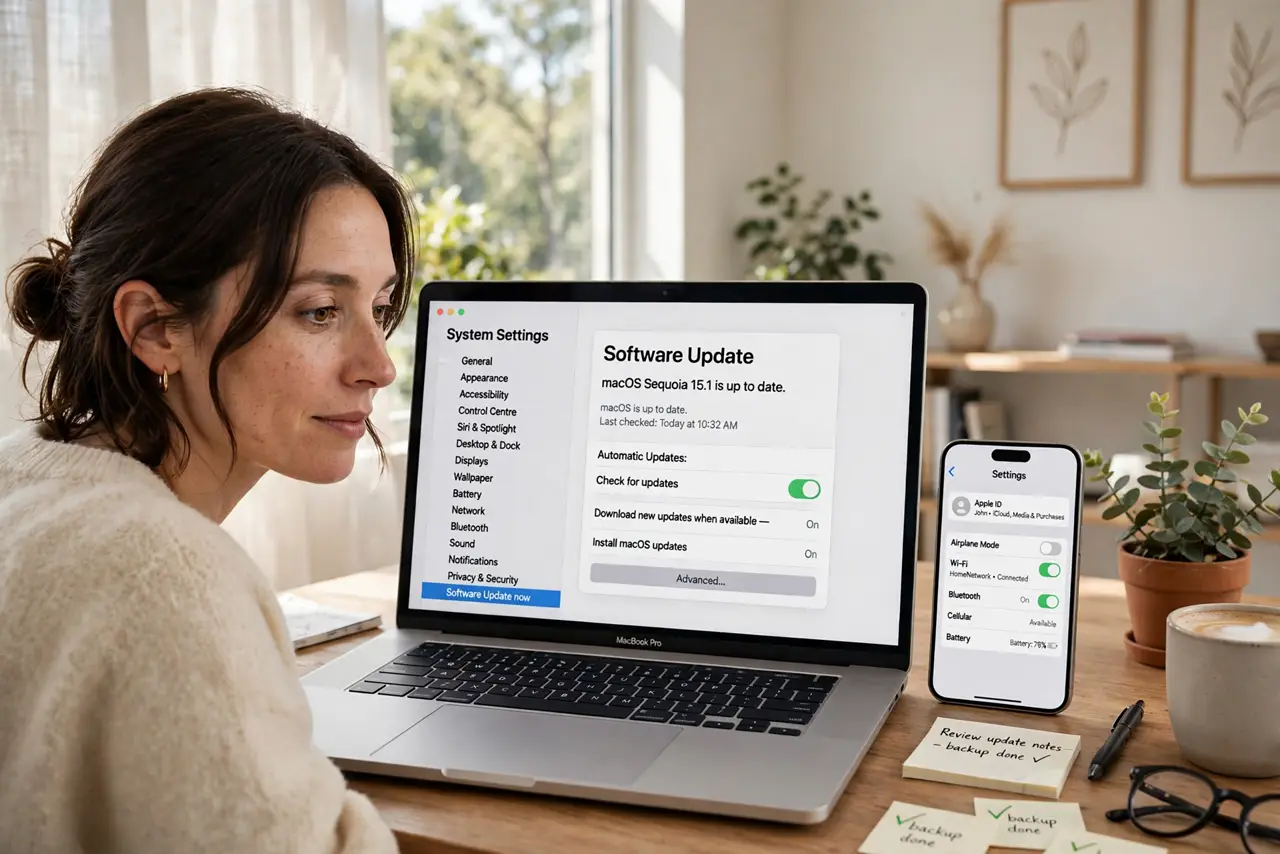
Quick fix: check the official macOS highlights page, back up with Time Machine, then install the update overnight. Big releases stagger new features over weeks, so do not panic if something is missing on day one. Most Macs finish installing in under an hour.
Follow these steps
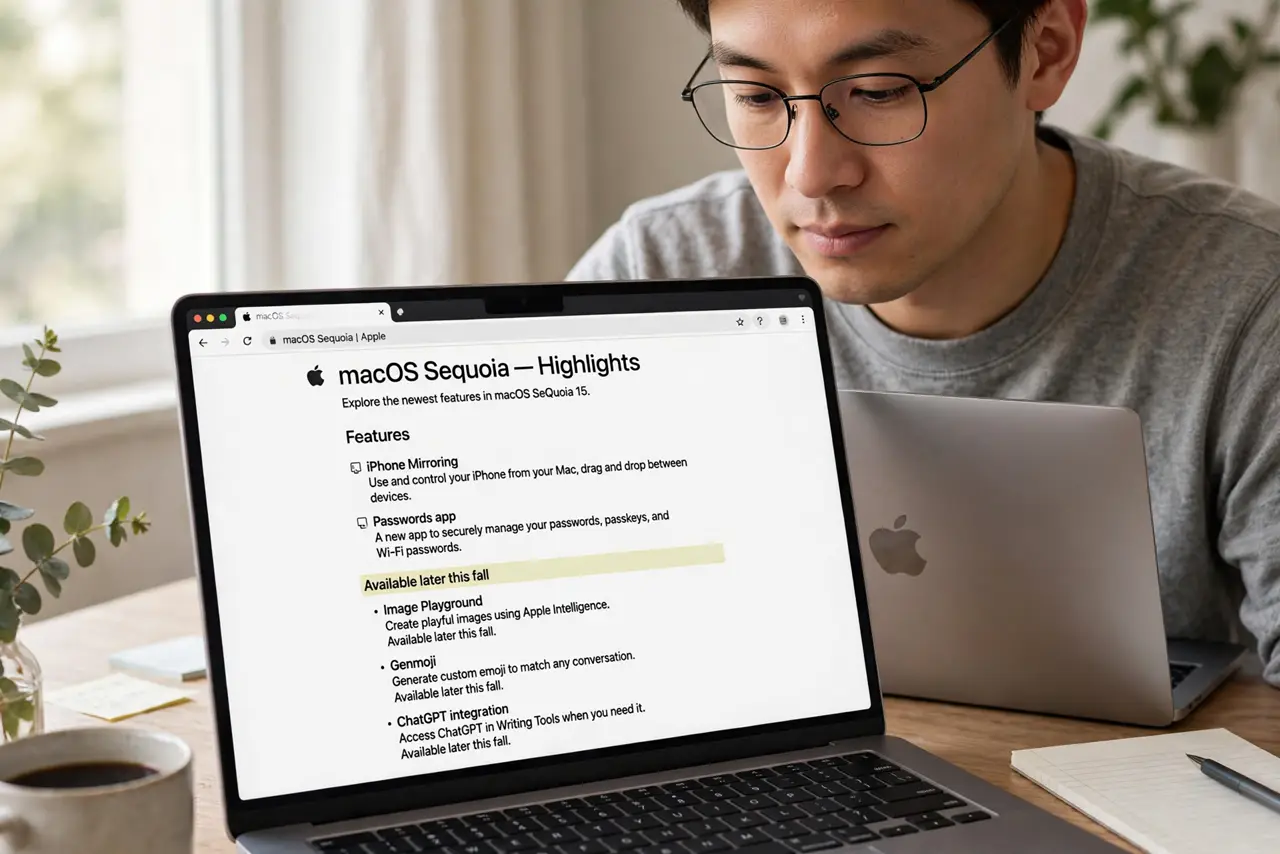
- Read Apple's highlights page for the release. Apple publishes a feature list per macOS version. Skim it for the words 'available later this fall' — those are the features you will not see on day one.
- Check the feature requirements footnotes. Continuity features and AI tools often need Apple Silicon or a specific iPhone. The tiny footnote text tells you whether your Mac qualifies before you get excited.
- Back up with Time Machine. Plug in your backup drive and run a fresh backup right before updating. If the update misbehaves, this backup is your way back.
- Install overnight or during downtime. Big macOS upgrades download several gigabytes and restart multiple times. Start the install when you are done working, and let it finish undisturbed.
- Verify the headline features after install. Once updated, open System Settings and look for the new items — some need to be turned on manually, and a few only appear after a second restart.
- Update your apps next. Old apps can glitch on a new macOS. Open the App Store and update everything; for critical work apps, check the developer's site for a compatibility note first.
What NOT to do
- Do not update the morning of an important deadline. Even smooth updates steal an hour you might need.
- Do not assume every keynote demo ships on day one. Apple routinely holds features for later point releases.
- Do not skip the Time Machine backup. Downgrading macOS without a backup is painful and sometimes impossible.
- Do not install on a nearly full drive. macOS needs generous free space to unpack and install — clear room first.
Frequently asked questions
Why is a promised feature missing after I updated?
It may need newer hardware, a later point release, or manual enabling in Settings. Check the footnotes on Apple's highlights page.
How long does a macOS upgrade take?
Usually 30 to 60 minutes on Apple Silicon, longer on older Intel Macs, plus download time. Overnight is the stress-free option.
Can I go back to the previous macOS?
Only with a full Time Machine backup and a reinstall — Apple does not offer a simple undo button. This is why the backup matters.