Share One Printer with Every Mac
The printer is plugged into one Mac, and everyone else in the house has to email files to that Mac to print — ridiculous in a networked home. macOS can share that printer with every Mac on the network in about a minute. One toggle, and the printer appears in everyone's print dialog as if it were plugged into their own machine.
TL;DR / Quick Fix
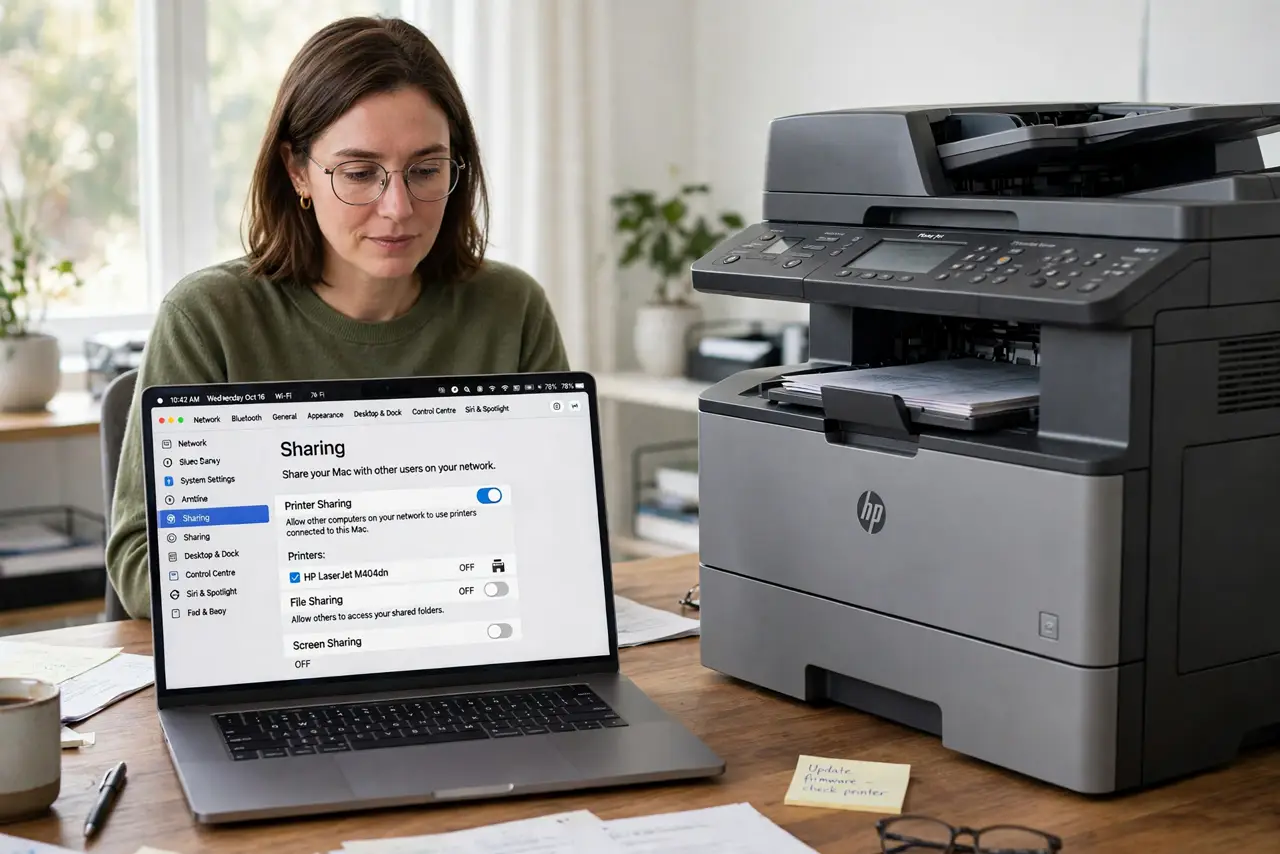
Quick fix: on the Mac with the printer, open System Settings, go to General, then Sharing, and turn on Printer Sharing — select which printers to share. Other Macs on the same network will see the printer automatically in any print dialog.
Follow these steps
- Open Sharing settings on the host Mac. On the Mac physically connected to the printer: System Settings, General, Sharing. Printer Sharing is one toggle in this pane.
- Turn on Printer Sharing. Enable it and choose which printers to share — you can share all of them or just one. Everyone on the network gets access; restrict per-user only if needed.
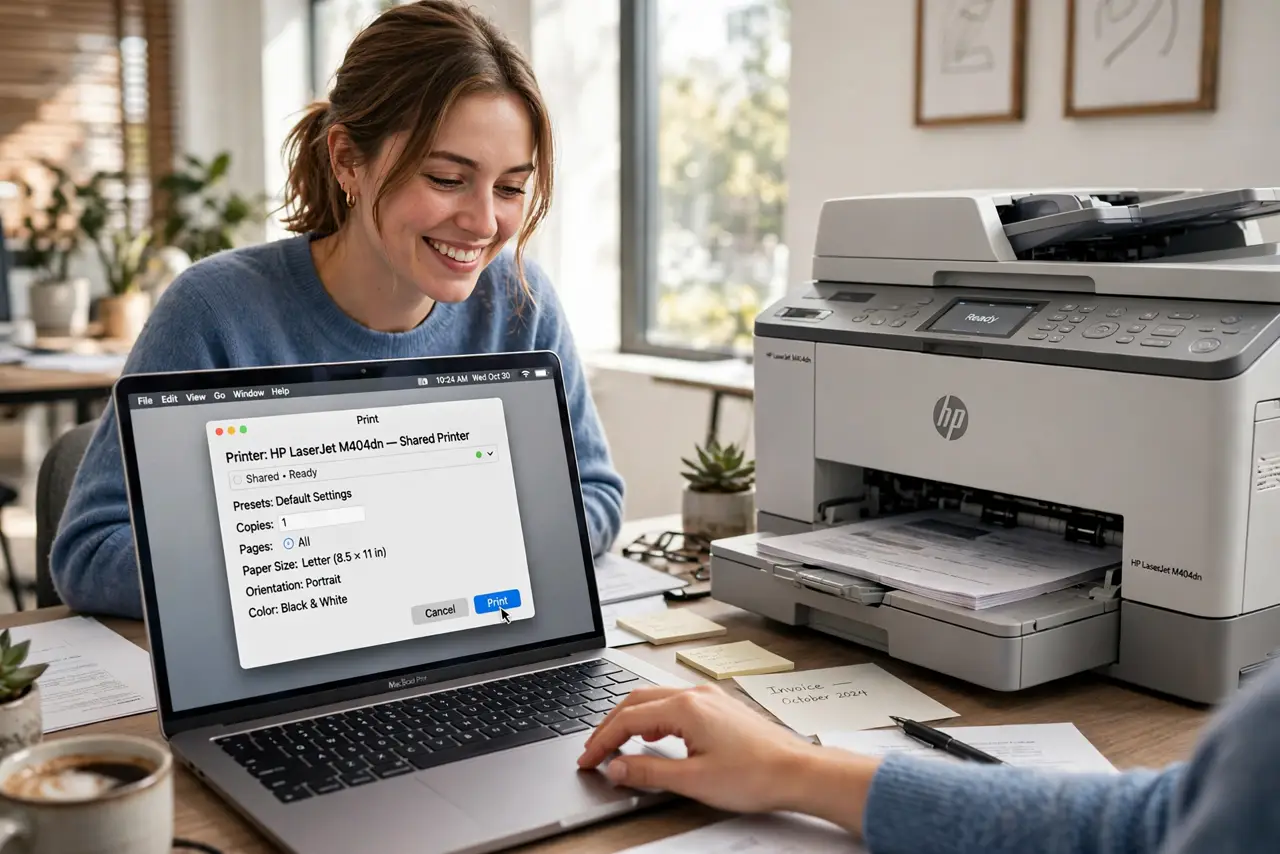
- Print from another Mac. On any other Mac on the same network, open any print dialog — the shared printer appears in the printer list automatically. Select it once and it stays the default choice.
- Check both Macs are on the same network. Sharing does not cross networks — a Mac on the guest Wi-Fi will not see the host's printer. Same network, same visibility.
- Wake the host Mac. The host Mac must be awake to serve print jobs — a sleeping host means a stalled queue. Set it to not sleep, or wake it before printing.
- Troubleshoot a missing printer. If the printer does not appear, restart both Macs' print systems and re-share. A printer that went offline after sleep on the host will not share until it reconnects.
What NOT to do
- Do not share over public Wi-Fi. Printer sharing on a coffee shop network invites strangers to your printer — keep it to trusted networks.
- Do not forget the host must stay on. Sharing is not magic — the connected Mac is the print server, and servers need to be awake.
- Do not share a printer with driver problems. Fix printing locally first; sharing a broken printer just distributes the brokenness.
- Do not expose the printer to the whole building. On shared living networks, consider who else is on the same Wi-Fi.
Frequently asked questions
Can Windows PCs use the shared printer?
Yes, with extra configuration — Windows can print to Mac-shared printers via IPP, though setup is fussier than Mac-to-Mac.
Does the host Mac need special software?
No — Printer Sharing is built into macOS. The client Macs need nothing either; the printer simply appears.
Why do jobs stall sometimes?
Almost always the host Mac slept mid-job. Adjust its sleep settings or wake it before sending large jobs.